What Windows Diagnostic Data Really Means
Windows diagnostic data sounds technical and worrying, but the setting is simpler than it looks. It controls how much information about problems and usage Windows sends to Microsoft to fix bugs and improve the system. Understanding the levels lets you choose deliberately, instead of guessing.
TL;DR / Quick Fix
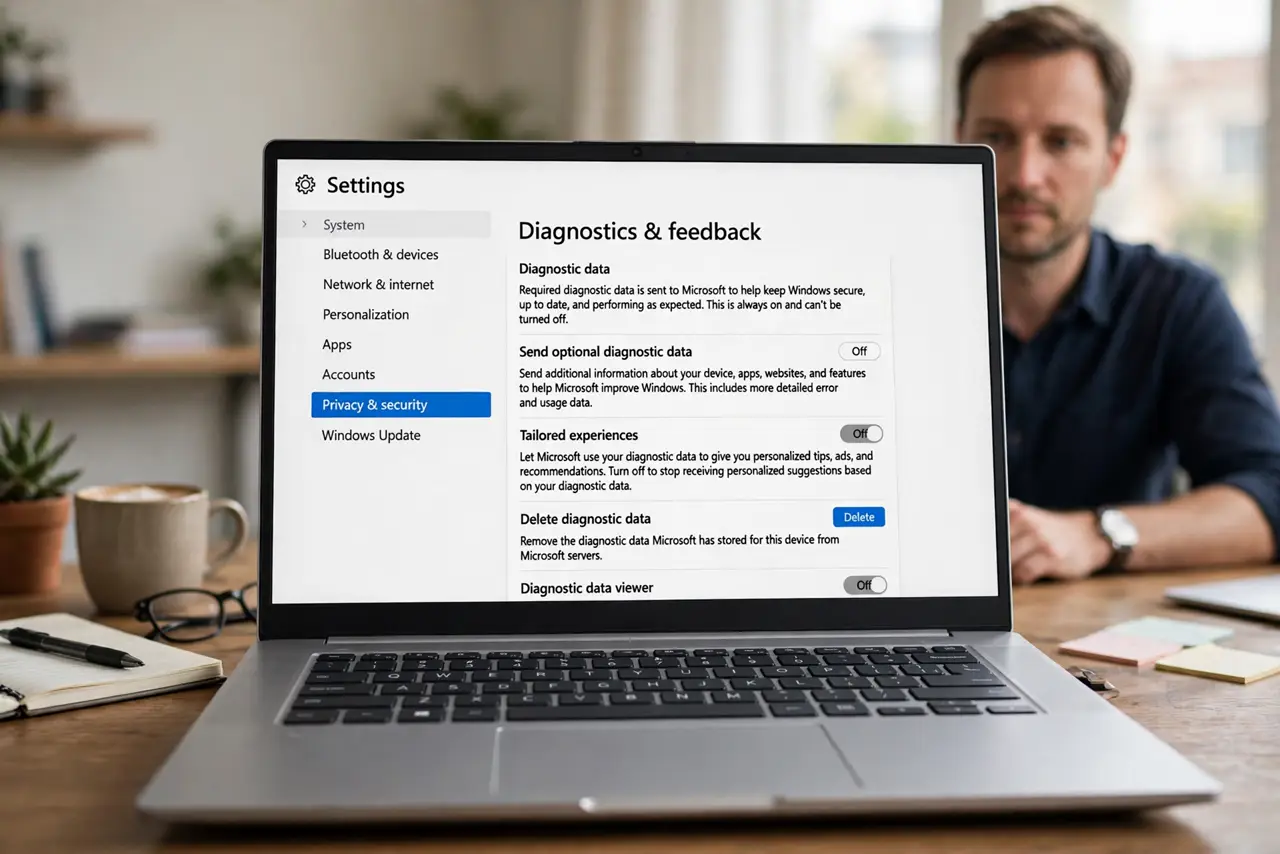
Quick fix: open Settings, then Privacy and security, then Diagnostics and feedback, and read the level currently selected. Choose Required diagnostic data for the minimum, or Optional diagnostic data if you want to help improve Windows. Review the other options on the same page before you close it.
Follow these steps
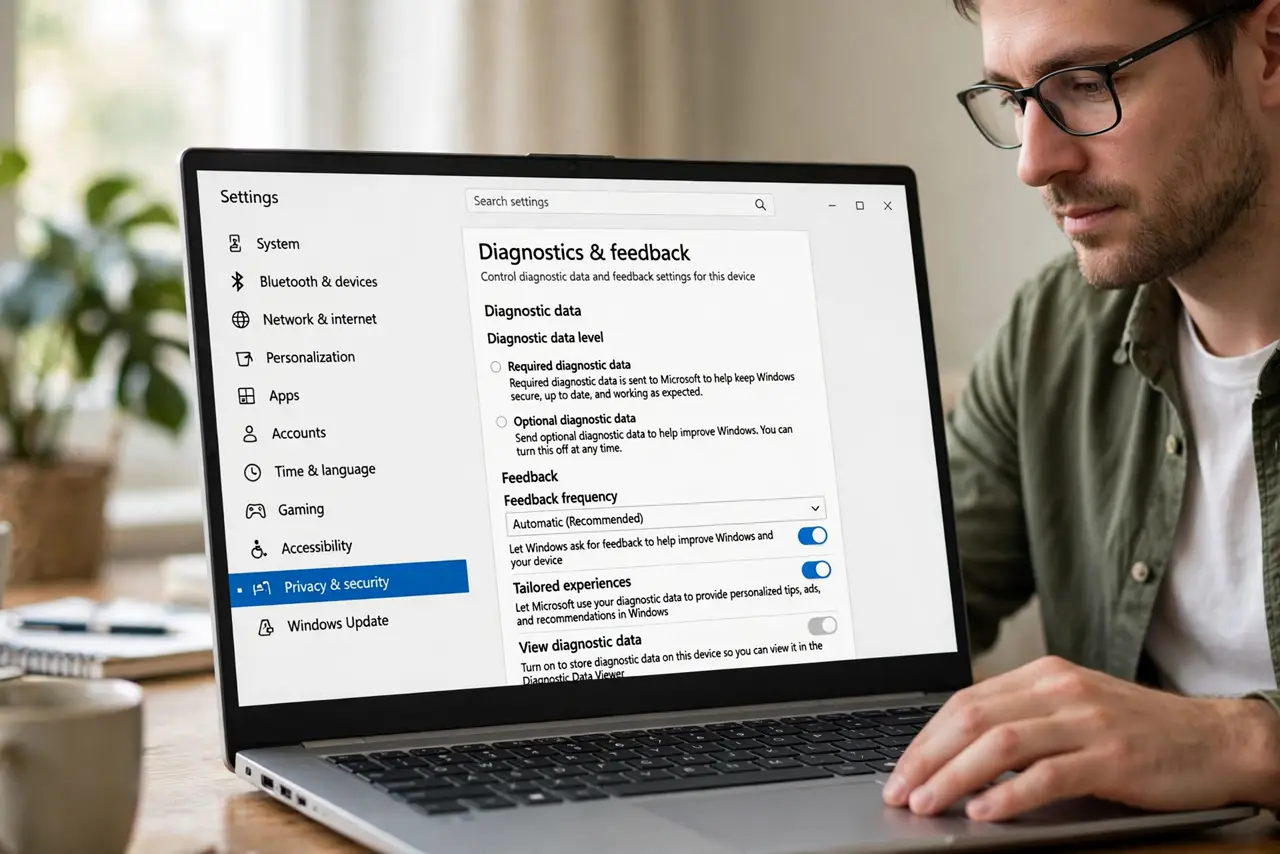
- Open Diagnostics and feedback. Open Settings, then Privacy and security, then Diagnostics and feedback. This page holds the diagnostic data level and the related feedback options.
- Read the level you have now. Check whether Required or Optional diagnostic data is selected. Required covers basic information needed to keep Windows secure and working, while Optional adds usage and feature information.
- Choose the level you are comfortable with. Select Required if you want the minimum, or Optional if you are comfortable sharing more to help improve Windows. Either choice keeps Windows working, so pick the one that matches your comfort.
- Review the feedback frequency. On the same page, check how often Windows asks for feedback. Set it to a frequency you tolerate, so feedback prompts do not surprise you.
- Check tailored experiences if listed. If the page offers tailored experiences, read what it does before you turn it on. It uses diagnostic data to personalize tips and recommendations, so it is a separate choice from the data level itself.
- Delete diagnostic data if you want a fresh start. Use the Delete diagnostic data option on the same page if you want past data removed. Then confirm your level is still the one you chose, because deleting data does not change the level.
What NOT to do
- Do not turn off all diagnostics by hunting for unofficial tools. Windows offers Required as the minimum, and unofficial tools can break updates and security fixes.
- Do not assume diagnostic data means Microsoft reads your documents. Diagnostic data covers system problems and usage patterns, not the contents of your personal files.
- Do not set Optional and forget what it means. Optional shares more than Required, so choose it deliberately, not because it was already selected.
- Do not change this setting to fix a slow computer. Diagnostic data has almost no effect on speed, so a slow computer needs a different fix, such as freeing space or checking startup apps.
Frequently asked questions
What is the difference between Required and Optional?
Required is the basic information Windows needs for security and reliability. Optional adds extra usage and feature information that helps Microsoft improve Windows.
Does diagnostic data include my passwords?
No. Diagnostic data is about system health and usage patterns. It is not designed to collect passwords or the contents of your documents.
Should everyone choose Required?
Not necessarily. Required is the minimum and a fine choice. Optional is also reasonable if you are comfortable sharing more to help improve Windows.