Identify Your Displays
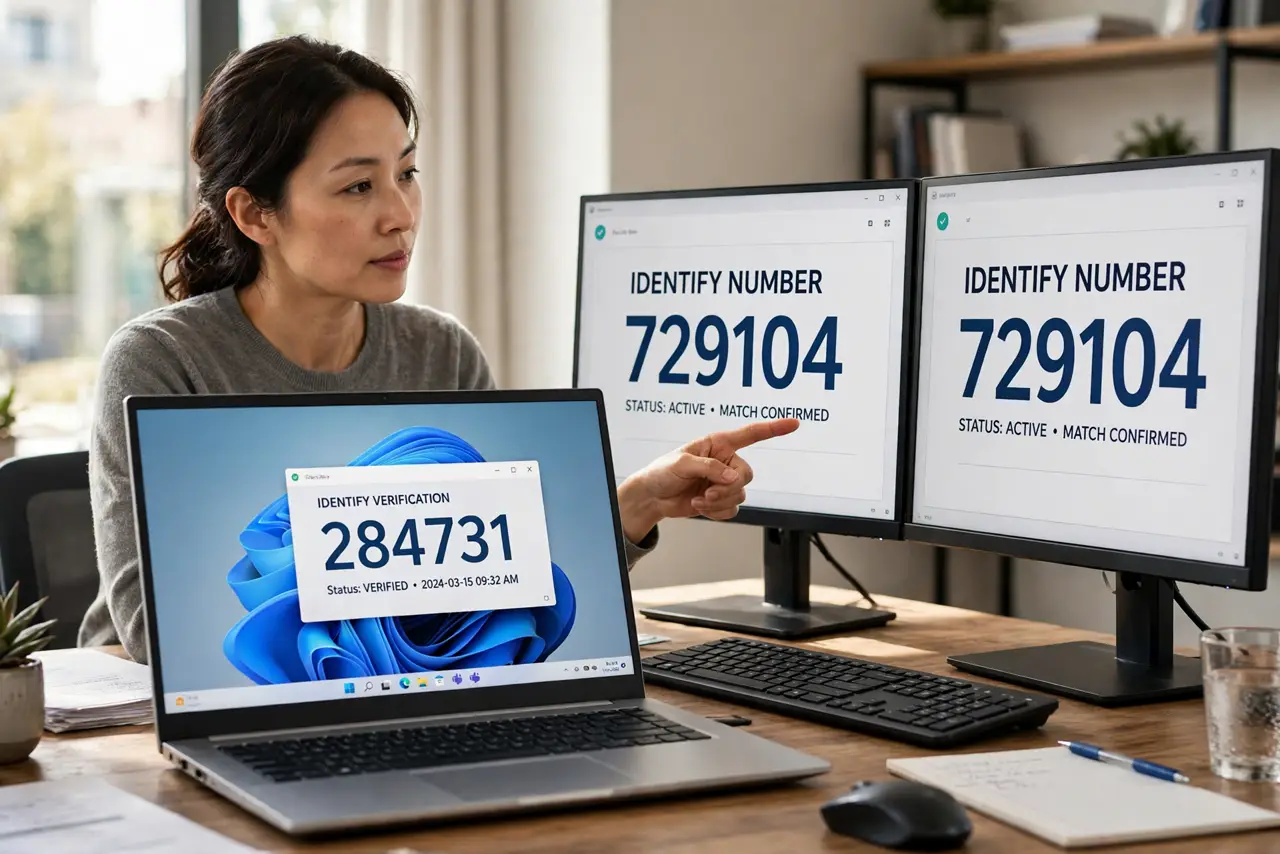
You drag a window right and it appears on the left monitor. Windows numbers your displays, but the numbers rarely match the physical order on your desk. The Identify button flashes a big number on each screen so you can arrange them correctly — thirty seconds, permanent sanity.
TL;DR / Quick Fix
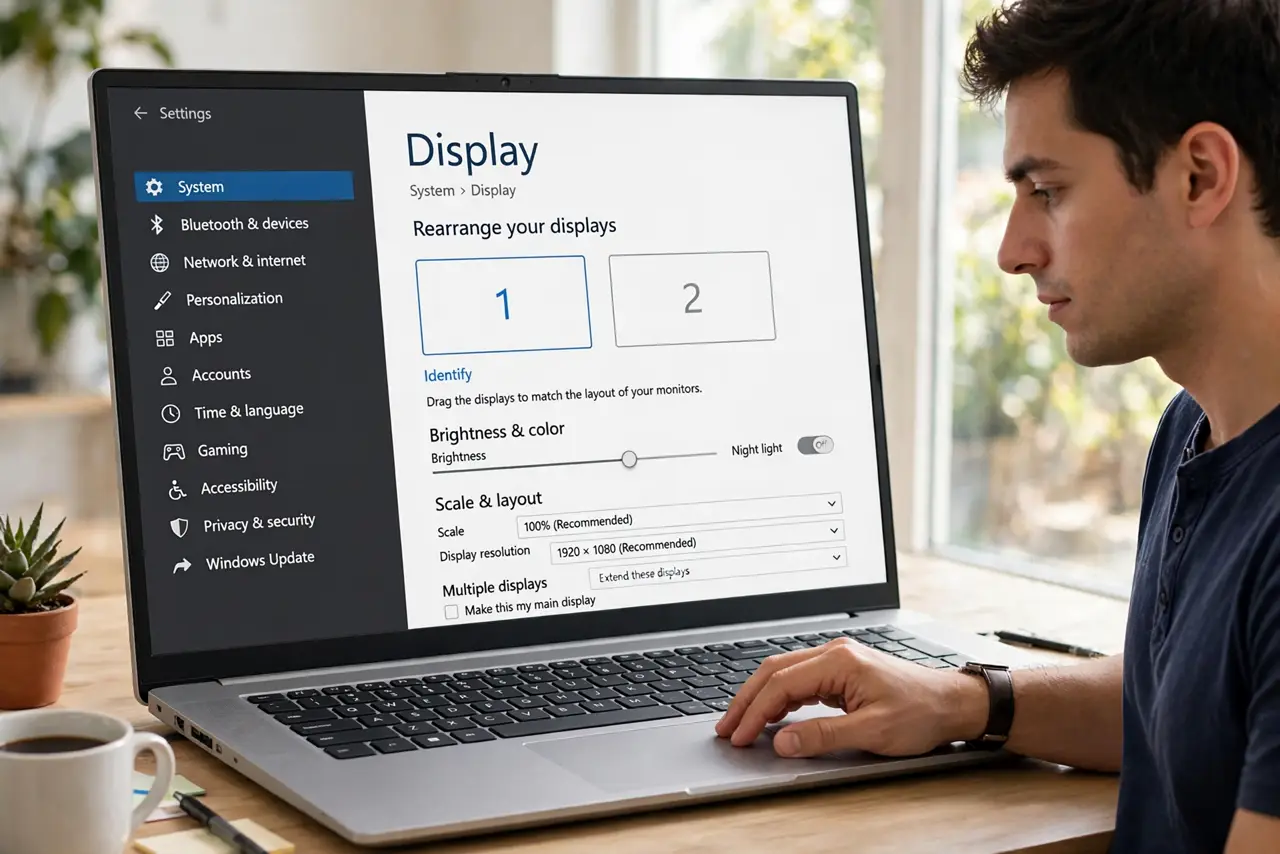
Quick fix: open Settings, System, Display, and click Identify — each screen flashes its number. Drag the display boxes to match your physical layout, then click Apply. Set your main display with Make this my main display. Wrong order is the cause of nearly every backwards mouse mystery.
Follow these steps
- Open Display settings. Go to Settings, System, Display. The diagram at the top shows Windows' current idea of your monitor layout.
- Click Identify. Each monitor flashes a large number. Note which physical screen shows 1 and which shows 2 — this is ground truth.
- Drag to match reality. Drag the numbered boxes until they mirror your desk: left monitor left, right monitor right. Click Apply to keep the arrangement.
- Set the main display. Select the monitor you face most and check Make this my main display. The taskbar, Start, and new windows favor it.
- Fix the wrong-screen app problem. Apps opening on the wrong monitor usually follow the main-display setting or remembered positions — see wrong monitor fixes if they persist.
- Present with confidence. Once identified, projector mode behaves predictably — you will know exactly which screen the audience sees.
What NOT to do
- Do not rearrange cables to fix order. Software arrangement is the fix; cable-swapping just renumbers the mystery.
- Do not ignore the Apply timer. You have seconds to confirm — miss it and the layout reverts, confusing you further.
- Do not set different refresh rates blindly. Mismatched rates can cause stutter when dragging windows between screens.
- Do not forget display scaling. Two monitors at different scales make windows jump sizes — match scaling where you can.
Frequently asked questions
Why does my mouse get stuck between monitors?
The display boxes are misaligned vertically in settings. Drag them so the edges line up and the mouse crosses smoothly.
Identify shows 1|2 on one screen — what?
That means mirroring is on. Switch to Extend these displays to treat them as separate screens.
Can I number them myself?
No — Windows assigns numbers by connection. You arrange the layout; the numbers just label the boxes.