Fix Blurry Apps on 4K
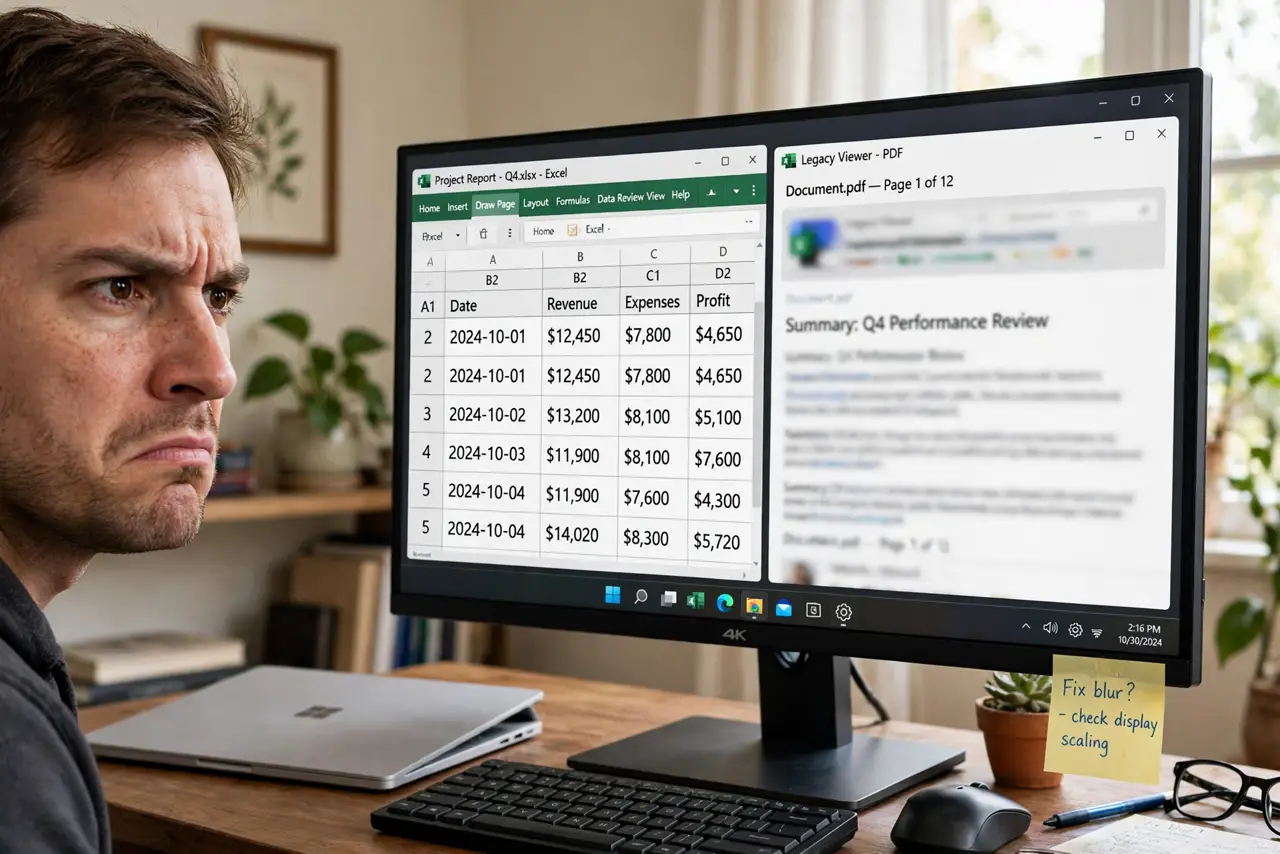
You bought a gorgeous 4K monitor and half your apps look like they were smeared with Vaseline — text fuzzy, buttons soft — while the rest are razor sharp. The culprit is DPI scaling: older apps don't understand high-density pixels, so Windows stretches them and they blur. The fix is per-app and takes a minute. Here is how to sharpen them up.
TL;DR / Quick Fix
Quick fix: blurry apps on a 4K display run at the wrong DPI scaling. Right-click the app, open Properties, Compatibility, Change high DPI settings, and try overriding the scaling to System. Log out and back in so Windows applies it cleanly. Most desktop apps sharpen up immediately after the override.
Follow these steps
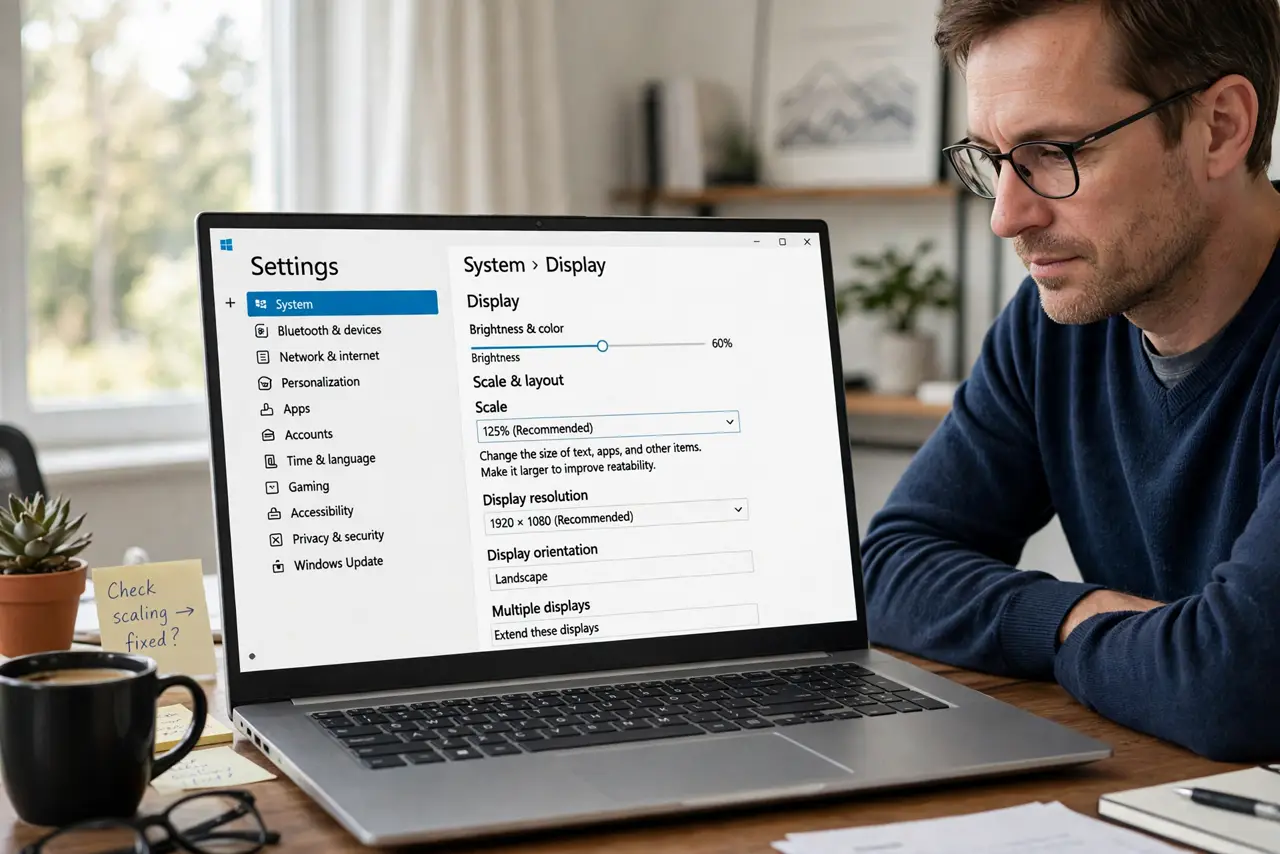
- Confirm scaling is the cause. Open Settings > System > Display and check the Scale percentage — on 4K it is usually 150% or 200%. If some apps are sharp and others blurry at the same setting, it is a per-app DPI awareness problem, not your monitor. The monitor is fine; the app is confused.
- Open the app's compatibility settings. Find the app's shortcut or exe, right-click it, choose Properties, then the Compatibility tab, then 'Change high DPI settings.' This dialog is the entire toolkit — everything you need lives here.
- Try the System override first. Check 'Override high DPI scaling behavior' and set it to System (Enhanced if available). This tells Windows to scale the app itself rather than letting the app fumble it. Apply, restart the app, and compare — this fixes the majority of blurry apps.
- Try the Application setting if System fails. If System override looks worse, switch the override to Application — some apps scale correctly when left alone but break when Windows 'helps.' There are only a few combinations; testing each takes seconds.
- Log out and back in after changes. DPI settings apply most reliably across a fresh login. If an app still looks off after the override, sign out of Windows and back in before judging — half-applied scaling is a classic false negative.
- Update or replace stubborn apps. Apps that stay blurry through every override are simply too old for high-DPI displays. Check for an update first; if none exists, look for a modern alternative. No setting rescues software from 2009.
What NOT to do
- Do not lower your monitor resolution to 'fix' blurry apps. That blurs everything including the sharp apps — fix the app, not the display.
- Do not change the global scale to 100% on a 4K screen. Text becomes microscopic; per-app overrides solve the problem without punishing your eyes.
- Do not edit the registry for DPI fixes. The compatibility dialog covers every legitimate case — registry DPI hacks cause more problems than they solve.
- Do not assume the monitor is defective. Selective blurriness — some apps sharp, some fuzzy — is always software scaling, never the panel.
Frequently asked questions
Why are only some apps blurry?
Modern apps declare themselves high-DPI aware and render sharply; older ones don't, so Windows bitmap-scales them and they blur. It is per-app age, not a system fault.
Will this fix blurry text in browsers?
Browsers are DPI-aware and rarely blur. If a browser looks fuzzy, check its zoom level and the Windows ClearType tuner before touching DPI overrides.
Does this affect gaming?
Games handle scaling themselves and usually ignore these settings. Game blurriness is more often a resolution or render-scale setting inside the game.