Stream Media with DLNA
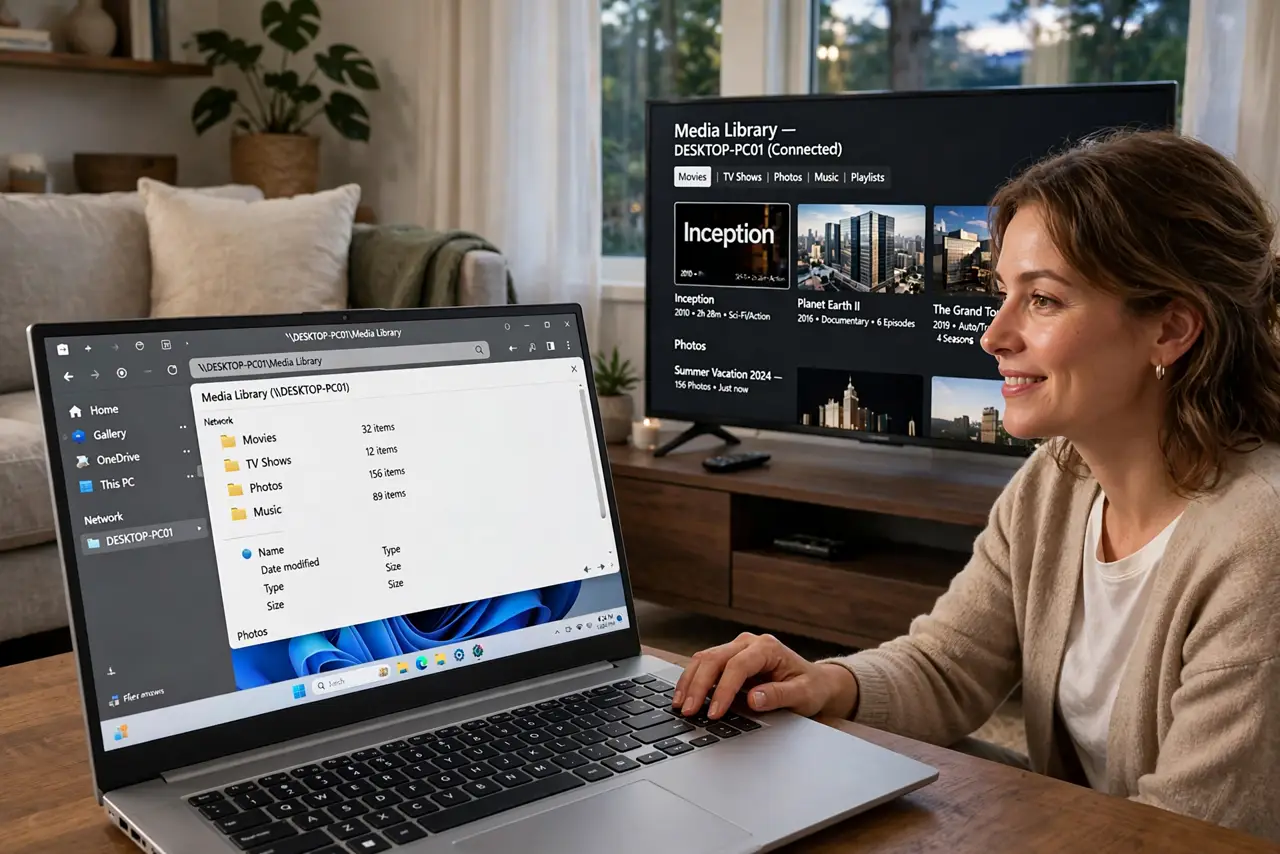
Your movies sit on the PC, your TV sits across the room, and shuttling USB sticks between them feels like 2009. DLNA lets the TV browse and play the PC’s media library over Wi-Fi — no extra hardware, just a Windows setting most people never open. Here is how to switch it on.
TL;DR / Quick Fix
Quick fix: open Settings > media streaming (or Windows Media Player’s Stream menu) and turn on media streaming — your TV and consoles should see the PC. Keep the PC awake during movie night with files in indexed libraries. Both devices must share the same private network.
Follow these steps
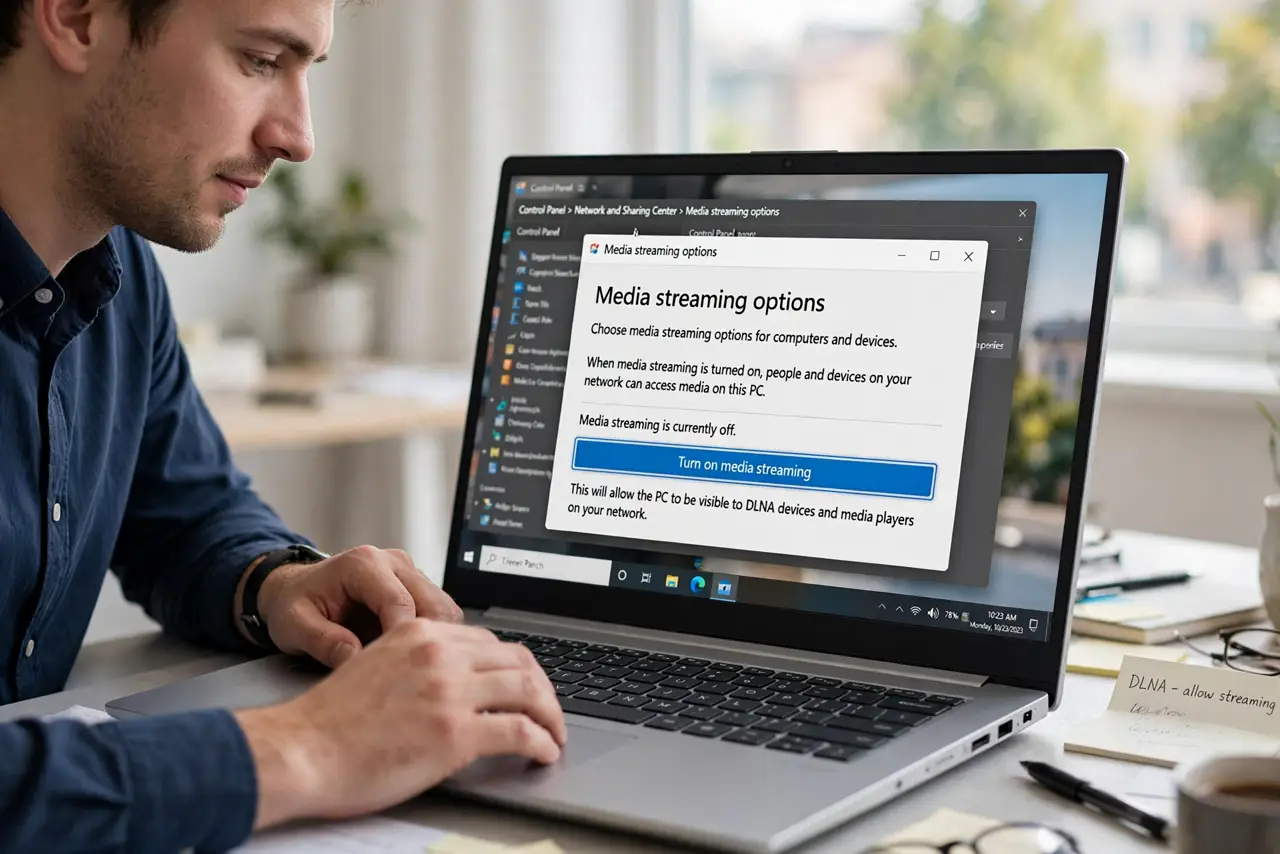
- Turn on media streaming. Open Control Panel > Network and Sharing Center > Media streaming options (or Windows Media Player > Stream > Turn on media streaming). Click Turn on media streaming — Windows becomes visible to DLNA devices.
- Allow your TV. In the same panel, find your TV or console in the device list and set it to Allowed. Blocked-by-default is why the TV ‘can’t see’ a freshly enabled server — this toggle is the fix.
- Put files in libraries. DLNA shares your Windows libraries — Videos, Music, Photos. Move or include your media folders in the right library; files elsewhere on the disk are invisible to the TV.
- Name the library sensibly. Give the media library a clear name like ‘Living Room PC’. When three devices all advertise as ‘Media Server,’ a real name saves real confusion.
- Keep the PC awake. Sleep kills the server mid-movie. Set the PC to stay awake (or at least allow wake timers) during viewing hours — a sleeping server is the top ‘it worked yesterday’ cause.
- Consider a NAS for always-on. If the PC-as-server annoys you, a dedicated home NAS serves media 24/7 at a fraction of the power — and pairs with network shares for non-DLNA devices.
What NOT to do
- Do not enable media streaming on public networks. Set the network to Private first — streaming your library to a café is not the goal.
- Do not expect every format to play. TVs support limited codecs over DLNA; an unplayable file is usually a format issue, not a server issue.
- Do not share your whole drive. Libraries only — broad shares expose more than your movies.
- Do not troubleshoot the TV first. Nine times out of ten the PC side is the problem — check the server, the Allowed list, and the PC’s sleep state before blaming the TV.
Frequently asked questions
Why can’t my TV see the PC?
Usually one of three: media streaming is off, the TV is not Allowed, or the PC is asleep. Check in that order — it resolves nearly every case.
DLNA vs Plex — which should I use?
DLNA is built-in and zero-setup; Plex adds prettier libraries and transcoding for tricky formats. Start with DLNA; graduate to Plex if formats fight you.
Does the PC need to stay on?
Yes, while anyone is watching. For always-on serving without the PC, a NAS is the proper tool.