Windows Blocked a Download You Trust
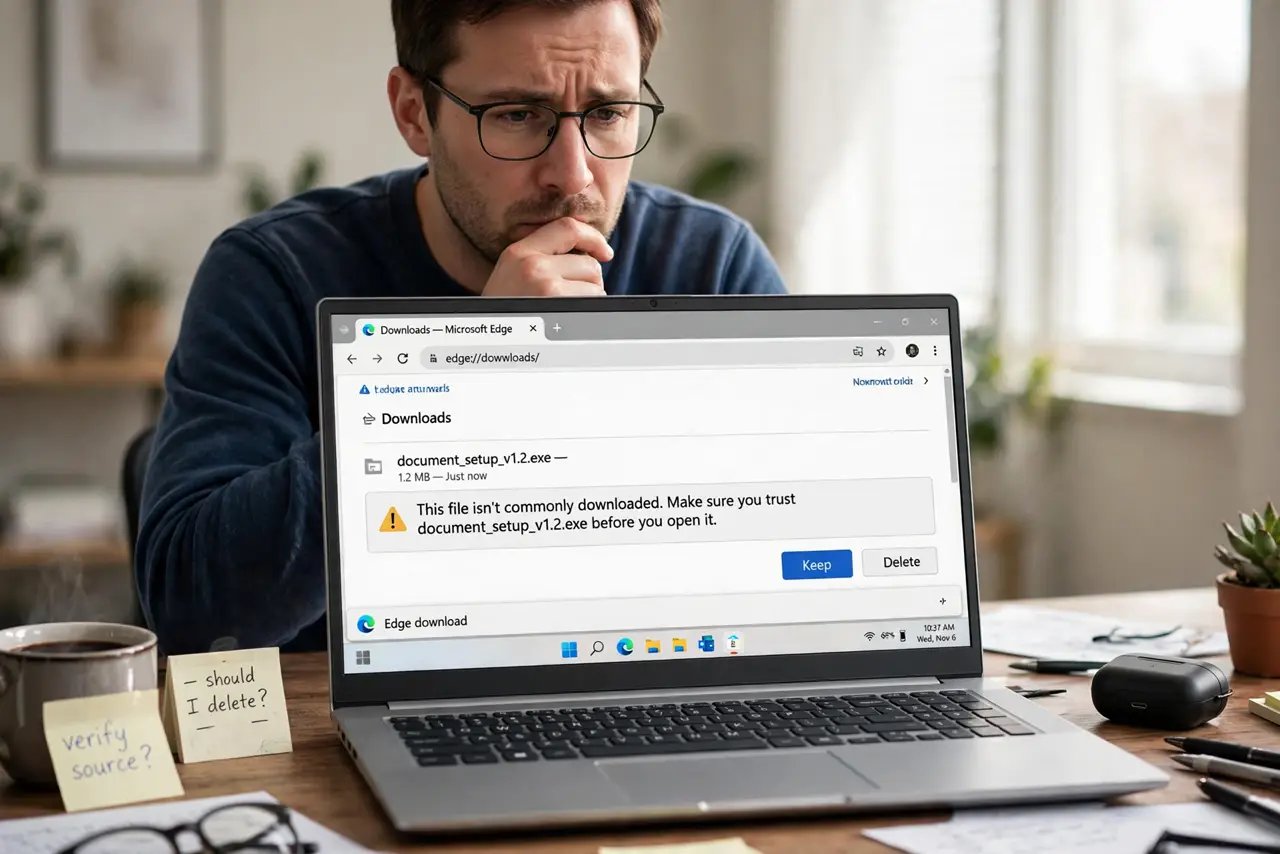
Your browser finishes a download and Windows warns the file is not commonly downloaded, blocking it. This is SmartScreen's reputation check at the browser level — new or niche files have no reputation yet. You can proceed when you verified the source, the download-side twin of the SmartScreen blocked installer warning.
TL;DR / Quick Fix
Quick fix: verify the file came from the developer's official website before doing anything else. If the source is genuine, open the browser's downloads list and choose Keep, then unblock the file in its Properties if Windows still flags it. Never keep a file whose source you cannot verify.
Follow these steps
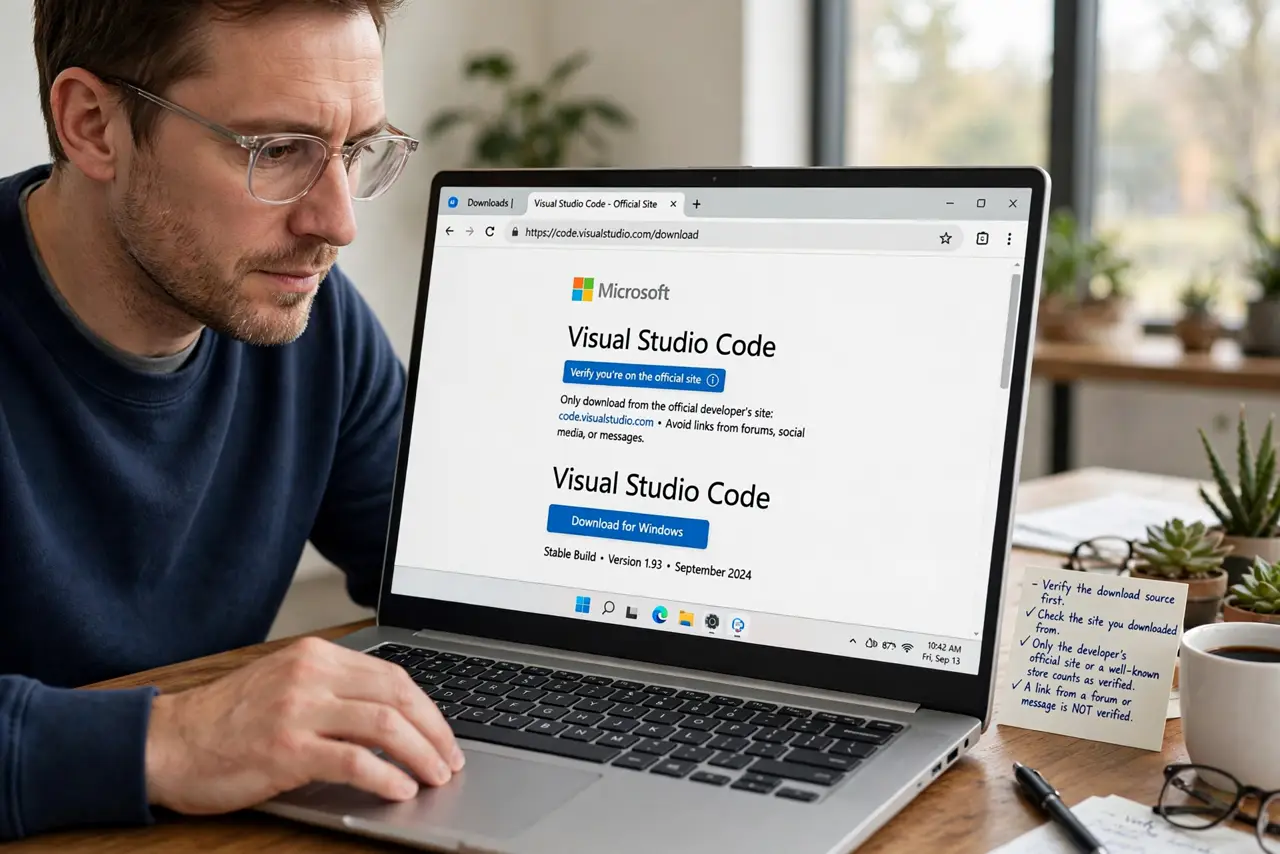
- Verify the download source first. Check the site you downloaded from. Only the developer's official site or a well-known store counts as verified; a link from a forum or message does not.
- Choose Keep in the browser. Open the browser's downloads and choose the Keep option on the flagged file. The browser was holding the file pending your judgment, which you have now made.
- Unblock the file in Properties. Right-click the file, open Properties, and tick Unblock if present. Windows marks downloaded files, and unblocking clears the flag for future runs.
- Scan the file with Defender. Right-click the file and scan it with Microsoft Defender. A clean scan plus a verified source is the full due-diligence pair.
- Check the file size and name. Compare the downloaded file's size against the size listed on the official site. A mismatch means the download is corrupt or substituted, and you should re-download.
- Keep SmartScreen on. Leave the reputation checks enabled in Windows Security. They are the reason you got a warning to judge instead of a silent infection.
What NOT to do
- Do not keep files from unverified sources. The warning exists for exactly this judgment call, and guessing wrong is how PCs get infected.
- Do not disable SmartScreen to avoid the warning. One trusted file does not justify removing the check for every future download.
- Do not trust a file because the site looked professional. Phishing sites copy real designs; only the true official domain counts.
- Do not skip the Defender scan. Verification of the source and a malware scan are two independent checks, and you want both.
Frequently asked questions
What does not commonly downloaded mean?
That SmartScreen has seen too few downloads of this exact file to vouch for it. New releases and niche tools trigger it routinely.
Is it safe to keep the file?
If the source is the official site and Defender scans it clean, yes. Those two checks are the practical definition of safe here.
Why do even popular programs trigger this?
Fresh releases have new file hashes with no history yet. The warning fades as more people download the same file safely.