Dynamic Lock Locks While You Are Still There
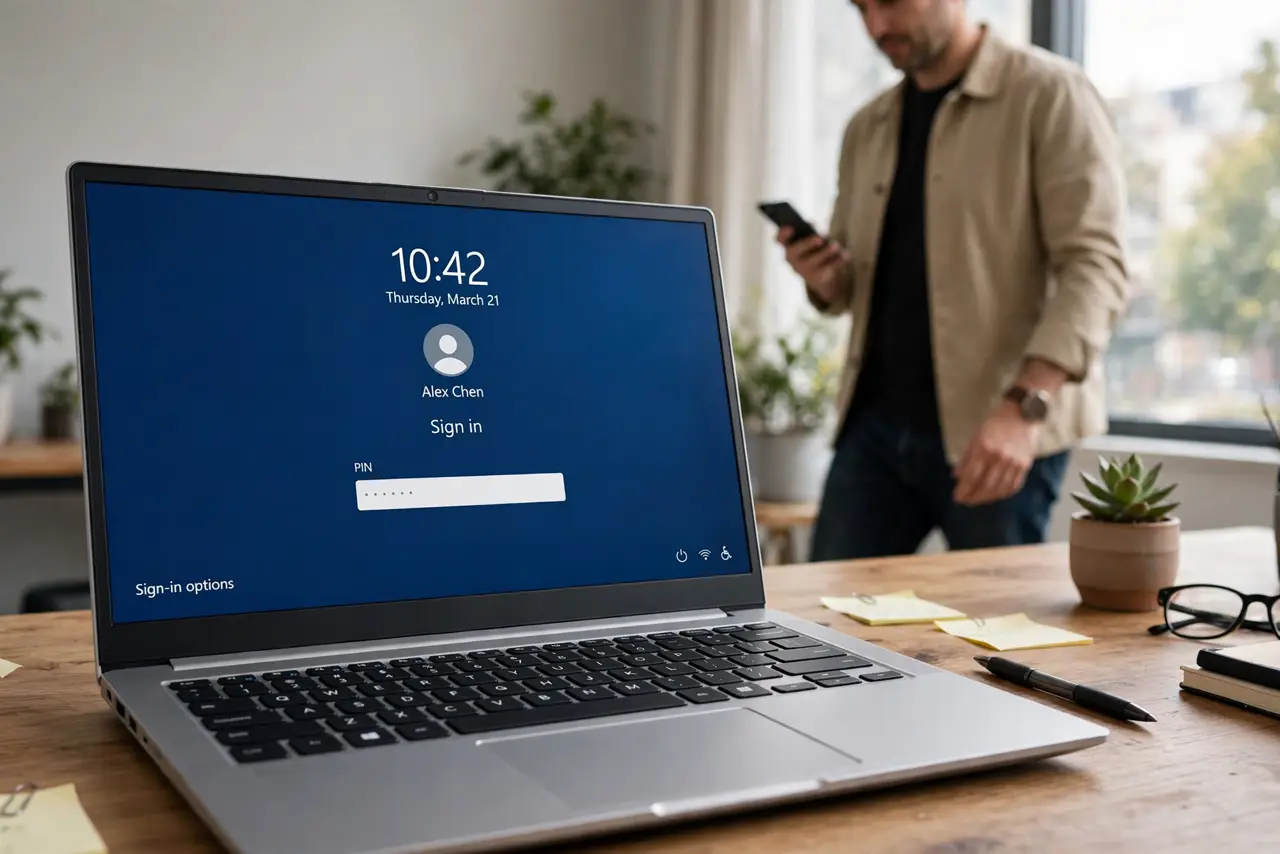
Dynamic Lock locks Windows when your paired phone moves out of Bluetooth range, but if it locks while you sit at the desk, the phone signal is dropping, the phone is too far, or Bluetooth is unstable. This guide steadies the link. If your lock screen itself shows one photo only, see lock screen slideshow showing one photo.
TL;DR / Quick Fix
Quick fix: Confirm Dynamic Lock is actually on. Keep the phone close and charged. Then work through the remaining steps in order, checking one change at a time, and stop for a technician if you see damage, swelling, or a burning smell.
Follow these steps
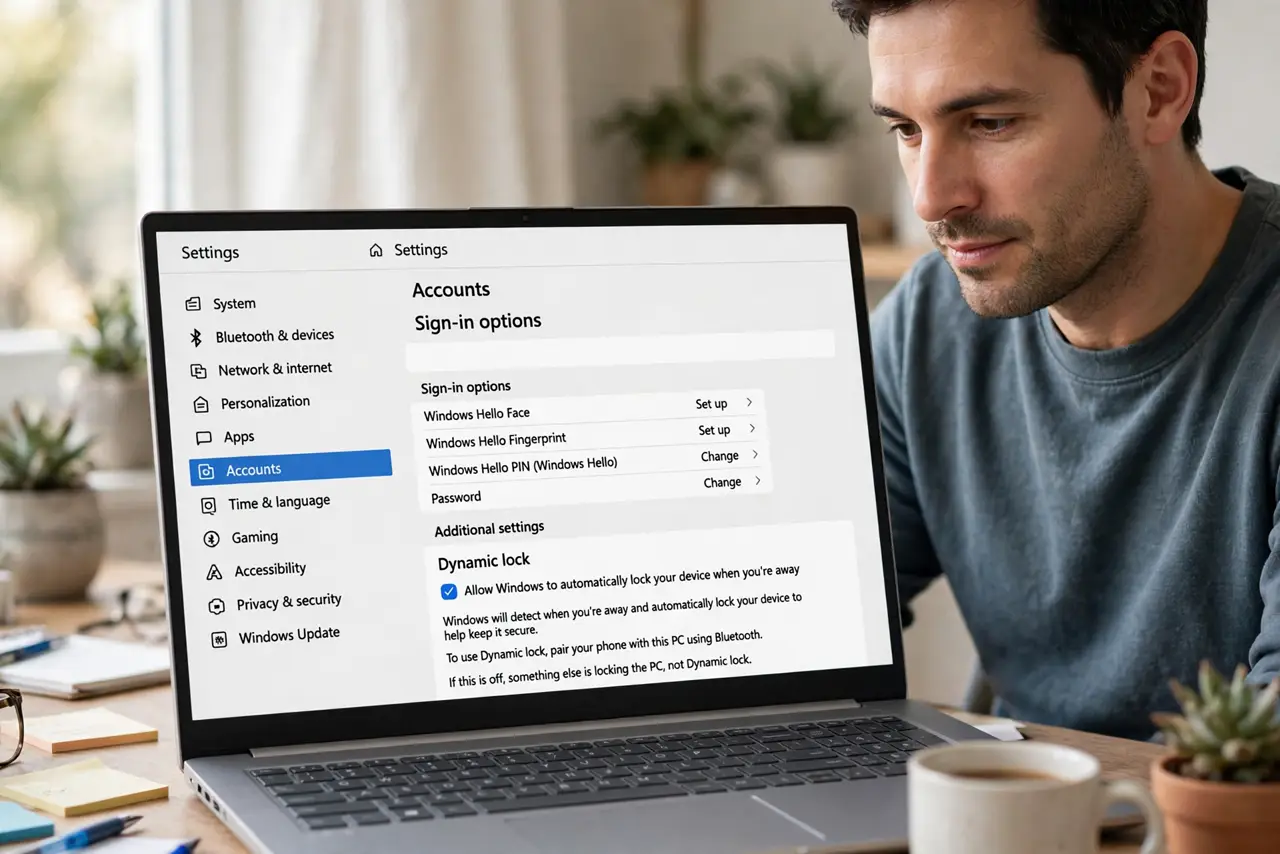
- Confirm Dynamic Lock is actually on. Open Settings, then Accounts, then Sign-in options, then Dynamic lock, and confirm Allow Windows to automatically lock your device when you are away is ticked. If it is off, something else is locking the PC, not Dynamic Lock.
- Keep the phone close and charged. Keep your phone on the desk near the PC, charged, with Bluetooth on. A phone in another room, in a bag, or with a dying battery drops signal, which Dynamic Lock reads as you walking away.
- Check the Bluetooth connection. Open Settings, then Bluetooth and devices, and confirm the phone shows as Connected. A phone that pairs but never stays connected cannot hold the Dynamic Lock link steady.
- Remove other Bluetooth interference. Move the phone away from other Bluetooth devices and USB hubs if the link drops often. Crowded Bluetooth airspace can break the signal even at short range.
- Re-pair the phone fresh. In Bluetooth settings, remove the phone, then pair it again and re-enable Dynamic Lock. A fresh pairing clears a stale link that drops even when the phone sits nearby.
- Test by walking away properly. Walk away with the phone for a minute, return, and confirm the PC locked and then unlocks normally. A proper away test proves Dynamic Lock works, and a desk test proves it no longer locks while you sit there.
What NOT to do
- Do not turn off lock entirely to stop early locks. That leaves the PC open to anyone nearby, while a steady Bluetooth link keeps protection.
- Do not rely on Dynamic Lock as your only security. It is a convenience layer, and a short screen timeout plus a PIN remains the real protection.
- Do not keep the phone in another room and expect it to work. Dynamic Lock is a proximity feature, so distance is the signal it measures.
- Do not ignore a phone that never stays connected. An unstable phone link will keep locking the PC, no matter how you tune Windows.
Frequently asked questions
How far away must I go for Dynamic Lock?
Roughly out of Bluetooth range, usually a room or two away, depending on walls and interference.
Does Dynamic Lock unlock when I return?
No. It locks when you leave, but you still unlock with your usual PIN, fingerprint, or face when you return.
Can I use a watch instead of a phone?
Only if Windows pairs it as a Bluetooth device that stays connected, which most watches do not do reliably.