Lock Screen Slideshow Shows One Photo Only
A lock screen slideshow that shows one photo forever usually points to a folder with one usable picture, subfolders turned off, or a power setting that stops the slideshow. This guide checks the folder first, because that is the cause most often. If the PC locks too soon instead, see Dynamic Lock locking while you are still there.
TL;DR / Quick Fix
Quick fix: Open the lock screen settings page. Check the slideshow folder contents. Then work through the remaining steps in order, checking one change at a time, and stop for a technician if you see damage, swelling, or a burning smell.
Follow these steps
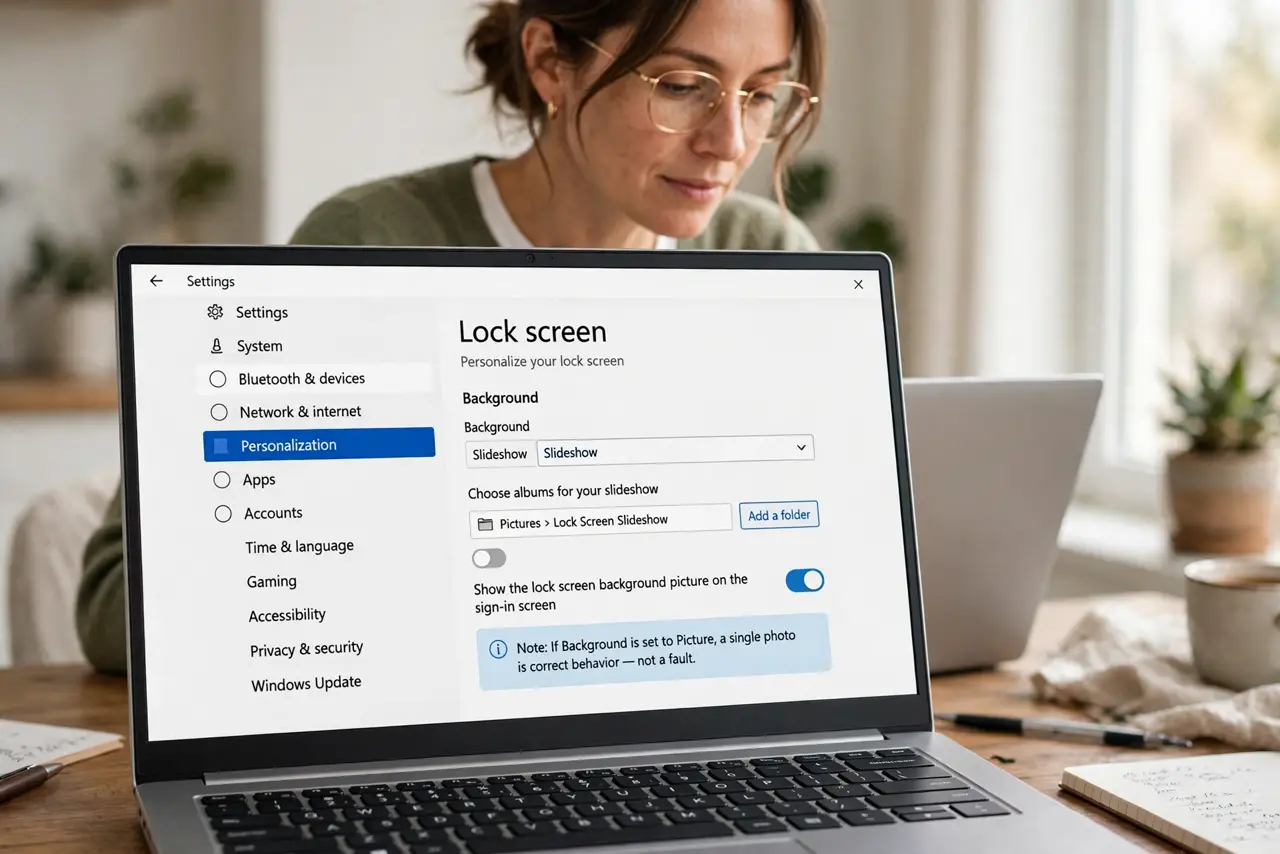
- Open the lock screen settings page. Open Settings, then Personalization, then Lock screen, and confirm the background is set to Slideshow. If it is set to Picture, one photo is correct behavior, not a fault.
- Check the slideshow folder contents. Open the folder chosen for the slideshow and count the pictures in it. A folder with one photo, or many files Windows cannot read, will show one photo no matter what you set.
- Turn on subfolders if you use them. In the Lock screen settings, open Advanced slideshow settings and confirm Include camera roll folders or subfolders is on if your pictures live in subfolders. Without it, Windows sees only the top folder.
- Check the slideshow timing. In Advanced slideshow settings, confirm the slideshow is not set to play only when plugged in while you test on battery, or with a very long change interval that looks like one photo.
- Pick a folder with many pictures. Choose a folder with at least twenty ordinary JPG photos, then lock Windows with the Windows key plus L and watch for a change. A fresh, well-filled folder is the fairest test.
- Restart and test the lock screen. Restart Windows, lock the screen, and wait through two picture changes. If pictures now cycle, the folder or subfolder setting was the fix.
What NOT to do
- Do not set a single favorite photo as a slideshow. A slideshow needs a folder of pictures, so one photo will always show one photo.
- Do not use a folder full of unsupported files. Windows skips files it cannot read, which can leave one usable picture out of hundreds.
- Do not assume the lock screen is broken. Folder contents and subfolder settings explain a one-photo slideshow in most cases.
- Do not turn off the lock screen to avoid the photo. The lock screen protects the PC, and the slideshow fix keeps it working.
Frequently asked questions
Why does the slideshow show the same photo after wake?
The slideshow advances on a timer while the lock screen shows, so a quick wake may simply catch the same picture again.
Can the slideshow use OneDrive pictures?
Yes, if the folder is synced locally, so Windows can read the files without waiting for a download.
Does slideshow use much battery?
Very little on a lock screen, but the plugged-in-only option exists for laptops that want to save power.