Save Battery in Edge
Your laptop battery melts, and the biggest culprit is often the browser with forty tabs open. Edge has an efficiency mode built exactly for this: it puts background tabs to sleep, trims animations, and sips power instead of gulping it. One setting, meaningful extra battery life. This guide turns it on and tunes it.
TL;DR / Quick Fix
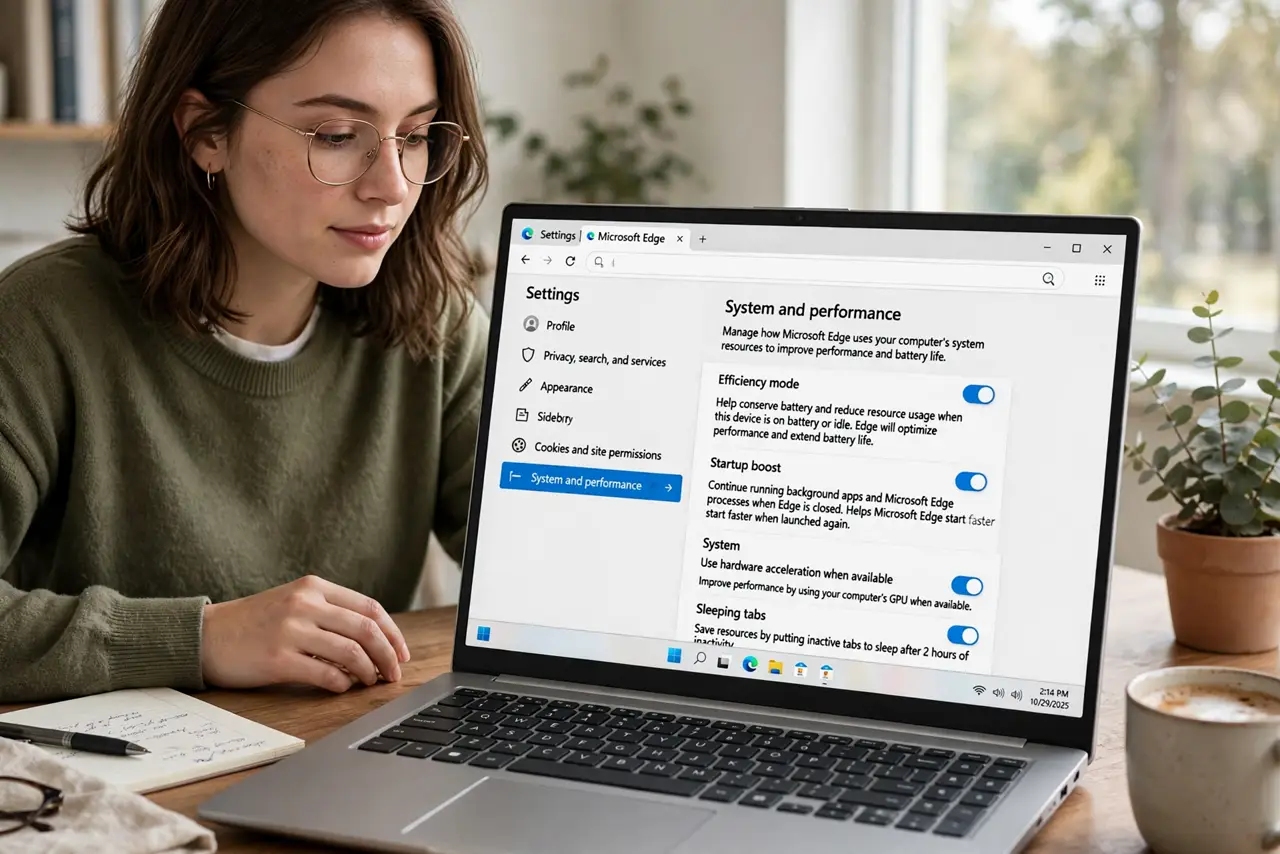
Quick fix: Edge efficiency mode cuts battery drain by sleeping background tabs and trimming animations — enable it in Settings under System and performance. Choose always-on for maximum savings, or balanced so it only kicks in on battery. Pair it with Windows battery saver for long days.
Follow these steps
- Open System and performance. In Edge Settings, go to System and performance. Efficiency mode lives here alongside Startup Boost — the two best battery and speed settings in one place.
- Turn efficiency mode on. Enable it and choose when it applies: always on for maximum savings, or balanced so it activates on battery power and backs off when plugged in. Balanced suits most laptop users.
- Let sleeping tabs do their job. Efficiency mode leans on sleeping tabs — background tabs freeze after inactivity. If a tab you need live (a dashboard, a call) keeps sleeping, add the site to the never-sleep exception list.
- Trim the extension load. Extensions run constantly and eat battery. Remove the ones you do not use — efficiency mode plus a lean extension set is the real battery combo.
- Pair it with Windows battery saver. Edge handles the browser; Windows battery saver handles the system. Enable both for travel days — they stack, and the Windows power plan choice underneath matters too.
- Measure the difference. Use Edge's built-in efficiency and battery info, or just note your unplugged runtime for a week. Real numbers beat feelings — and they tell you whether to go always-on.
What NOT to do
- Do not expect miracles on a dying battery. Efficiency mode stretches healthy batteries; it cannot resurrect a battery at 60% health — check battery health separately.
- Do not set tabs to never sleep globally. Exempting everything defeats the feature — exempt only the two or three sites that truly need to stay live.
- Do not forget the screen. Display brightness dwarfs browser savings — dimming the screen saves more than any efficiency mode ever will.
- Do not leave it off on battery 'for performance.' On battery, efficiency mode's tradeoff is invisible in normal browsing — the savings are free.
Frequently asked questions
Will efficiency mode slow down my browsing?
Not noticeably. Active tabs run full speed; only background tabs sleep. You might notice a one-second reload when returning to a long-idle tab — that is the savings working.
Does it work on desktop PCs?
Yes, but the point is battery — on a plugged-in desktop, leave it on balanced and forget it. The savings only matter unplugged.
Is it better than just closing tabs?
Closing tabs saves more, but nobody does it consistently. Efficiency mode is the automatic version — set it once and it works forever.