Mark Up a PDF in Edge
A PDF needs a quick highlight, a signature, or a comment — and installing a whole PDF editor for a two-minute job is overkill. Edge opens PDFs natively with highlight, draw, text, and signature tools built in. This guide shows the markup workflow for everyday annotations.

TL;DR / Quick Fix
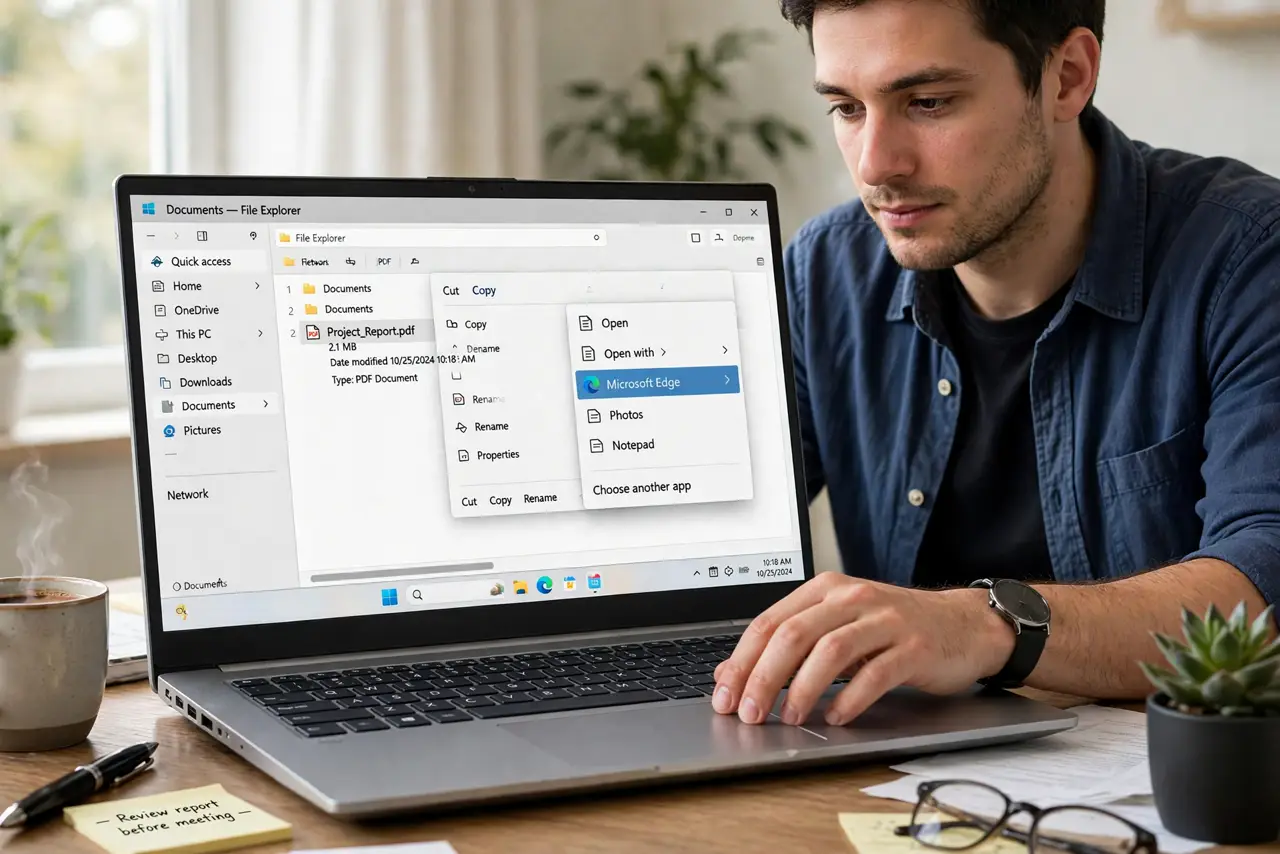
Quick fix: open the PDF in Edge — double-click it, or right-click and choose Open with Edge if another app grabs it. Use the toolbar to highlight text, draw freehand, add text boxes, or add a signature. Press Ctrl+S to save — Edge writes your annotations into the PDF.
Follow these steps
- Open the PDF in Edge. Double-click the PDF. If another app opens instead, right-click the file, choose Open with, and pick Microsoft Edge — or fix the default app permanently.
- Show the markup toolbar. The toolbar appears at the top of the PDF view with highlight, draw, erase, text, and read-aloud tools. If it is hidden, hover near the top to reveal it.
- Highlight key passages. Select the highlighter, pick a color, and drag over text. Highlights are the fastest way to mark what matters for later review.
- Add text where needed. Click the Add text tool, then click anywhere on the page to place a text box. Type your note — useful for filling forms and adding comments.
- Draw or sign freehand. Use Draw for arrows and circles, and the signature tool to sign. Draw your signature once and Edge keeps it for future documents.
- Save with Ctrl+S. Press Ctrl+S to write the annotations into the file. For an untouched original, use Save as to keep a clean copy alongside the marked one.
What NOT to do
- Do not annotate the only copy of an important PDF. Save a marked copy and keep the original clean — annotations are hard to fully remove.
- Do not expect full PDF editing. Edge handles markup beautifully but cannot rearrange pages or edit existing text — that needs a real editor.
- Do not forget to save. Annotations live in Edge's viewer until you save — closing without saving discards your work.
- Do not sign legally binding documents casually. A drawn signature works for everyday forms; contracts may need a proper e-signature service.
Frequently asked questions
Can Edge fill PDF forms?
Yes — click into form fields and type, then save. It handles most standard PDF forms well.
Why do my highlights look wrong in another app?
Rarely, other readers render annotations slightly differently. Edge follows the standard, so the file itself is fine.
Can I remove an annotation?
Yes — select it with the cursor and press Delete, or use the Eraser tool. Save after removing.