Put Inactive Tabs to Sleep
Edge with thirty tabs open can eat gigabytes of memory and make the whole PC sluggish — even though you are only looking at one tab. Sleeping tabs automatically hibernate the tabs you are not using, freeing memory and CPU while keeping the tabs exactly where you left them. This guide turns the feature on and tunes it.

TL;DR / Quick Fix
Quick fix: open Edge Settings, go to System and performance, and turn on Save resources with sleeping tabs. Set tabs to sleep after 5 minutes of inactivity. Inactive tabs fade slightly and wake instantly when clicked — your PC gets noticeably snappier with heavy tab loads.
Follow these steps
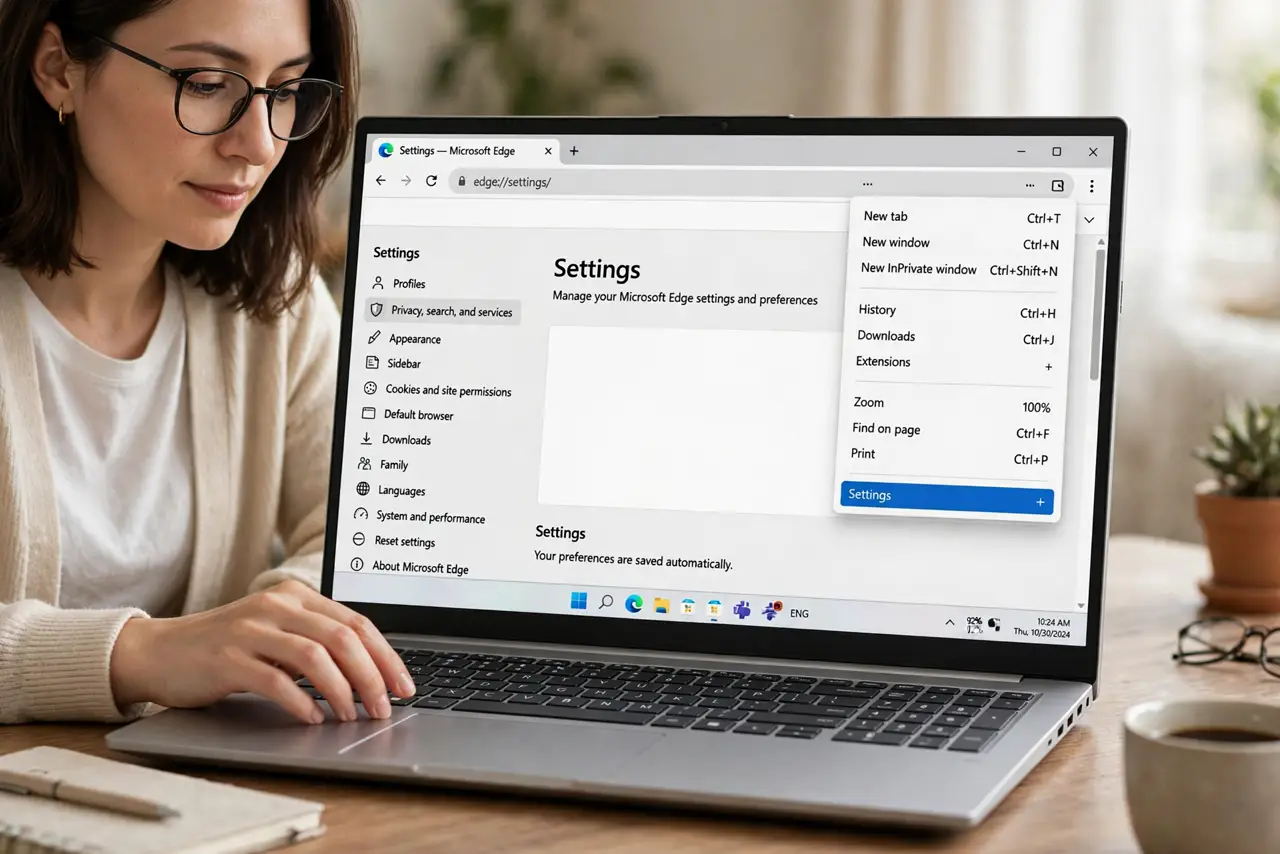
- Open Edge Settings. Click the three-dot menu in the top-right and choose Settings.
- Go to System and performance. In the left sidebar, click System and performance. This section holds Edge's resource-saving features.
- Turn on sleeping tabs. Enable Save resources with sleeping tabs. Edge will now automatically hibernate tabs you have not looked at recently.
- Set the sleep timer. Choose how long before a tab sleeps — 5 minutes is a good balance. Shorter saves more memory; longer avoids re-waking tabs you flip between.
- Add exceptions for tabs that must stay awake. If a tab plays audio, runs a timer, or holds a live dashboard, add its site to the Never put these sites to sleep list so it never hibernates mid-task.
- Check the difference. Open Task Manager and compare Edge's memory use before and after. With dozens of tabs, the drop is usually dramatic — and tabs wake the instant you click them.
What NOT to do
- Do not disable sleeping tabs because one tab misbehaved. Add that site as an exception instead of turning the whole feature off.
- Do not expect sleeping tabs to fix a PC with 4GB of RAM. They help a lot, but very old machines still struggle with modern browsing.
- Do not confuse sleeping tabs with discarded data. Your tabs, logins, and form entries are preserved — nothing is deleted.
- Do not set the timer to 30 seconds. Over-aggressive sleeping means tabs you flip between keep reloading — 5 minutes is the sweet spot.
Frequently asked questions
Will I lose form data in a sleeping tab?
No — sleeping tabs preserve everything. The tab wakes exactly as you left it, forms and all.
Do sleeping tabs still play audio?
A tab playing audio will not sleep. If it does cause trouble, add the site to the exceptions list.
Is this the same as the efficiency mode?
Related but different — efficiency mode trims background activity browser-wide, while sleeping tabs targets inactive tabs specifically. Use both.