Try Vertical Tabs in Edge
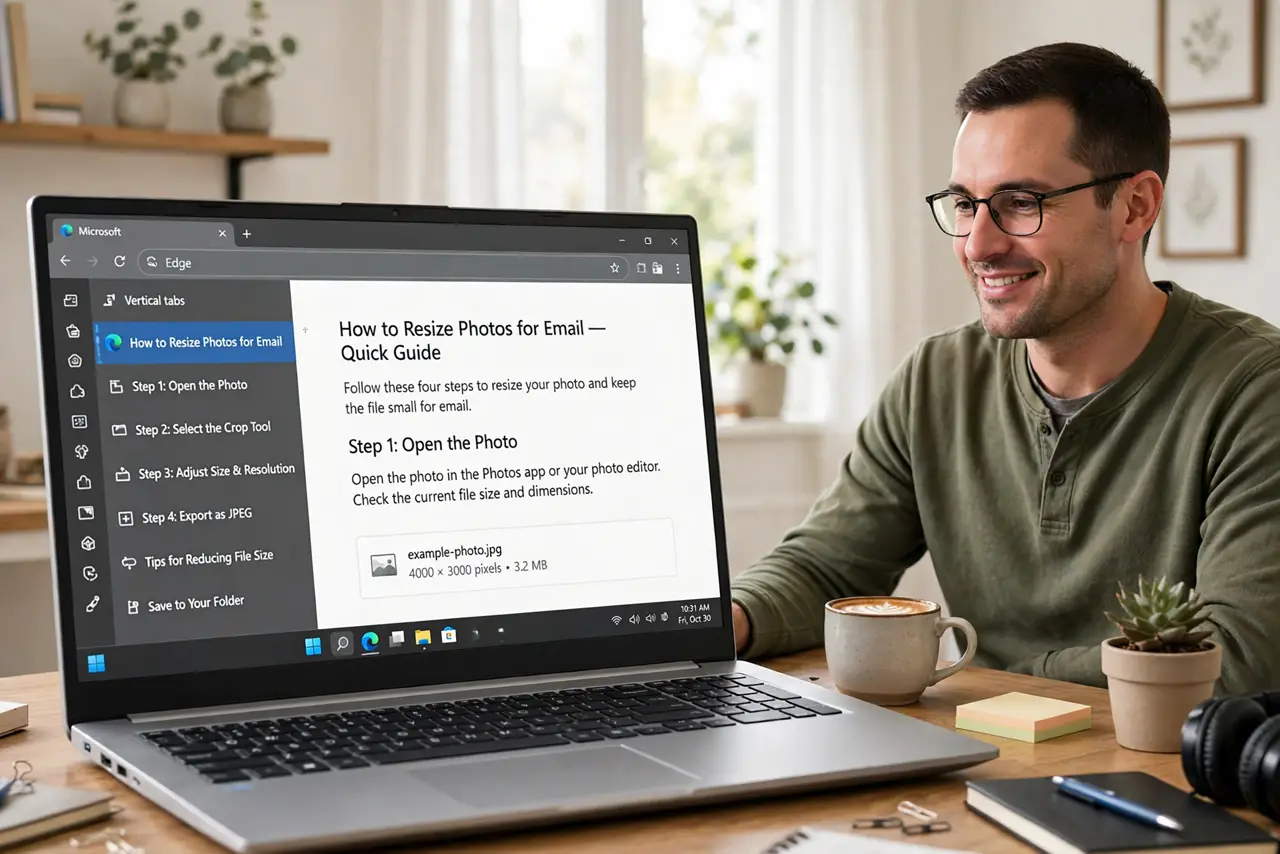
With twenty tabs open, the horizontal tab bar becomes a row of tiny unreadable icons. Edge's vertical tabs move the tab list to a slim sidebar on the left, where every tab shows its full title and you can see far more of them. It is one click to try and one click to undo. Here is how to switch and make the most of it.
TL;DR / Quick Fix
Quick fix: in Edge, click the Tab actions menu in the top-left and choose Turn on vertical tabs. Tabs move to a slim left sidebar with full titles. Hover to expand, or click the pin icon to collapse it. Switch back the same way anytime — nothing is lost.
Follow these steps
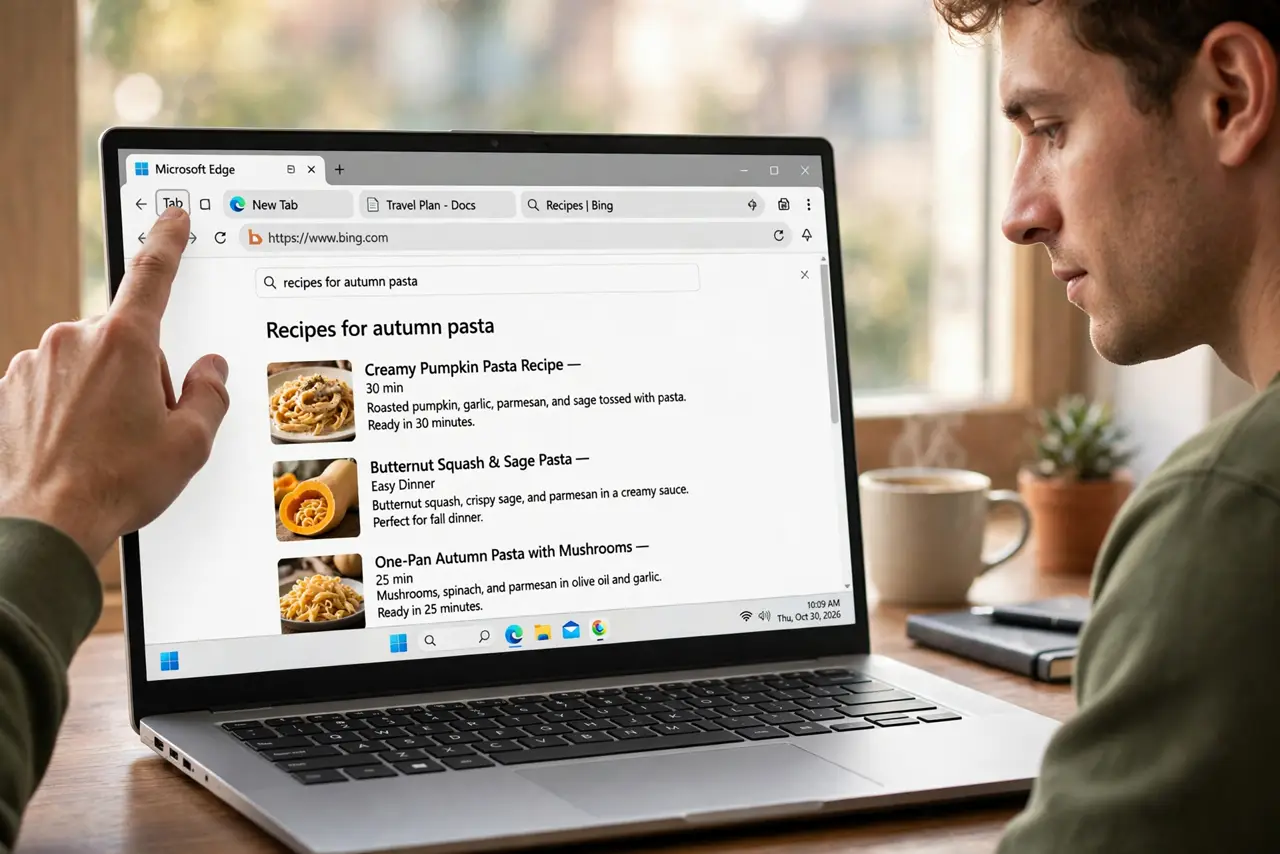
- Open the Tab actions menu. In the top-left corner of the Edge window, next to the tabs, click the small Tab actions menu button (it looks like a tab with an arrow).
- Turn on vertical tabs. Choose Turn on vertical tabs from the menu. The tab strip immediately moves to a vertical sidebar on the left side of the window.
- Expand and collapse the sidebar. Hover over the sidebar to see full tab titles; click the pin icon at the top to keep it expanded, or unpin it to collapse to slim icons. Find the width that suits you.
- Drag tabs to reorder as usual. Everything works the same — drag to reorder, right-click for options, middle-click to close. Only the orientation changed.
- Try tab groups in the sidebar. Right-click a tab and add it to a group. In the vertical layout, grouped tabs stack neatly and collapse, which tames research sessions beautifully.
- Switch back if you hate it. Open the Tab actions menu again and turn vertical tabs off. Your tabs, groups, and pinned tabs all survive the round trip.
What NOT to do
- Do not assume your tabs are gone. Vertical tabs only move the tab strip — every tab is still open exactly as before.
- Do not keep the sidebar pinned if space is tight. Unpinned, it collapses to icons and expands on hover — the best of both.
- Do not forget you can still use horizontal groups. Tab groups work in both orientations, so your organization carries over.
- Do not confuse this with the favorites bar. Vertical tabs are open tabs, not bookmarks — pin the tabs you want to keep.
Frequently asked questions
Will vertical tabs work with my extensions?
Yes — extensions are unaffected. Only the tab strip moves; everything else in the browser stays put.
Can I move the sidebar to the right side?
Edge places vertical tabs on the left. The sidebar can be collapsed or expanded, but not moved to the right.
Do pinned tabs still work?
Yes — pinned tabs shrink to icons at the top of the vertical sidebar, just as tidy as before.