Capture Part of a Web Page
Regular screenshots grab everything — the taskbar, other tabs, notifications you did not want to share. Edge's Web capture lets you screenshot just part of a page, or the entire scrolling page, right in the browser. This guide shows both modes and the built-in markup tools.
TL;DR / Quick Fix
Quick fix: in Edge, click the three-dot menu and choose Screenshot (or press Ctrl+Shift+S), then pick Capture area to drag over part of the page, or Capture full page for the whole scrolling article. Use the markup toolbar to draw or highlight, then copy or save the image.
Follow these steps
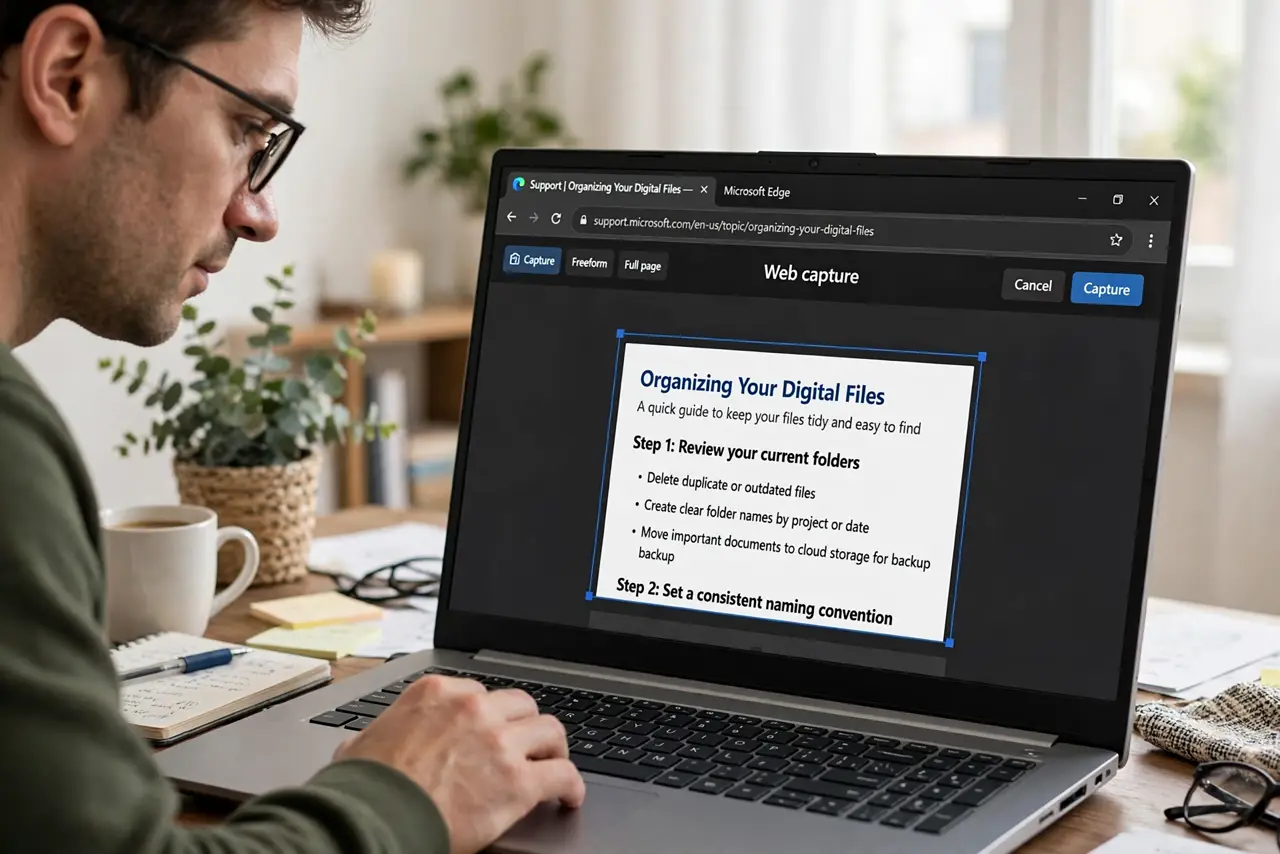
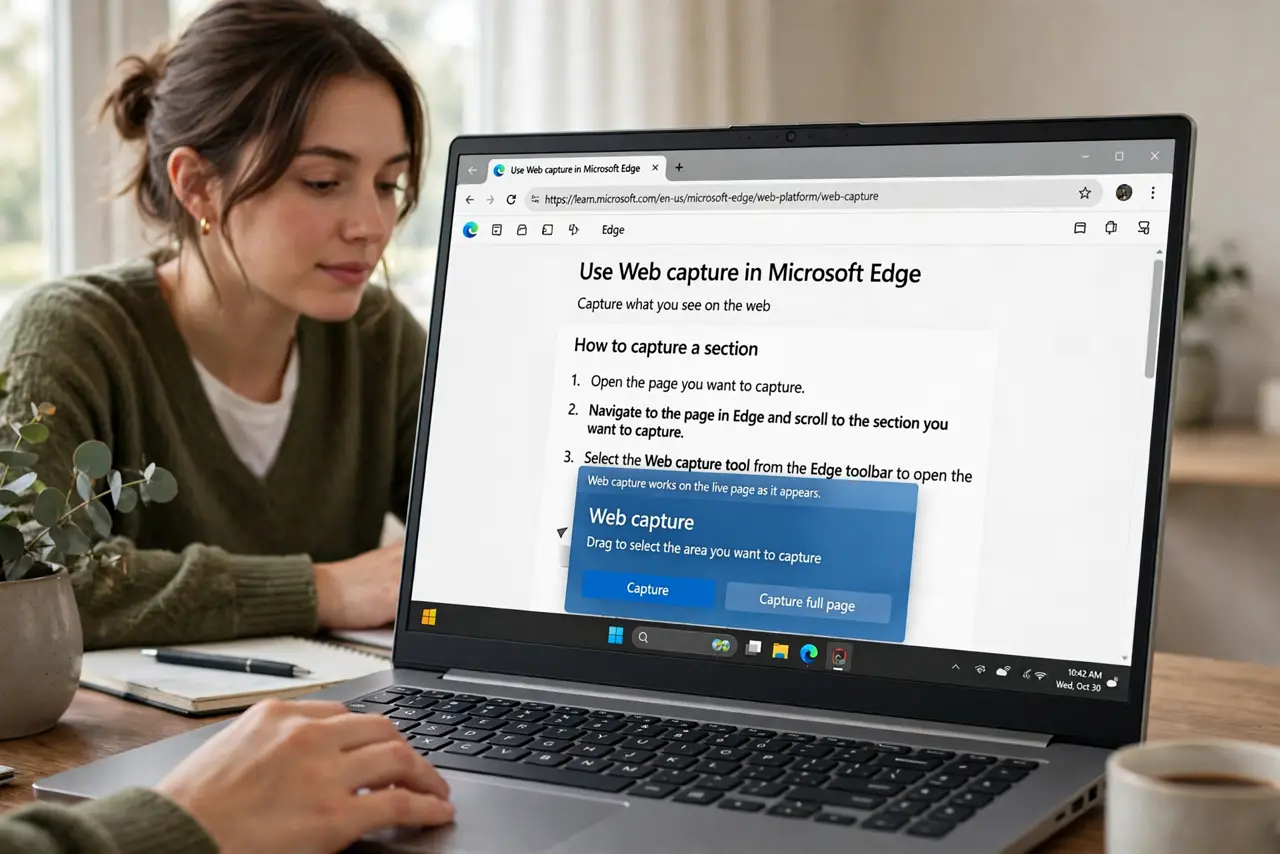
- Open the page you want. Navigate to the page in Edge and scroll to the section you want to capture. Web capture works on the live page as it appears.
- Launch Web capture. Click the three-dot menu and choose Screenshot, or press Ctrl+Shift+S. Two options appear: Capture area and Capture full page.
- Drag to capture an area. Choose Capture area, then click and drag over exactly the part you want. Release and a preview opens with markup tools — draw, erase, or add text.
- Or capture the full page. Choose Capture full page and Edge stitches the entire scrolling page into one long image. Perfect for saving a whole article as a single picture.
- Mark it up. Use the pen and highlighter in the preview toolbar to circle or annotate. Keep markup minimal — the capture should stay readable.
- Copy, save, or share. Click Copy to paste it into a chat or document, or Save to download the image. The file lands in your Downloads folder.
What NOT to do
- Do not capture sensitive info carelessly. Web captures can include account details or addresses — check the image before sharing.
- Do not use full-page capture for huge pages. Extremely long pages produce giant images that are hard to share — capture the section you need.
- Do not forget the markup tools exist. A quick circle or arrow in the preview beats explaining 'the third paragraph down' in text.
- Do not rely on captures for legal records. Screenshots are easy to edit — for anything official, save the page or use proper records.
Frequently asked questions
Where do saved captures go?
To your Downloads folder as PNG files, unless you copy them to the clipboard instead.
Can I capture a PDF in Edge?
For PDFs, Edge's PDF markup tools are the better fit — web capture targets web pages.
Does it work in other browsers?
This exact Web capture is an Edge feature. Other browsers need extensions or OS screenshot tools for the same job.