Set Your Emoji Skin Tone Default
Every wave emoji you send shows up in the default yellow, and you want your skin tone without tapping through options each time. Windows remembers a skin tone per emoji once you set it — there is no single global switch, but setting it takes seconds and it sticks.
TL;DR / Quick Fix
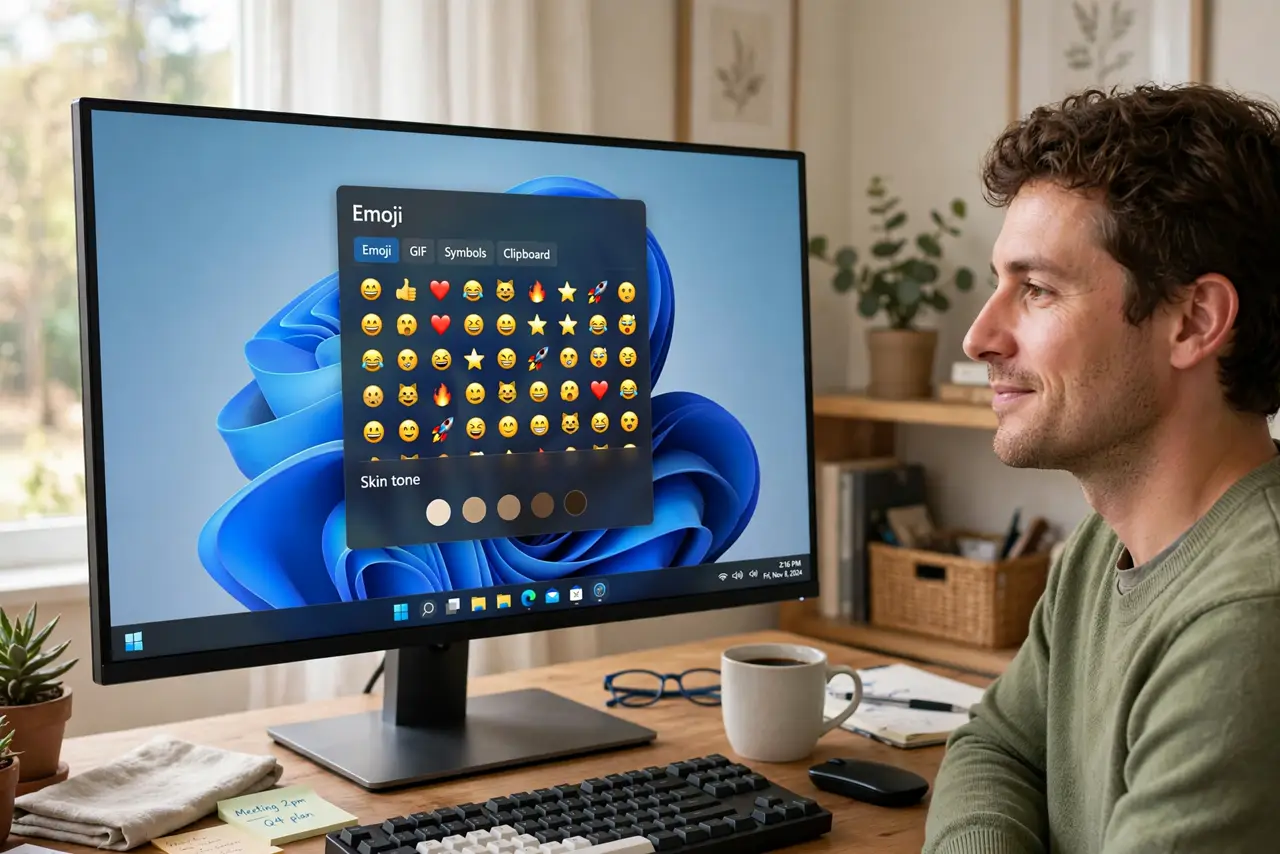
Quick fix: press Win+. to open the emoji panel, click any person emoji, and pick your skin tone from the options — Windows remembers it for that emoji family. Set it once per emoji you use often. The same panel also holds kaomoji and symbols.
Follow these steps
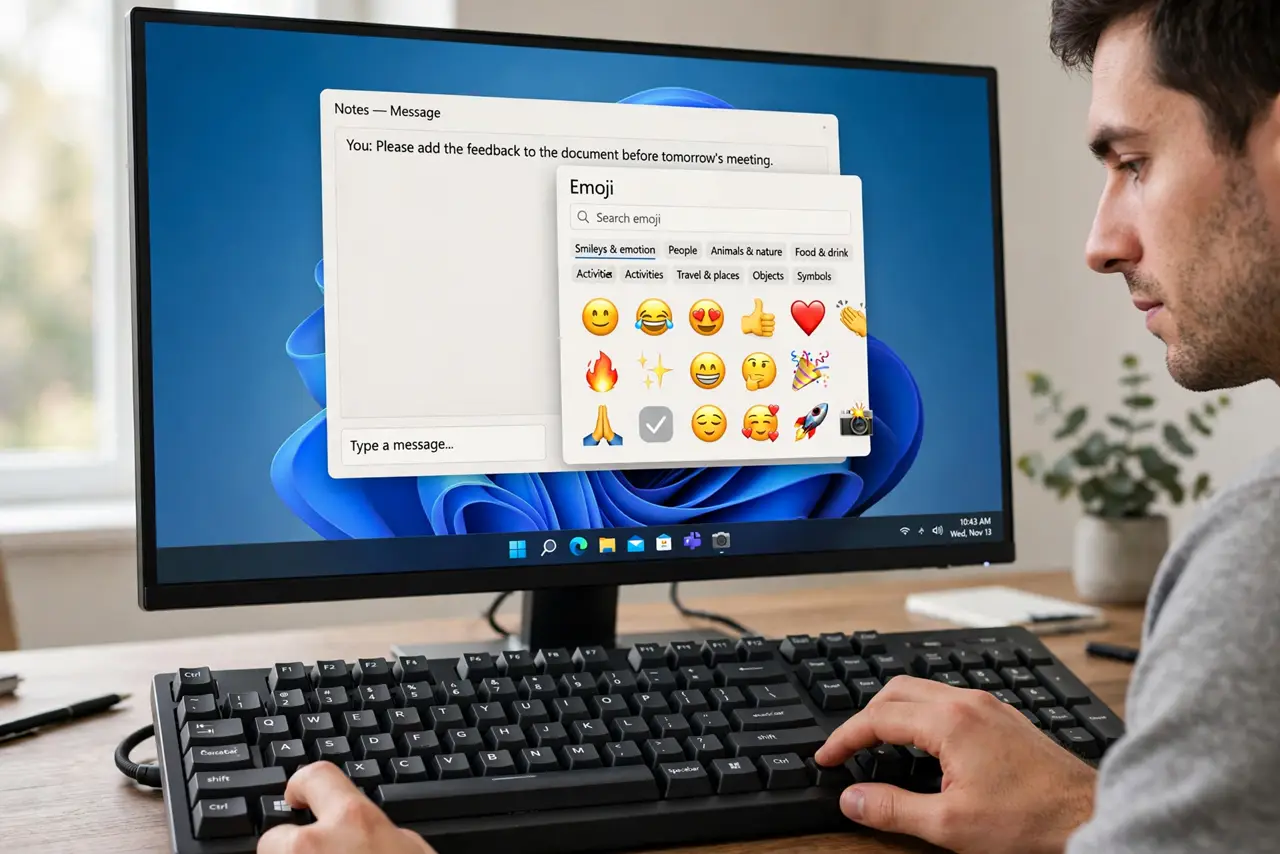
- Open the emoji panel. Press Windows key + period (.) in any text field. The panel floats over what you are typing — if nothing appears, see the panel troubleshooting guide.
- Pick a person emoji. Click any human emoji — wave, thumbs up, family. A skin-tone row appears above or beside the emoji grid.
- Choose your tone. Click the tone you want. Windows applies it to that emoji immediately and remembers your choice for that emoji family.
- Repeat for your frequent emojis. The setting is per emoji, not global. Set the five or six you actually use and you will rarely touch the row again.
- Explore the rest of the panel. The same panel has tabs for symbols and kaomoji — the text-face art made of punctuation.
- Check it stuck. Type the emoji in a message. If it reverts to yellow, you changed the tone in a different app context — set it once more where you type most.
What NOT to do
- Do not look for one global skin-tone setting. Windows does not have it — per-emoji memory is the actual system.
- Do not confuse this with your phone's settings. The PC panel and your phone each remember their own choices.
- Do not install a third-party emoji keyboard for this. The built-in panel already does it, without ads or permissions.
- Do not expect the tone in password fields. The panel is disabled where text is masked, which is correct behavior.
Frequently asked questions
Why did my skin tone reset?
A major Windows update can reset panel preferences. Set your frequent emojis once more and they stick again.
Does the choice sync to my other PCs?
No — it is stored locally per machine. Set it on each PC where you type.
Do recipients see my skin tone?
Yes, on any modern phone or PC. Very old systems may show a generic glyph, but that is increasingly rare.