Kaomoji Shortcuts in the Emoji Panel
You have seen those expressive text faces — the shrug, the table flip — and wondered where people find them. They are called kaomoji, and Windows ships a whole gallery of them inside the emoji panel. No memorizing punctuation sequences, no sketchy websites: open the panel, click, done.
TL;DR / Quick Fix
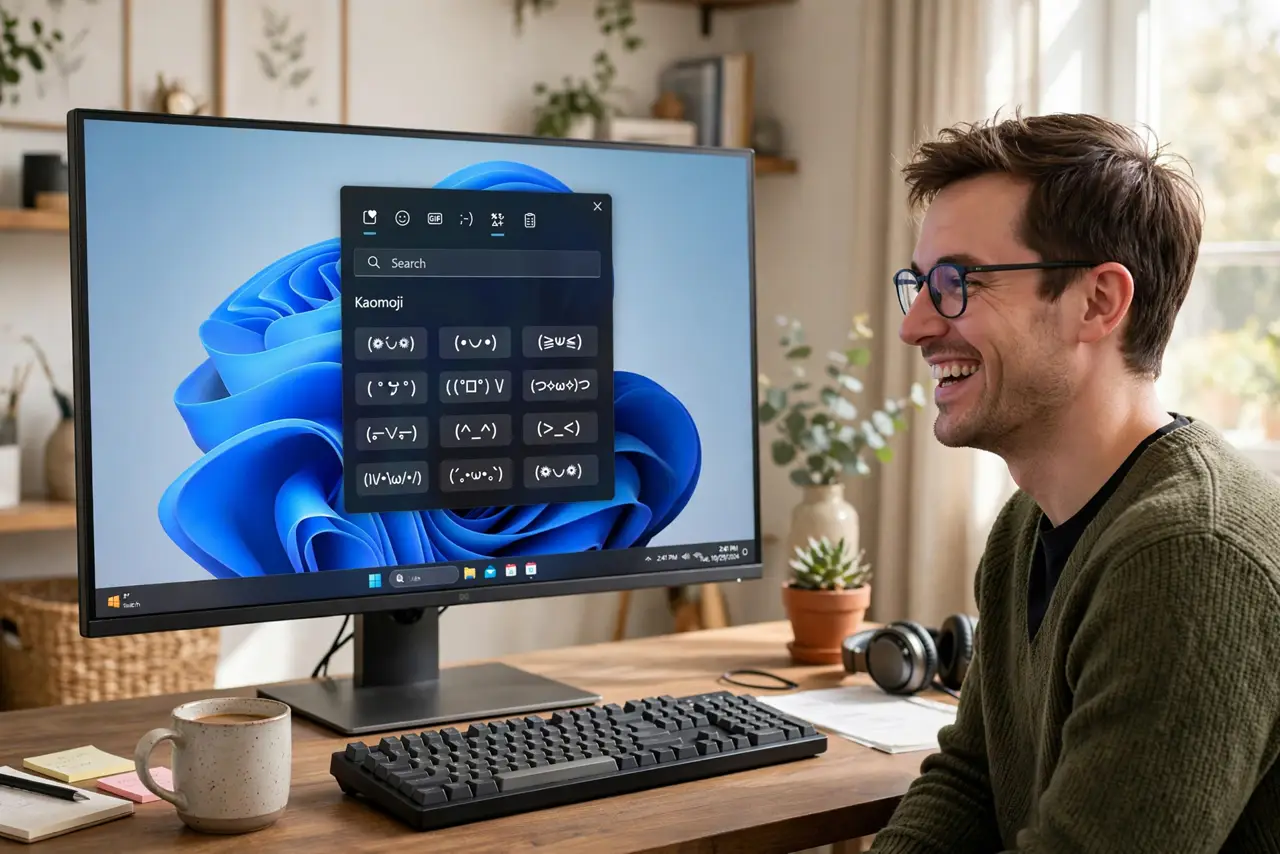
Quick fix: press Win+. and click the kaomoji tab at the top of the emoji panel. Browse by mood or scroll — click one to insert it anywhere you can type. No memorizing needed; the panel is the shortcut. Recently used kaomoji sit at the front.
Follow these steps
- Open the emoji panel. Press Windows key + period (.) in any text field where you can type.
- Find the kaomoji tab. Look along the top of the panel for the kaomoji section — the tab showing a face made of punctuation marks.
- Browse by mood. The gallery groups kaomoji by feeling: happy, sad, shrug, angry, and more. Scroll a category until one fits your message.
- Click to insert. One click drops the kaomoji at your cursor. It is plain text, so it works in chat apps, documents, and email alike.
- Revisit recent ones. The panel keeps your recently used kaomoji at the front, so your three favorites are always one click away.
- Pair with emoji settings. The same panel holds the emoji picker — learn both tabs and you will never hunt for a symbol again.
What NOT to do
- Do not expect kaomoji in password fields. The whole panel is disabled where text is masked.
- Do not install a kaomoji app for this. The built-in gallery needs no permissions and shows no ads.
- Do not assume they render everywhere. Most modern apps show them fine, but some older programs mangle the characters.
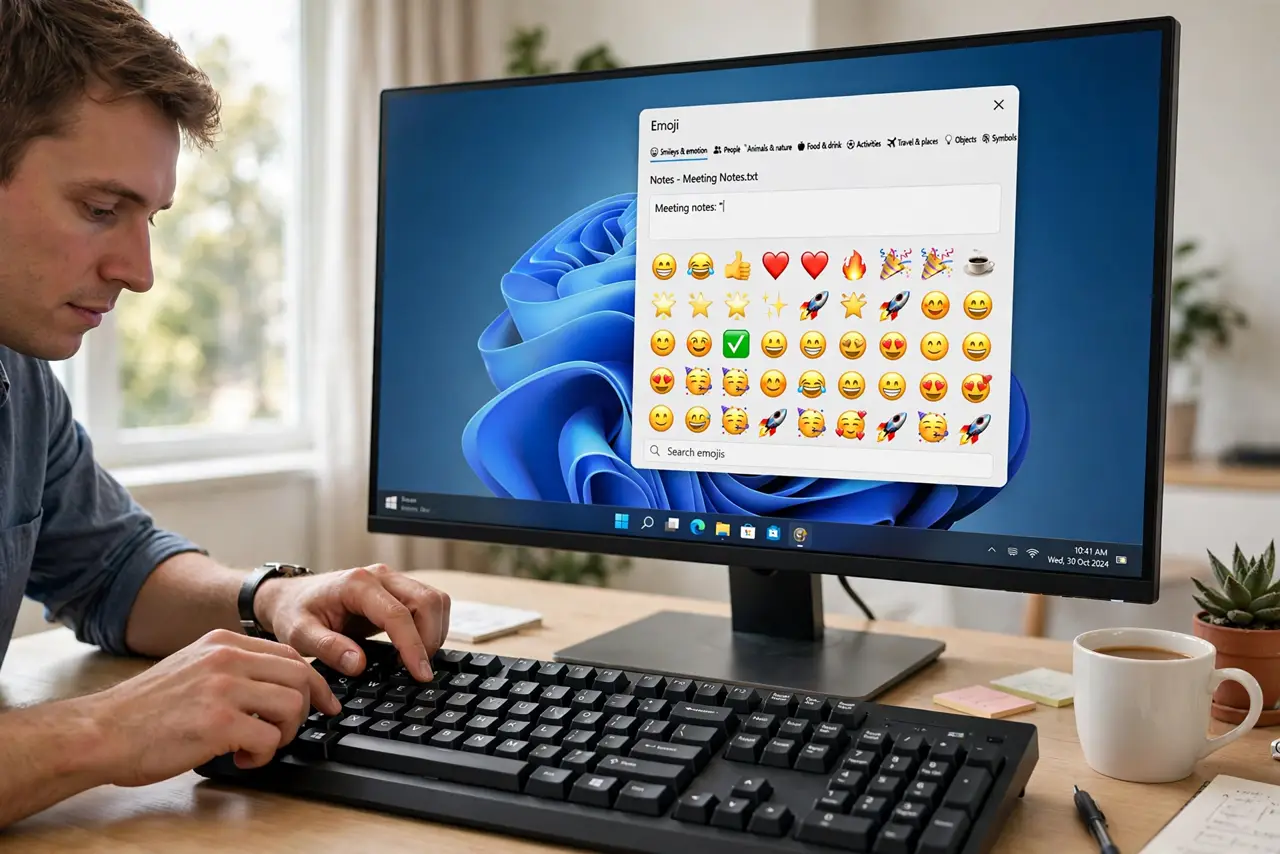
- Do not confuse kaomoji with emoji. Kaomoji are text you can copy anywhere; emoji are images that depend on the platform.
Frequently asked questions
The kaomoji tab is missing — where did it go?
Panel layouts vary slightly by Windows version. Update Windows, then reopen the panel — the tab is standard on current builds.
Do kaomoji work on Mac and phones?
Yes, as plain text they travel anywhere. Mac and phones have their own ways to insert them, but pasted kaomoji display fine.
Why does a kaomoji look broken in one app?
That app's font lacks some of the special characters. It is cosmetic — the text itself is intact, and most recipients see it correctly.