Empty Recycle Bin Automatically?
The Recycle Bin quietly fills up with gigabytes of deleted files, and Windows never empties it on its own by default. You can make Windows delete old trashed files automatically with Storage Sense — no third-party tools, no scripts. Set it once and the bin cleans itself on a schedule you choose. Nothing important is touched, since it only removes what you already deleted.
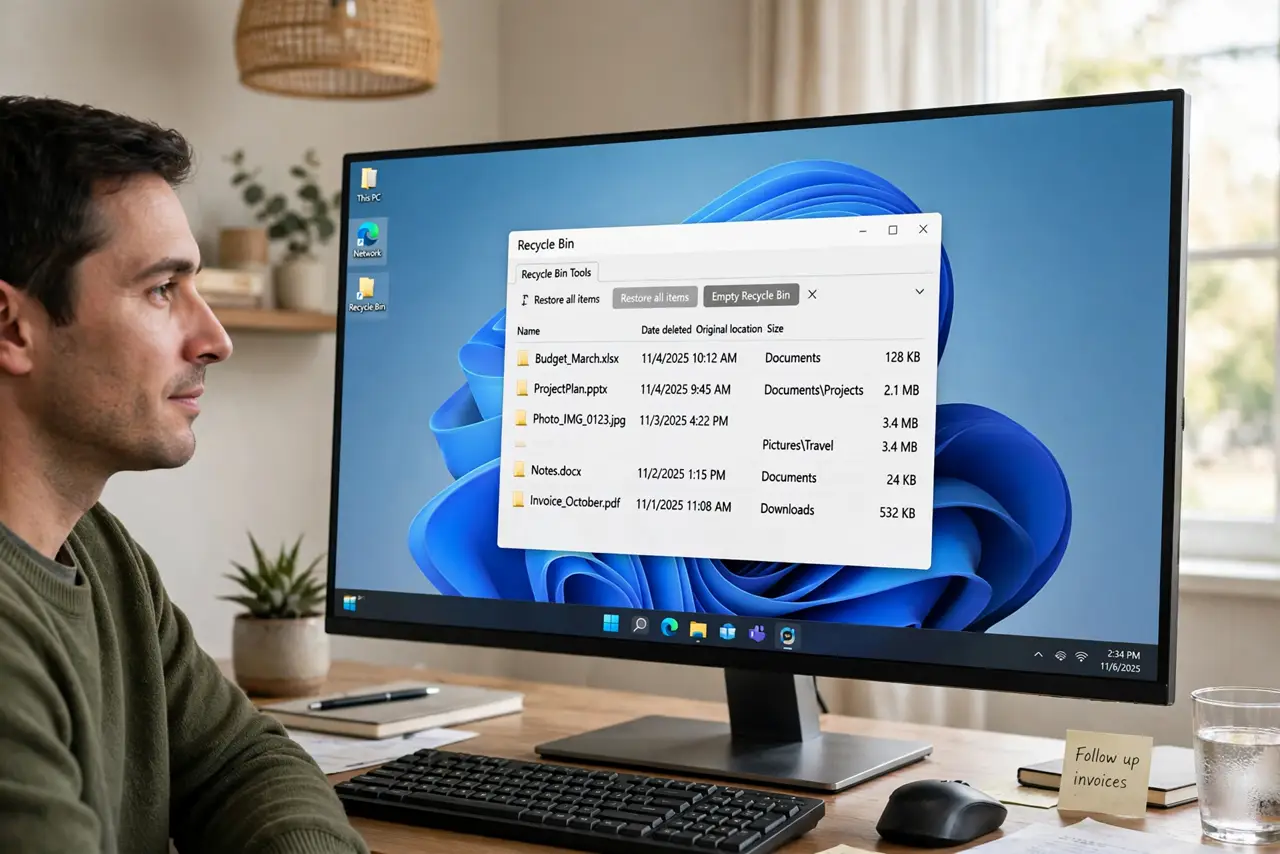
TL;DR / Quick Fix
Quick fix: open Settings, System, Storage, and turn on Storage Sense. Set it to delete files in the Recycle Bin after 30 days. Run it once now to clean the current buildup. It only touches files you already deleted — your real files stay exactly where they are.
Follow these steps
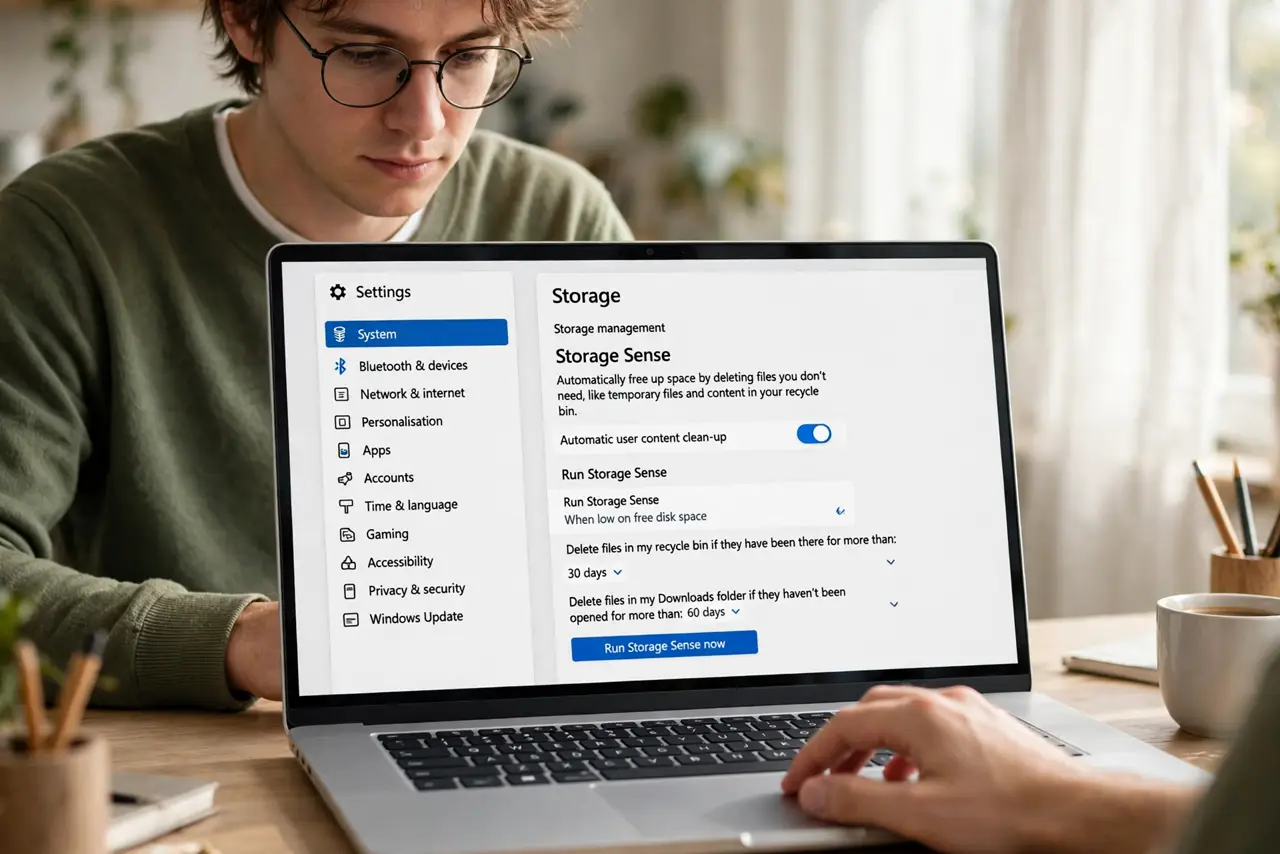
- Open Storage Sense settings. Go to Settings, System, Storage. This is Windows' built-in disk cleaner — safe, official, and already on your PC. Do not download a 'cleaner' app for this; Windows handles it natively.
- Turn on Storage Sense. Flip the Storage Sense toggle on. This enables automatic cleanup of temporary files and, with the right setting, old Recycle Bin contents. It runs quietly in the background.
- Set the Recycle Bin schedule. Click Storage Sense to open its options, and find 'Delete files in my recycle bin if they have been there for over'. Choose 30 days — long enough to rescue anything you deleted by mistake, short enough to keep the bin small.
- Run it once right now. Back on the Storage page, click Temporary files, review what is selected, and remove them. This clears the current buildup immediately instead of waiting for the schedule.
- Check the schedule is active. Storage Sense shows when it last ran. If it says Never, the schedule may be paused — open its settings and make sure cleanup runs automatically, not only when disk space is low.
- Know what it will not delete. Storage Sense only removes files already in the Recycle Bin past your chosen age, plus temporary files. It never deletes your documents, photos, or installed programs — a corrupted bin is a separate issue worth checking if cleanup misbehaves.
What NOT to do
- Do not set the schedule to 1 day. A too-short window deletes files before you notice a mistaken deletion — 30 days is the sweet spot.
- Do not install a third-party 'auto empty' tool. Storage Sense does this natively and safely; extra tools add risk for zero benefit.
- Do not assume the bin is empty because it looks empty. Deleted files still occupy disk space until the bin is actually emptied.
- Do not use Shift+Delete as a substitute. That skips the bin entirely and removes your safety net — let the schedule handle it.
Frequently asked questions
Will Storage Sense delete files I still need?
No. It only deletes files sitting in the Recycle Bin past your chosen age, plus temporary files. Anything outside the bin is untouched.
How often does Storage Sense run?
You choose: daily, weekly, monthly, or when disk space runs low. Weekly works well for most people alongside the 30-day bin schedule.
My Recycle Bin still fills up — why?
Storage Sense may be paused or the schedule set to manual. Reopen Settings, System, Storage and confirm the toggle and schedule are both on.