End a Frozen App Safely
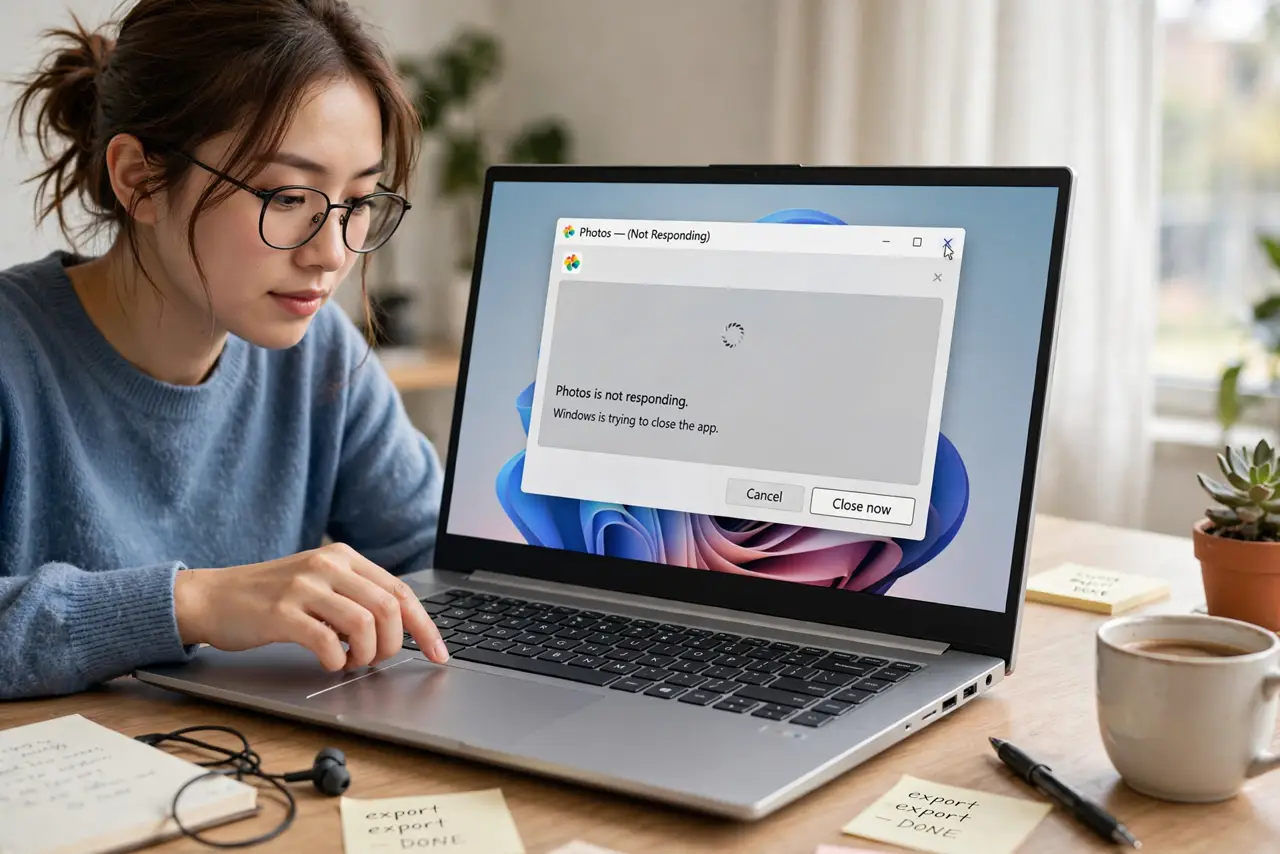
An app freezes mid-work — the window ghosts, clicks do nothing, and the spinner spins forever. Your instinct says yank the power or hammer the close button, but Task Manager's End task is the controlled way out. Done right, you lose only the unsaved work in that one app.

TL;DR / Quick Fix
Quick fix: press Ctrl+Shift+Esc, find the frozen app under Processes, select it, and click End task. Give it a few seconds to close. Save your work in other apps first if you can, since a hard kill loses the frozen app's unsaved changes.
Follow these steps
- Try the gentle close first. Click the X or press Alt+F4 and wait 30 seconds. Some 'frozen' apps are just thinking — killing them loses work you'd have kept.
- Open Task Manager. Ctrl+Shift+Esc. If the frozen app covers the screen, Ctrl+Alt+Del > Task Manager usually punches through.
- Find the app under Processes. Look for the app's name with a 'Not responding' tag. Expand it if it shows sub-processes — end the parent.
- End the task. Select it and click End task. One click is enough; hammering it can kill the wrong thing in the confusion.
- Wait, then verify it's gone. Give it ten seconds and confirm the window closed. Check the Processes list — a lingering background process may need a second End task.
- Relaunch and save early. Reopen the app and save your work immediately. If one app freezes constantly, check its updates — and review your startup load for resource hogs making everything fragile.
What NOT to do
- Do not hold the power button for a frozen app. That's a whole-PC amputation for a one-app problem — you'll lose unsaved work everywhere.
- Do not End task on Windows processes you don't recognize. Killing Explorer or a system service mid-thought causes stranger problems than the frozen app.
- Do not immediately reopen five copies of the app. One instance at a time while you check whether the freeze repeats.
- Do not ignore a pattern. An app that freezes daily has a corrupt profile, a bad update, or a conflict — investigate instead of ritual-killing it.
Frequently asked questions
Will End task lose my other open work?
No — it kills only the selected app. Other programs keep running with their unsaved work intact. That's the whole advantage over a forced reboot.
The app won't die even with End task — now what?
Go to the Details tab, find the app's .exe, and End process tree. If even that fails, the app is wedged in a driver — save everything else and restart.
Why do apps freeze in the first place?
Usually they're waiting on something — a network response, a locked file, or exhausted memory — and stop answering Windows. The startup impact guide explains the resource side.