Apply Energy Recommendations
Windows knows exactly what is wasting your battery — screen too bright, sleep set to never, background apps running wild — and it collects the fixes on one page most people never open. Energy recommendations turns those findings into one-click toggles. Here is where the page lives and what to apply.
TL;DR / Quick Fix
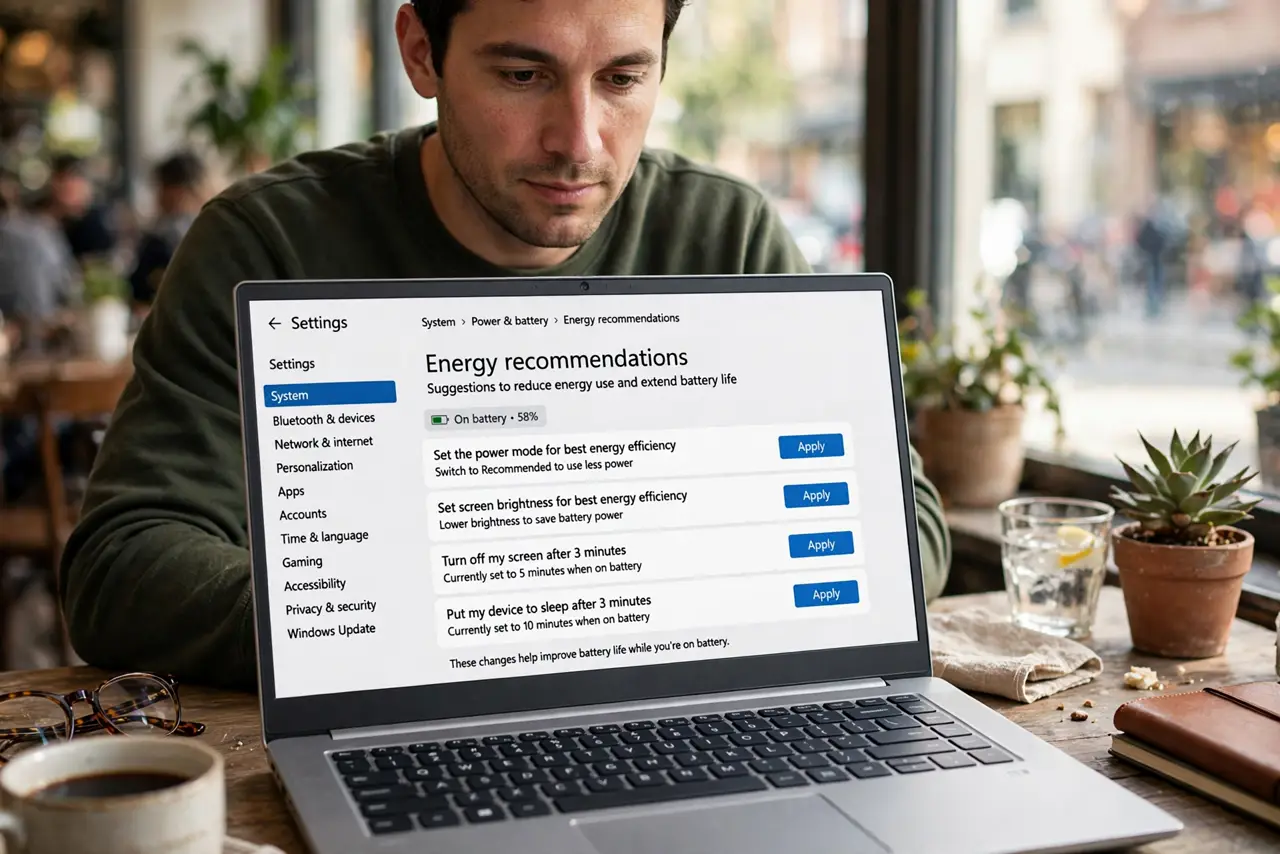
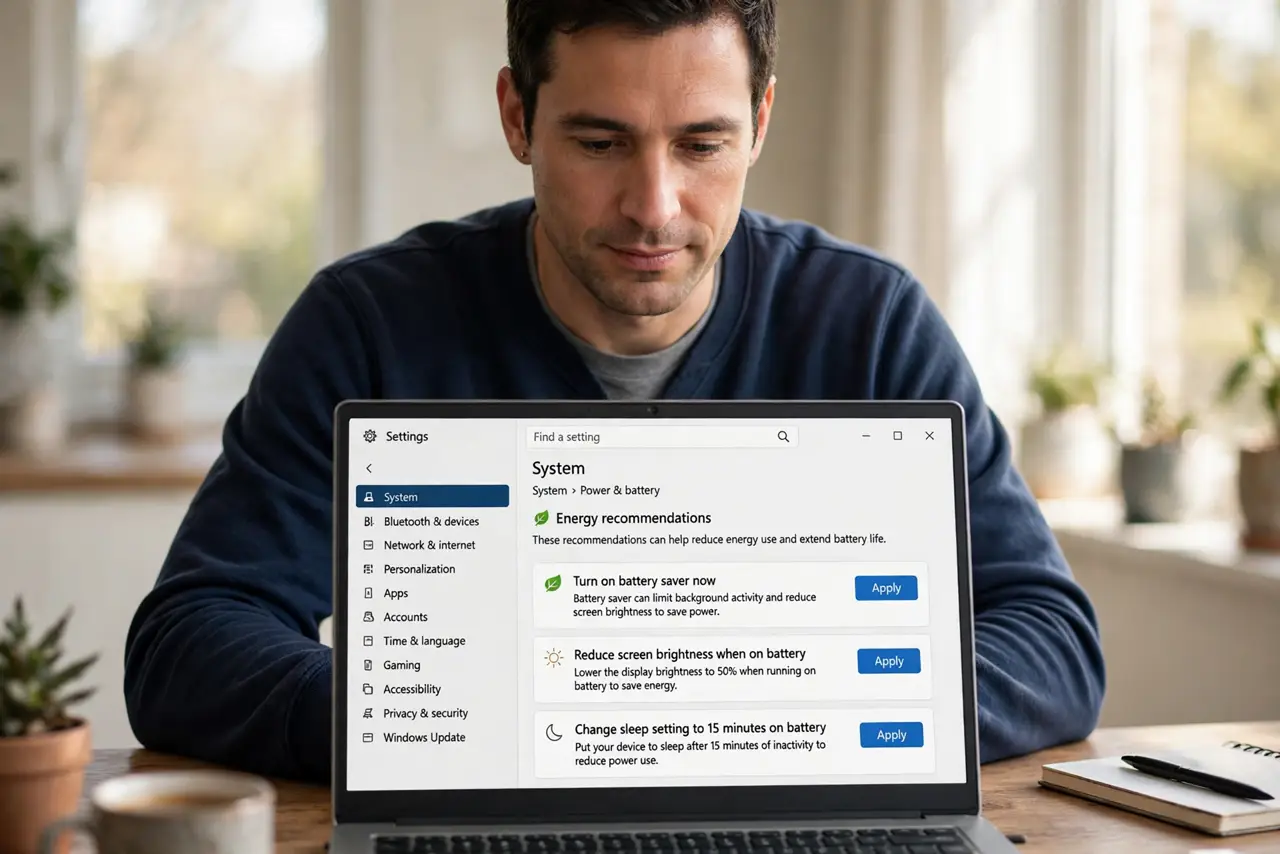
Quick fix: open Settings, System, Power and battery, and open Energy recommendations — apply the suggestions like shorter screen timeouts and lower brightness. Each toggle shows its savings plainly. Apply them all for the biggest battery gain; they are safe and reversible.
Follow these steps
- Open Energy recommendations. Go to Settings, System, Power and battery, and click Energy recommendations. Windows lists everything it thinks is wasting power, with an Apply button each.
- Apply the screen suggestions. Shorter screen timeout, lower brightness — the two biggest wins. These mirror the screen timeout settings you can also set manually.
- Apply the sleep suggestions. Sleep timers that are too long or disabled get flagged. Sensible sleep settings save power without annoying you.
- Review the background apps. The page flags apps burning power in the background. Restrict the ones you do not need — your battery will notice.
- Check the battery saver tie-in. Energy settings pair with automatic battery saver — see the battery saver automation to make low-battery mode kick in on its own, and what to do if it turns on too early.
- Revisit after big changes. New apps, new peripherals, new habits — recheck the page quarterly. Recommendations go stale as your setup changes.
What NOT to do
- Do not ignore the page after opening it. Reading the recommendations without applying them saves exactly zero battery.
- Do not apply blindly on a desktop. Some suggestions assume battery — on a plugged-in desktop, only the sensible ones matter.
- Do not expect miracles. Recommendations optimize; they cannot fix a worn-out battery that needs replacing.
- Do not forget the biggest consumers. Screen brightness and background apps dwarf the small toggles — start there.
Frequently asked questions
Are the recommendations safe?
Yes — every toggle is a normal settings change, reversible in the same place. Nothing destructive lives on this page.
Why do new recommendations appear?
Windows re-evaluates as your usage changes — new apps and settings create new suggestions over time.
Will this slow my laptop?
The power-saving suggestions can modestly reduce performance on battery. On a modern laptop the difference is small; plugged in, nothing changes.