Stretch Laptop Battery
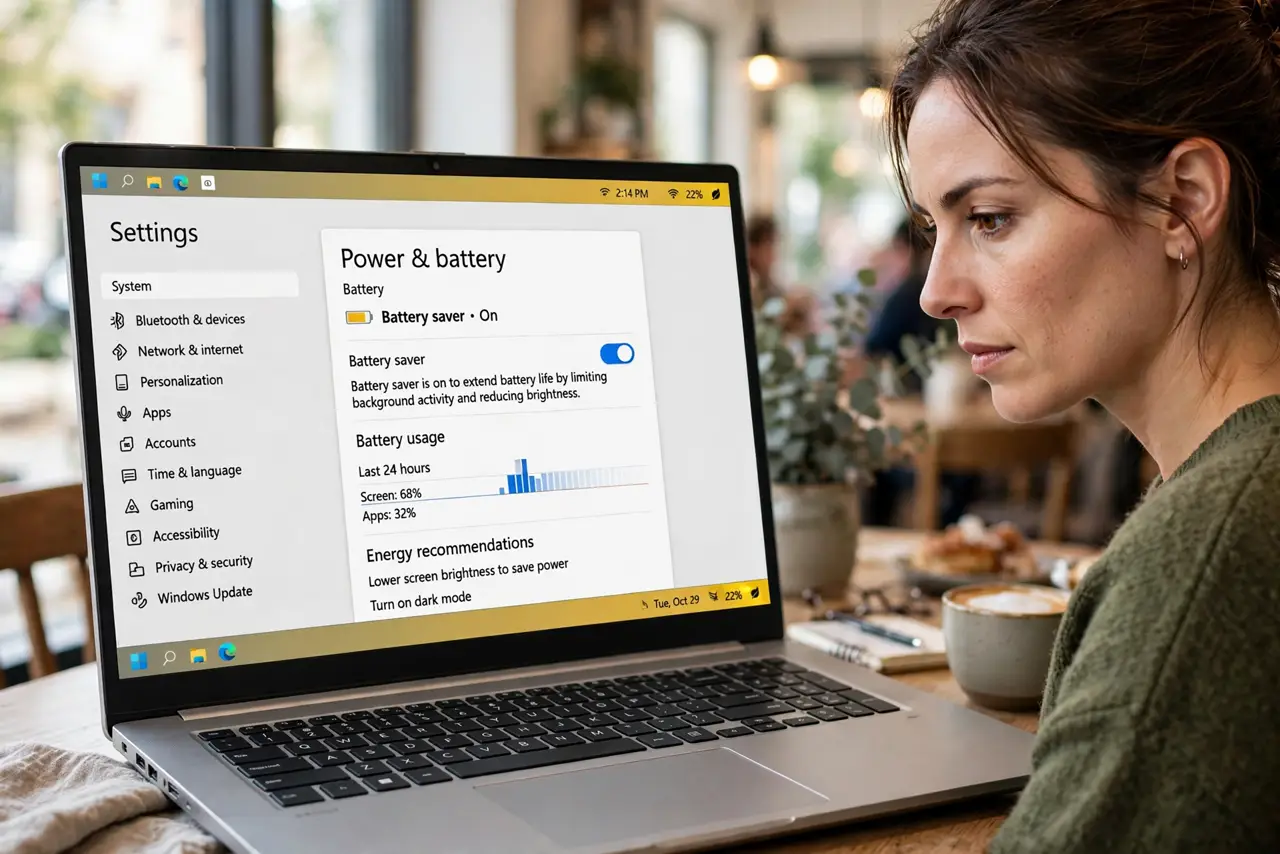
You are hunting for outlets by 3 p.m. — the laptop that promised ten hours delivers six. Windows Energy Saver (and the older Battery Saver) trades a little background activity and brightness for real extra time. A few settings plus honest habit changes stretch the day without carrying the charger everywhere.
TL;DR / Quick Fix
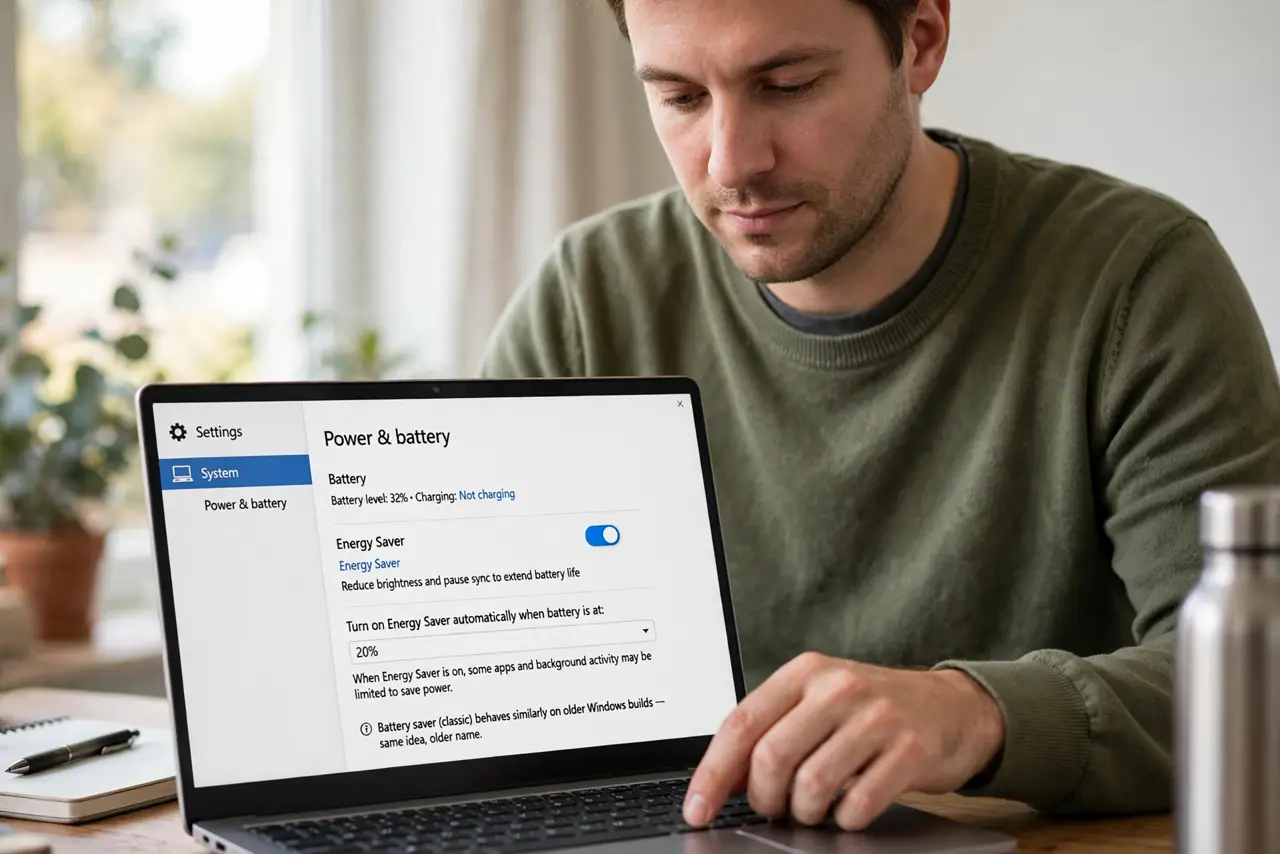
Quick fix: turn on Energy Saver in Settings, System, Power and battery — set it to kick in at 30% or always on battery. Drop brightness two notches and close the apps you are not using. Those three moves buy the most minutes per effort of anything in Windows.
Follow these steps
- Turn on Energy Saver. Settings, System, Power and battery — enable Energy Saver and set when it engages. The battery saver classic behaves similarly on older builds — same idea, older name.
- Set the trigger wisely. Always-on-battery is aggressive; 30% is balanced. Pick based on your day — long travel days want aggressive, office days want balanced.
- Drop the brightness. The screen is the hungriest component. Two notches down is barely noticeable and buys serious minutes — brightness is the master lever.
- Tame background apps. In the same Power page, limit background activity for apps you do not need live. The early trigger notes cover when the saver itself misbehaves.
- Unplug the power hogs. External drives, USB gadgets, the second monitor — peripherals drink battery. Travel light: internal keyboard, dim screen, nothing extra.
- Cap the charge for longevity. For plugged-in-mostly laptops, the battery threshold setting preserves long-term health — saver stretches today, the cap protects tomorrow.
What NOT to do
- Do not run max brightness on battery. It is the single biggest drain — two notches is free battery.
- Do not leave twenty apps open. Background apps sip constantly; the saver helps, but quitting helps more.
- Do not disable the saver for tiny gains. The performance cost is small; the battery gain is real.
- Do not expect ten hours from a three-year-old battery. Chemistry ages — settings optimize, they do not resurrect.
Frequently asked questions
Energy Saver versus Battery Saver?
Energy Saver is the newer Windows 11 name; Battery Saver is the older one. Same job, updated label.
Does it slow the laptop?
Slightly under heavy load — background tasks throttle first. For office work you will not notice.
Why does my battery still die fast?
Check the hogs: screen brightness, video calls, and runaway apps. The saver cannot outrun a 100% CPU tab.