File Explorer Opens Duplicate Tabs? Fix It
You double-click a folder and Explorer opens it in yet another new tab — five tabs deep into the same folder tree. The culprit is usually a folder option set to open in new windows, or a middle-click habit borrowed from browsers. One setting restores sane single-tab browsing.
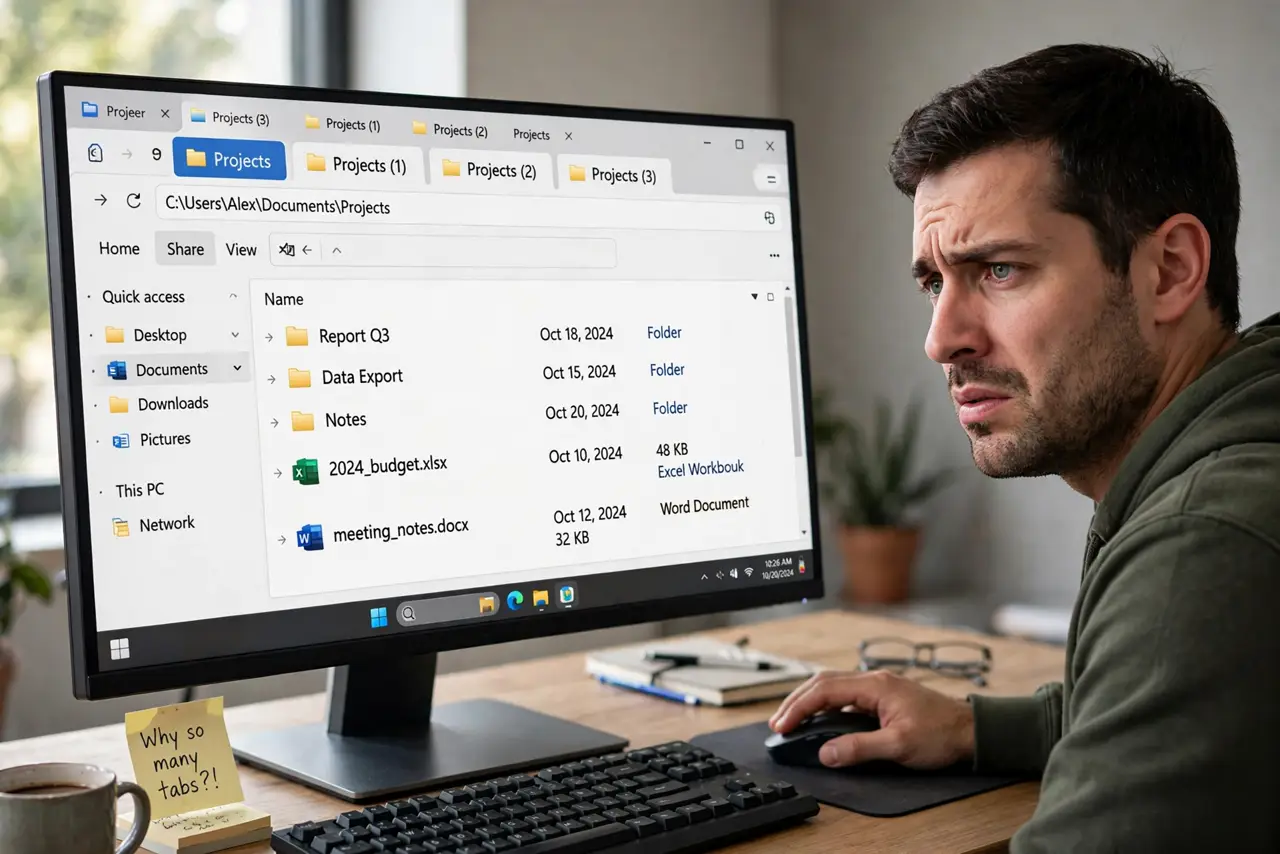
TL;DR / Quick Fix
File Explorer opens a duplicate tab from middle-clicked folders or shortcuts set to open in a new tab. Open Folder Options > General and choose 'Open each folder in the same window'. Close extras with Ctrl+W. The same setting stops folders that always opened in separate windows.
Follow these steps
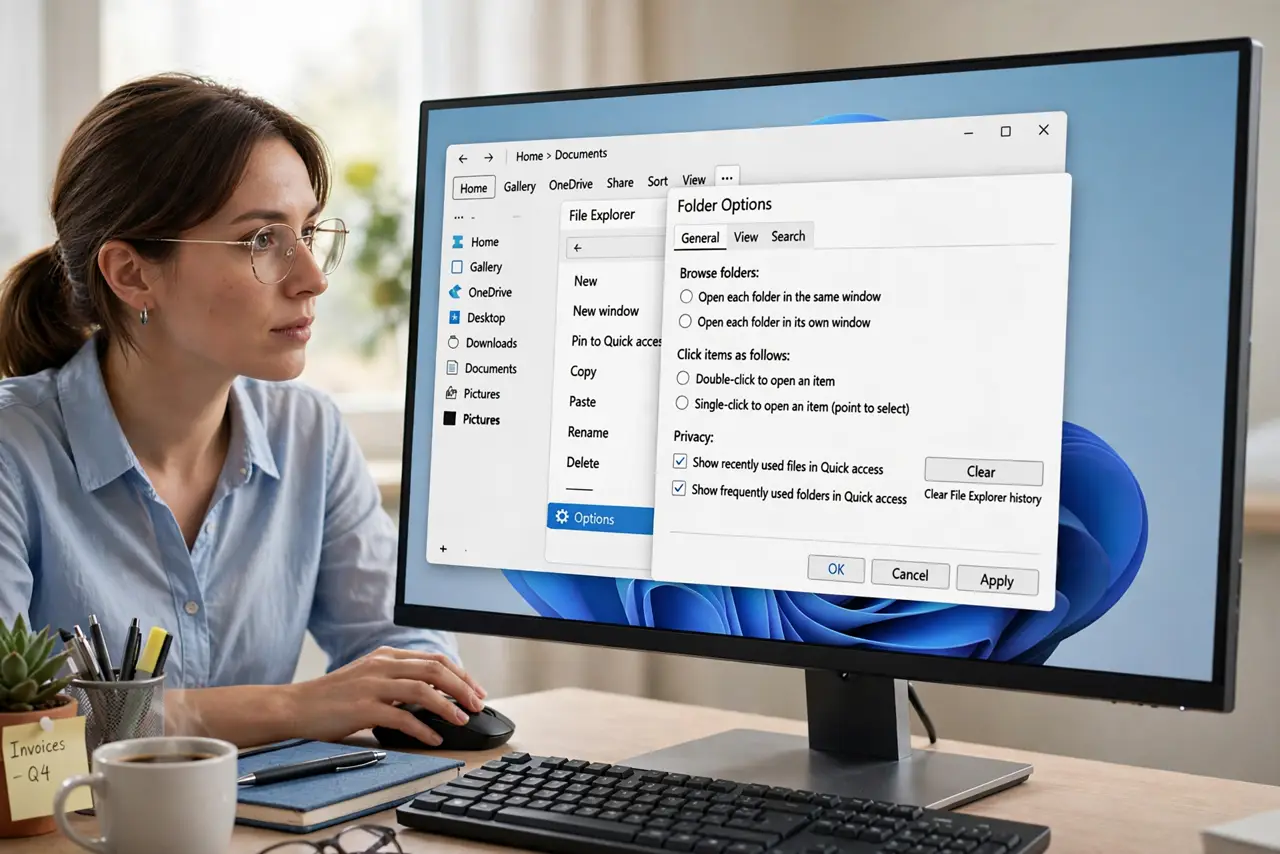
- Open Folder Options. In File Explorer, click the three-dot menu and choose Options. The Folder Options dialog opens to the General tab.
- Choose 'Open each folder in the same window'. Under 'Browse folders', select this option and click OK. New folders now reuse the current tab instead of spawning extras.
- Close the duplicate tabs. Press Ctrl+W on each extra tab, or right-click a tab and close the others. Start clean from one tab.
- Check your shortcuts' targets. A shortcut with a target that forces a new window keeps misbehaving. Recreate the shortcut by right-dragging the folder and choosing Create shortcuts here.
- Break the middle-click habit. Middle-clicking a folder in Explorer opens it in a new tab — just like a browser. Single left-click if you want the same tab.
- Restart Explorer if tabs still multiply. Open Task Manager, restart Windows Explorer, and the folder option applies cleanly to all windows.
What NOT to do
- Do not reinstall Windows over tab behavior. It is one Folder Options radio button, not a broken installation.
- Do not confuse tabs with windows. Ctrl+W closes a tab; Alt+F4 closes the whole Explorer window with all its tabs.
- Do not blame the mouse for middle-click tabs. The middle button is doing its documented job — your click is the setting.
- Do not set 'open in new window' and then complain about clutter. The two options are opposites — pick the behavior you actually want.
Frequently asked questions
Why does Explorer open a new tab when I didn't ask?
Either the Folder Options choice is set to separate windows, or you middle-clicked. Both are easy to change or avoid.
Is there a limit to Explorer tabs?
No hard limit, but dozens of tabs slow the window down. Close what you don't need — Ctrl+W is quick.
Can I make Ctrl+click always open a new tab?
Yes — with 'same window' as the default, Ctrl+clicking any folder opens just that one in a new tab. Best of both worlds.