Group Files by Type in Explorer
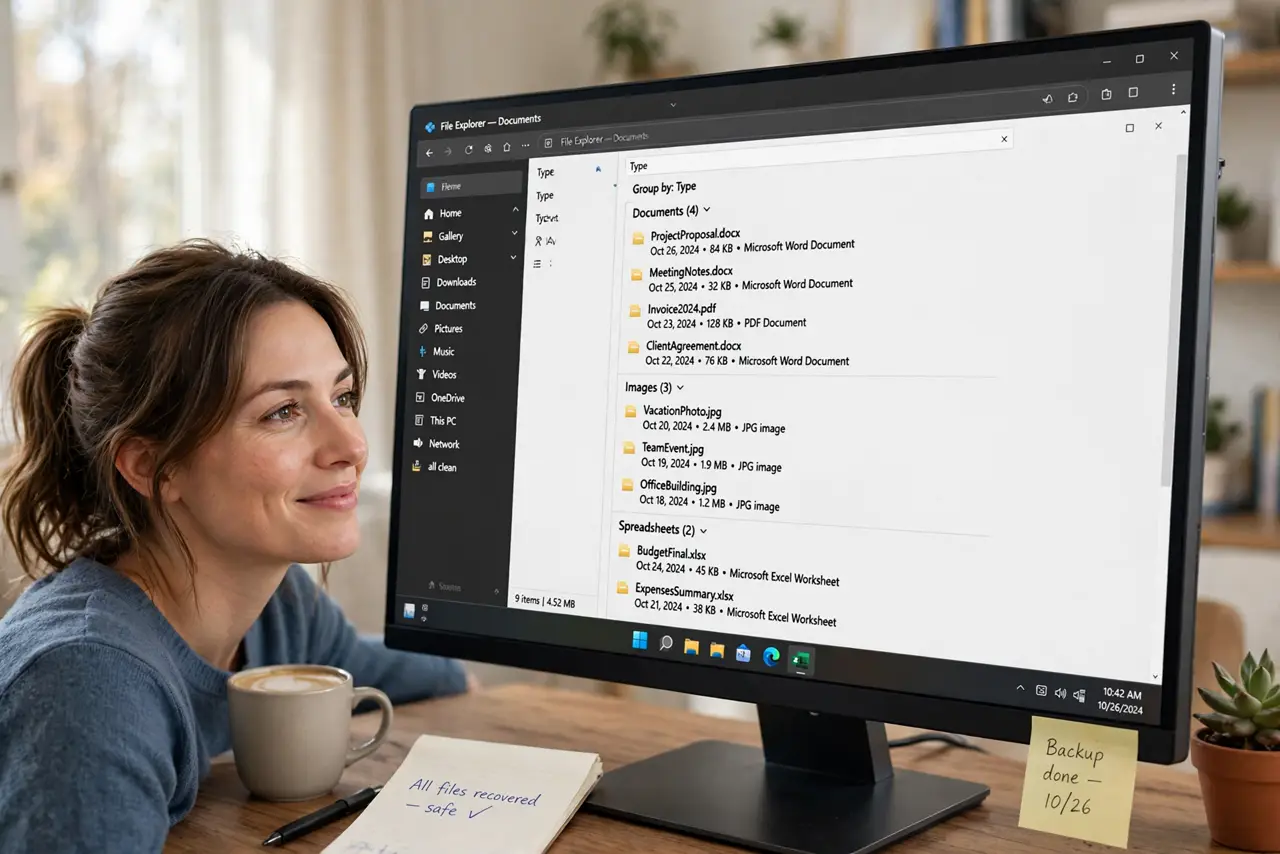
A downloads folder with four hundred mixed files is a wall of chaos — installers, PDFs, images, zips, all jumbled. Grouping by type turns that wall into labeled sections you can collapse one by one. It is per-folder, reversible in one click, and works in every view mode.
TL;DR / Quick Fix
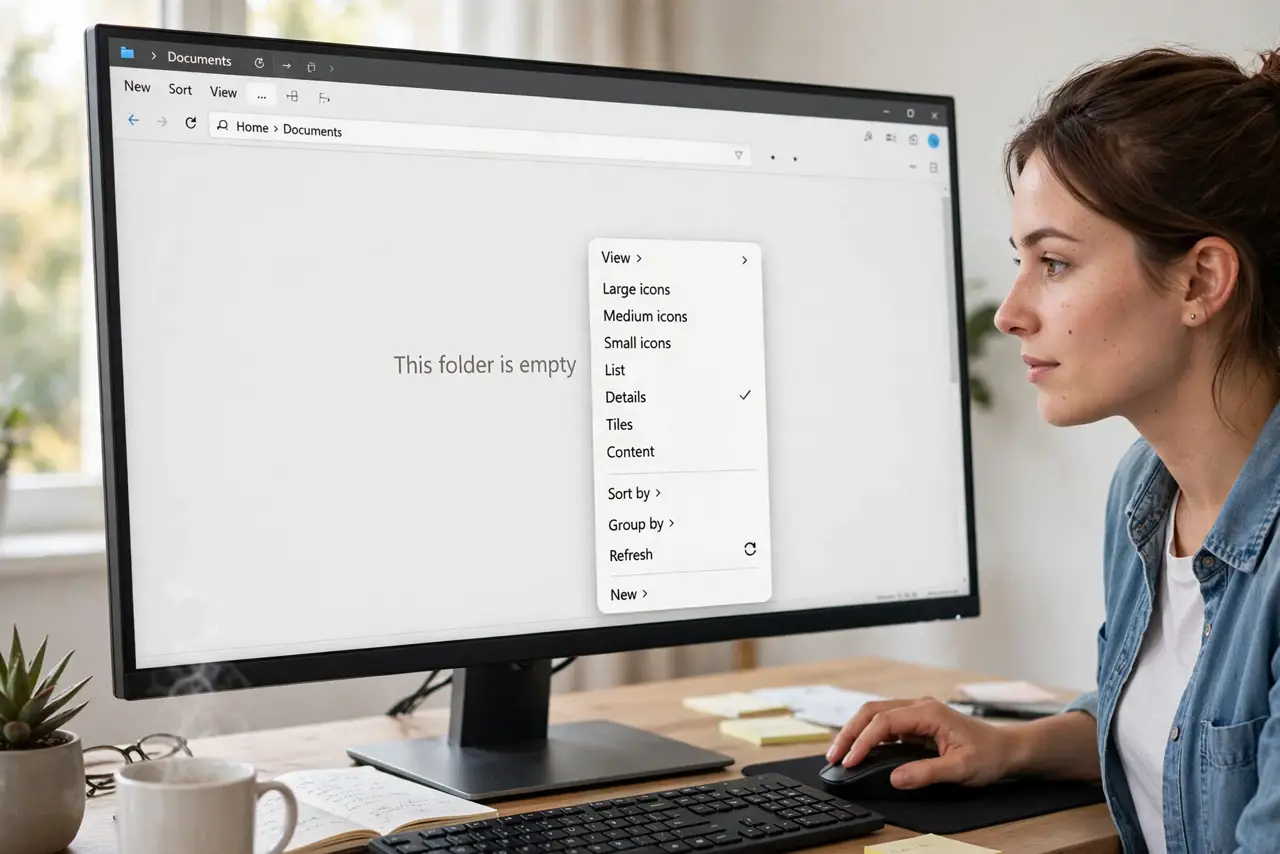
Right-click empty space in the folder, choose 'Group by', and pick 'Type' — files arrange under headings like Documents and Images. Click a heading to collapse it and declutter long folders. To undo, choose 'Group by > (None)'. Grouping is per-folder, so your other folders stay exactly as they were.
Follow these steps
- Right-click empty folder space. Right-click a blank area of the folder — not on a file — to open the view menu.
- Choose Group by > Type. Hover over 'Group by' and click 'Type'. Files instantly arrange under type headings.
- Collapse headings to declutter. Click any heading — Images, Documents, Applications — to collapse that whole section. Long folders become scannable.
- Combine with sorting inside groups. The Sort by choice still applies within each group. Group by Type plus Sort by Date gives tidy, chronological sections.
- Undo with Group by > (None). Right-click again, choose 'Group by', and pick '(None)'. The folder returns to its flat list immediately.
- Know it is per-folder. Grouping affects only the current folder. Your other folders keep whatever view they had — set each one deliberately.
What NOT to do
- Do not confuse grouping with sorting. Sorting orders files; grouping adds the labeled sections — they work best together.
- Do not expect grouping in Open/Save dialogs. Those simplified windows ignore your grouping choice.
- Do not group by Type in a folder of one type. A folder of only photos gains nothing — grouping shines on mixed folders.
- Do not forget you can collapse all. Right-click a heading for Collapse all groups when the list gets long.
Frequently asked questions
Can I group by something other than type?
Yes — Group by offers Date modified, Size, Name, and more. Type is the most useful for mixed folders; Date suits project folders.
Does grouping change where files are stored?
No. Grouping is purely visual — files stay in the same folder, just displayed under headings.
Why did grouping turn off by itself?
The 'Apply to Folders' option or a folder-view reset can clear it. Re-apply Group by > Type; it takes five seconds.