External Monitor Blurry? Fix Scaling
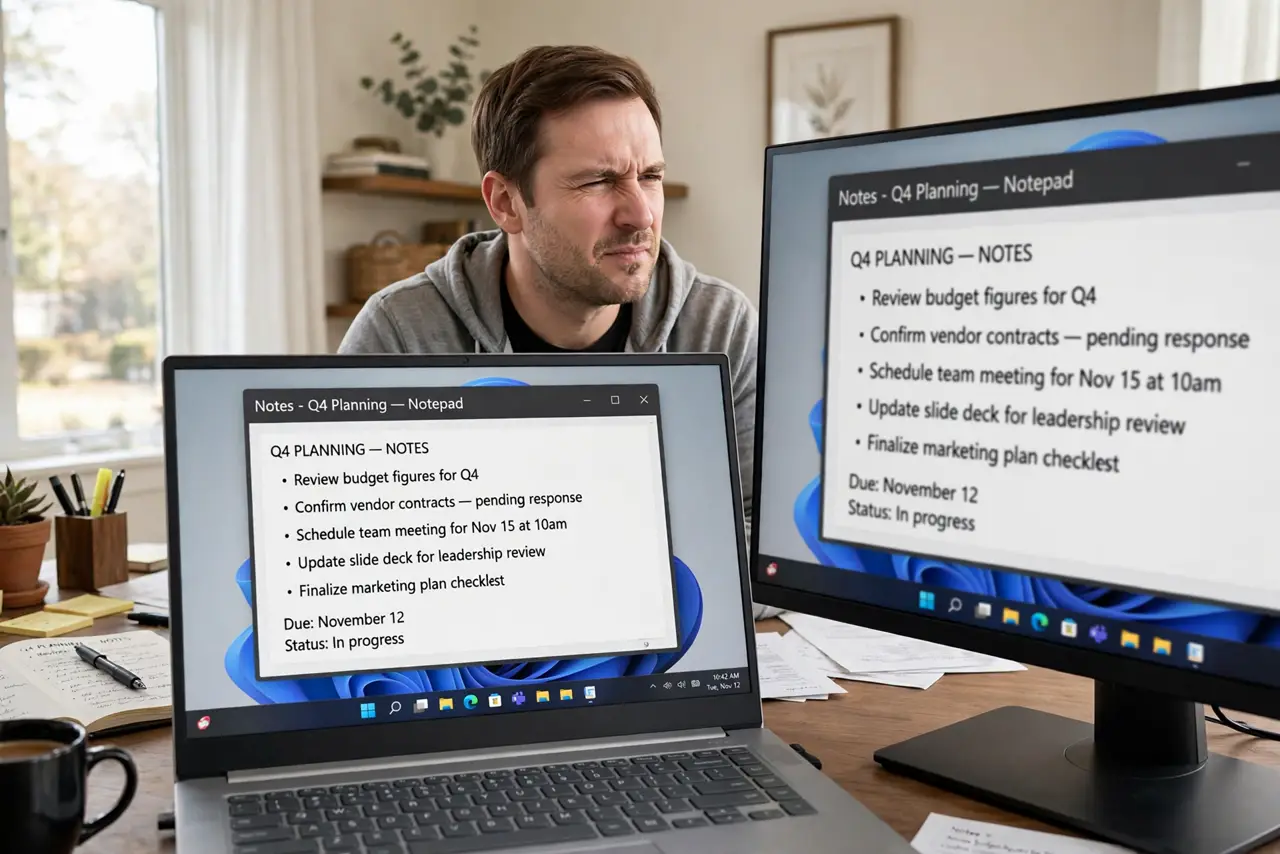
Text on your external monitor looks soft and slightly out of focus, while the laptop screen is razor sharp. The usual culprit is scaling: Windows enlarges the interface by a percentage, and a non-recommended value blurs everything. Two settings in Display fix the vast majority of cases.
TL;DR / Quick Fix
Quick fix: right-click the desktop, open Display settings, select the external monitor, and set Scale to the recommended percentage — mismatched scaling is the top cause of blur. Set resolution to the monitor's native value. If one app is blurry, override its high-DPI scaling in Properties > Compatibility.
Follow these steps
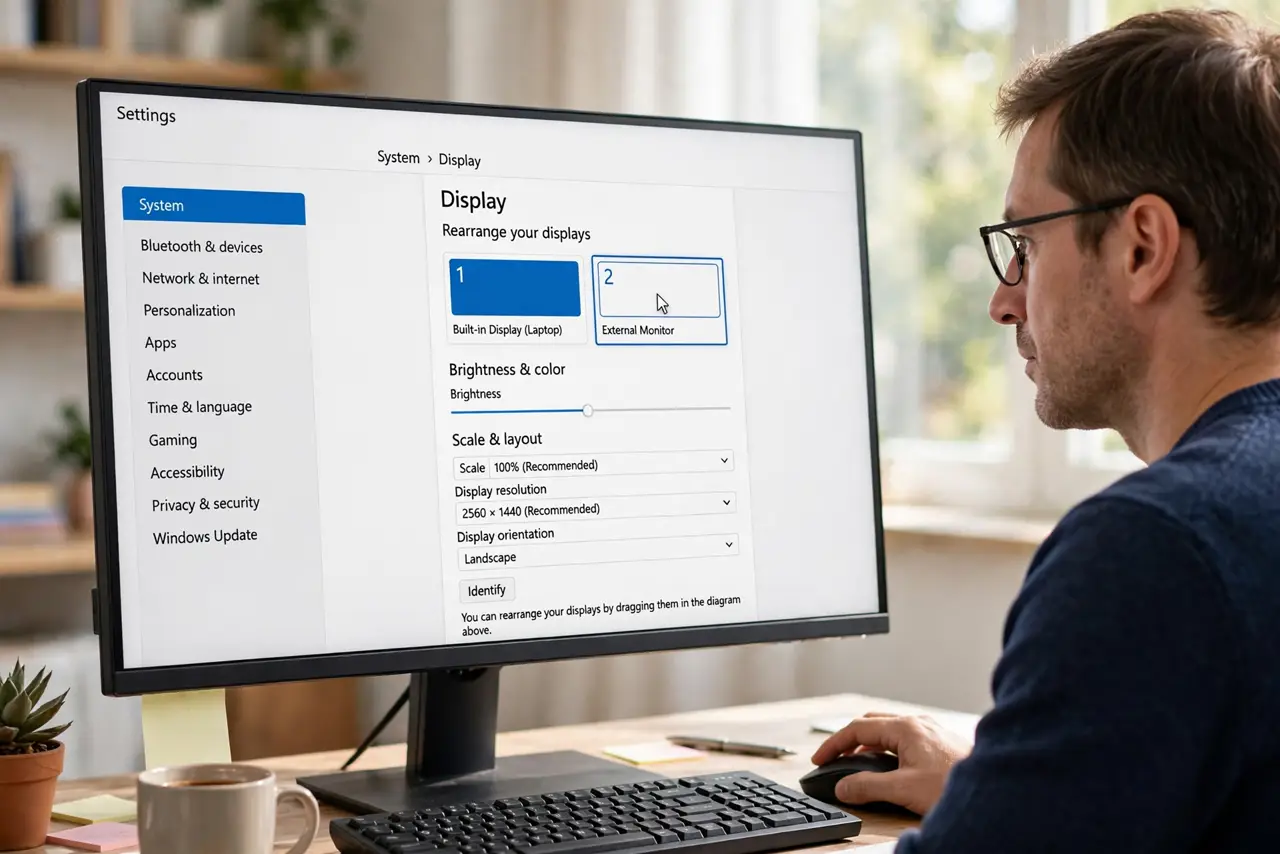
- Select the right monitor. Open Settings > System > Display and click the external monitor's numbered box. Every scaling change applies per display — adjusting the laptop screen does nothing for the monitor.
- Set the recommended scale. In the Scale dropdown for that monitor, choose the value Windows marks Recommended. Non-standard percentages force fractional scaling, which softens text.
- Set the native resolution. In Display resolution, pick the monitor's actual native resolution — usually the Recommended one. Running a 4K panel at 1080p guarantees softness.
- Fix one blurry app. If only one program is fuzzy, right-click its shortcut > Properties > Compatibility > Change high DPI settings, and try the System override. Old apps need this individual nudge.
- Check the cable and port. A bad cable or an underpowered docking station can limit the signal and force a lower resolution. Swap the cable before blaming Windows.
- Run ClearType tuning. Search for Adjust ClearType text and walk through the wizard on the external monitor. It fine-tunes text rendering per display.
What NOT to do
- Do not set the same scale on mismatched monitors. A 1080p and a 4K panel need different percentages — uniformity is the enemy here.
- Do not run the monitor below native resolution to make text bigger. Use scaling for size, resolution for sharpness — they are different jobs.
- Do not ignore per-app overrides. One blurry legacy app does not mean the whole setup is wrong.
- Do not buy a new monitor first. Cable, scale, and resolution resolve the overwhelming majority of blur complaints.
Frequently asked questions
Why is only my external monitor blurry?
Scaling and resolution are per-display. The laptop panel has correct values while the external one inherited a wrong scale — fix them independently.
Should I use 100% scaling on a 4K monitor?
Only if you enjoy microscopic text. 150% is typical for 27-inch 4K; the Recommended value is right for most people.
Text is sharp but one old app is fuzzy — why?
That app is not DPI-aware. The per-app compatibility override exists exactly for this case.