Set Up Family Safety
The kids' PC time is a mystery — what they play, how long, and when. Microsoft Family Safety gives you the dashboard: screen time limits, content filters, activity reports, and location sharing, all tied to their Microsoft accounts. Setup is a family conversation plus ten minutes of clicking.
TL;DR / Quick Fix
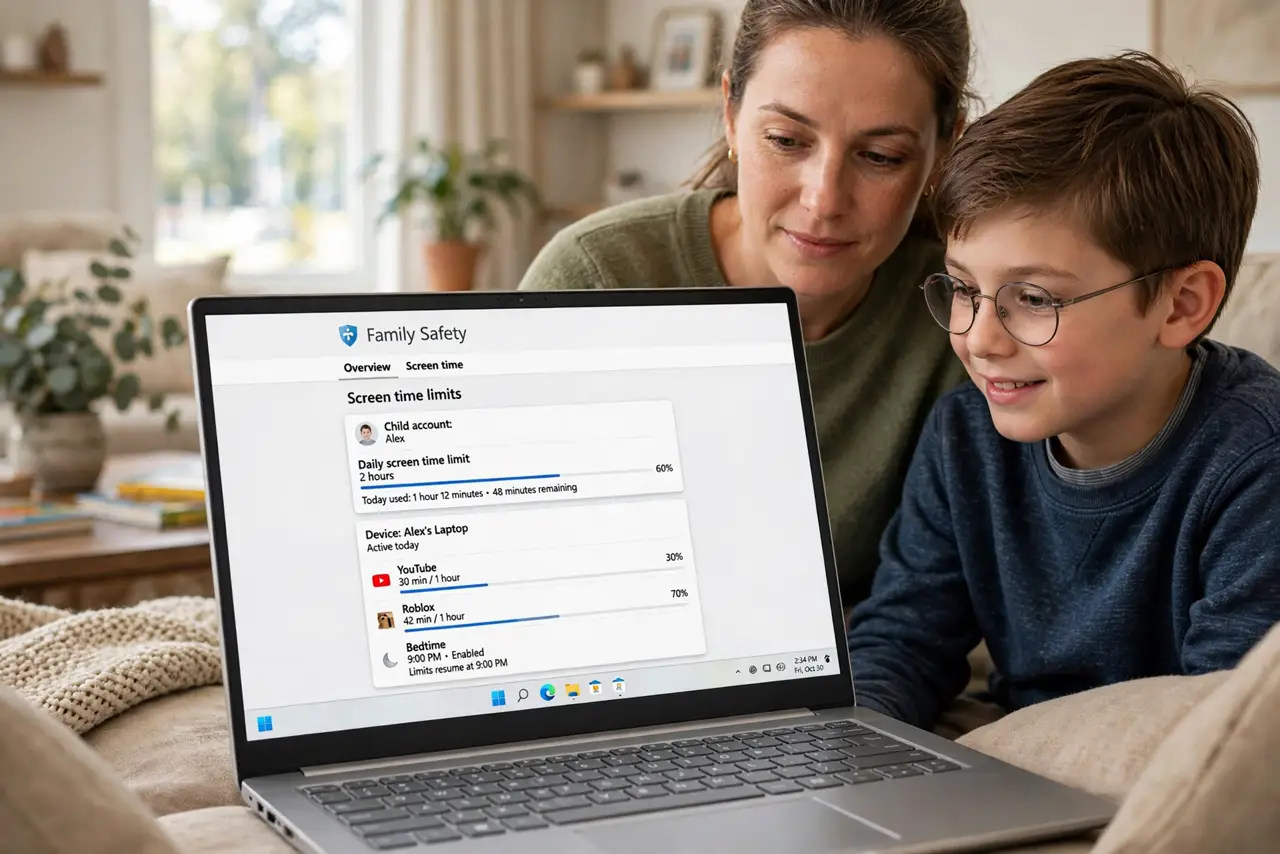
Quick fix: create a Microsoft family group and add your child's account as a member. Set screen time limits per device and per app in the Family Safety dashboard. Turn on content filters for web and search. Review the weekly activity report together — the goal is guidance, not surveillance.
Follow these steps
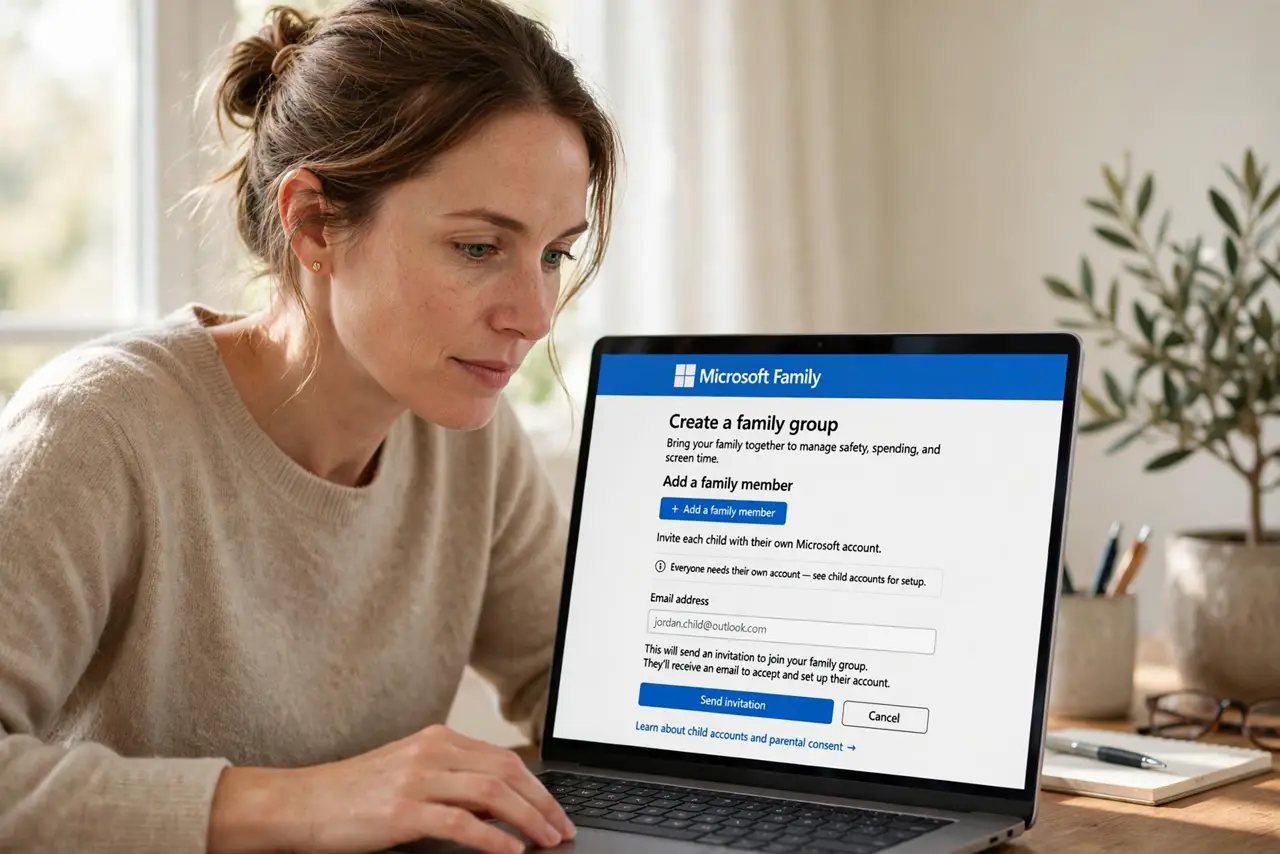
- Create the family group. At the Microsoft family page, create your family and invite each child with their Microsoft account. Everyone needs their own account — see child accounts for setup.
- Add the child's devices. Sign the child into their account on each Windows device. Family Safety manages per device once they are linked.
- Set screen time limits. In the dashboard, set daily limits and bedtime schedules per device. The screen time guide details the limit options.
- Turn on content filters. Enable web filtering and safe search for the child's account. Filters are age-banded — set them honestly.
- Review activity together. The weekly report shows apps, sites, and time. Review it with the child, not behind their back — trust plus verification.
- Adjust as they grow. Loosen limits gradually with demonstrated responsibility. Controls that never relax breed workarounds, not wisdom.
What NOT to do
- Do not set it up in secret. Kids who discover monitoring feel spied on — announce it as a family safety plan.
- Do not rely on filters alone. No filter catches everything — conversation is the real content filter.
- Do not set impossible limits. Zero gaming breeds resentment and circumvention — reasonable limits get respected.
- Do not forget non-Windows devices. Family Safety covers Microsoft ecosystems; phones and consoles need their own controls.
Frequently asked questions
Does it work on Xbox too?
Yes — the same family group manages Xbox screen time and content. One dashboard for both.
Can kids bypass it?
Determined teens find ways around anything. The goal is friction and conversation, not perfection.
Is the location sharing safe?
It shares within the family group only. Review who is in the group before enabling.