Fast Startup Makes Your PC Boot Twice
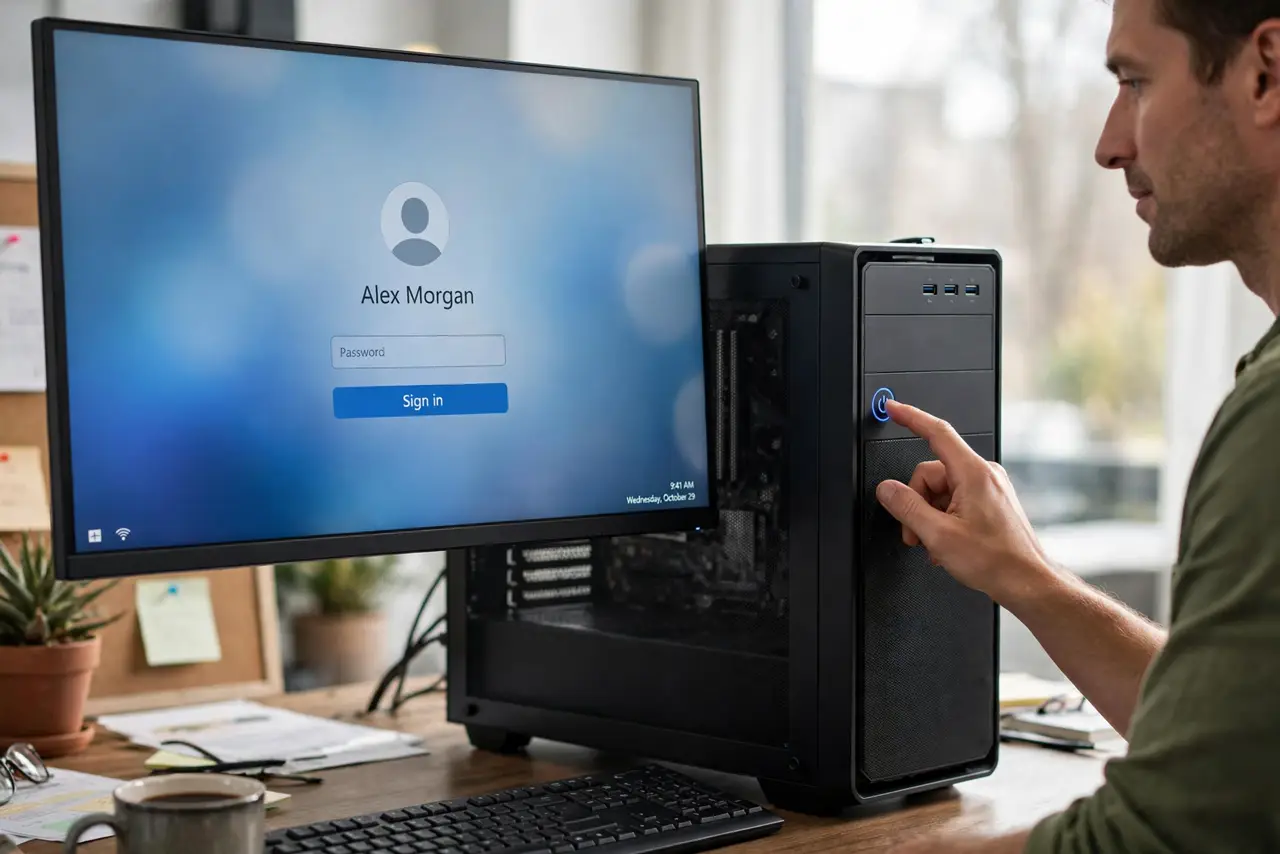
Fast Startup saves part of the system state at shutdown to boot faster, but on some PCs it causes a double boot: the PC starts, restarts, then starts again, or behaves as if it never fully shut down. Turning it off gives a clean, if slightly slower, boot. If the Hibernate option is missing instead, see the Hibernate option missing.
TL;DR / Quick Fix
Quick fix: Open the power button settings. Unlock the shutdown settings first. Then work through the remaining steps in order, checking one change at a time, and stop for a technician if you see damage, swelling, or a burning smell.
Follow these steps
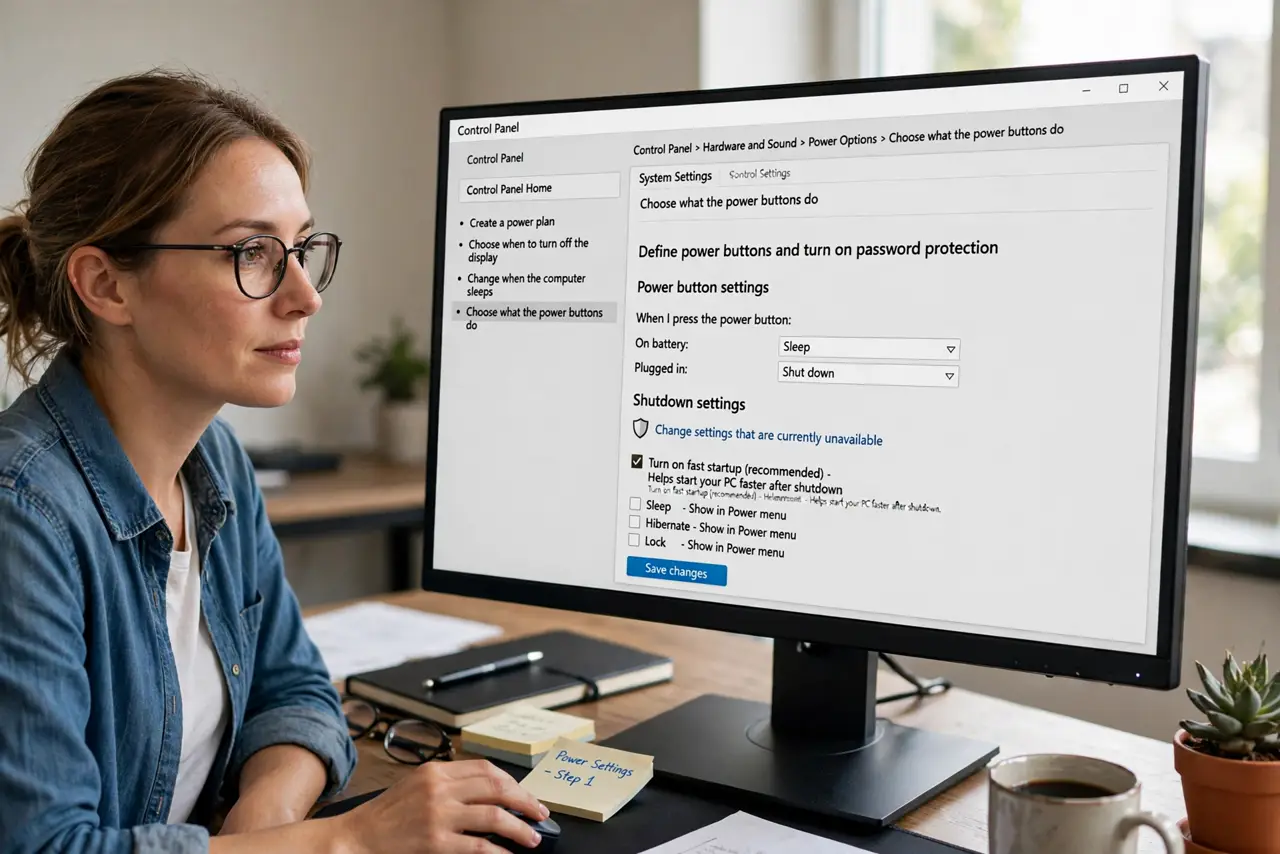
- Open the power button settings. Open Control Panel, then Power Options, then Choose what the power buttons do. Fast Startup lives in the shutdown settings at the bottom of that page.
- Unlock the shutdown settings first. Click Change settings that are currently unavailable, which requires administrator approval. The Fast Startup tick box becomes editable once unlocked.
- Turn off Fast Startup. Untick Turn on fast startup, then click Save changes. The next shutdown will be a full shutdown, which is the clean test for a double-boot problem.
- Shut down fully and boot once. Choose Shut down from the Start power menu, wait for full power off, then power on and watch. A single boot to the sign-in screen confirms Fast Startup was the cause.
- Test twice before deciding. Repeat the full shutdown and boot once more. A double boot that appears only sometimes needs two clean tests before you judge the fix.
- Keep it off if the PC is stable. If boots are now single and predictable, leave Fast Startup off. The small speed gain is not worth a double boot or a half-shutdown state on an affected PC.
What NOT to do
- Do not keep Fast Startup on and hope double boots stop. The feature itself causes the pattern on affected PCs, so turning it off is the fix.
- Do not confuse a double boot with a failed boot. A double boot still reaches Windows, but it wastes time and can mask shutdown problems.
- Do not reinstall Windows for a double boot. A single power setting check comes first, and it solves this pattern in most cases.
- Do not turn Fast Startup back on after one good boot. Test twice, because an occasional double boot can hide behind a single success.
Frequently asked questions
Does turning off Fast Startup slow my PC a lot?
Only by a few seconds at boot. Once Windows is running, speed is unaffected.
What is Fast Startup actually doing?
It saves the system kernel state at shutdown and reloads it at boot, skipping a full fresh start of that part.
Can I keep Fast Startup on a healthy PC?
Yes. If your PC boots once cleanly with it on, there is no need to turn it off.