Preview Files Without Opening
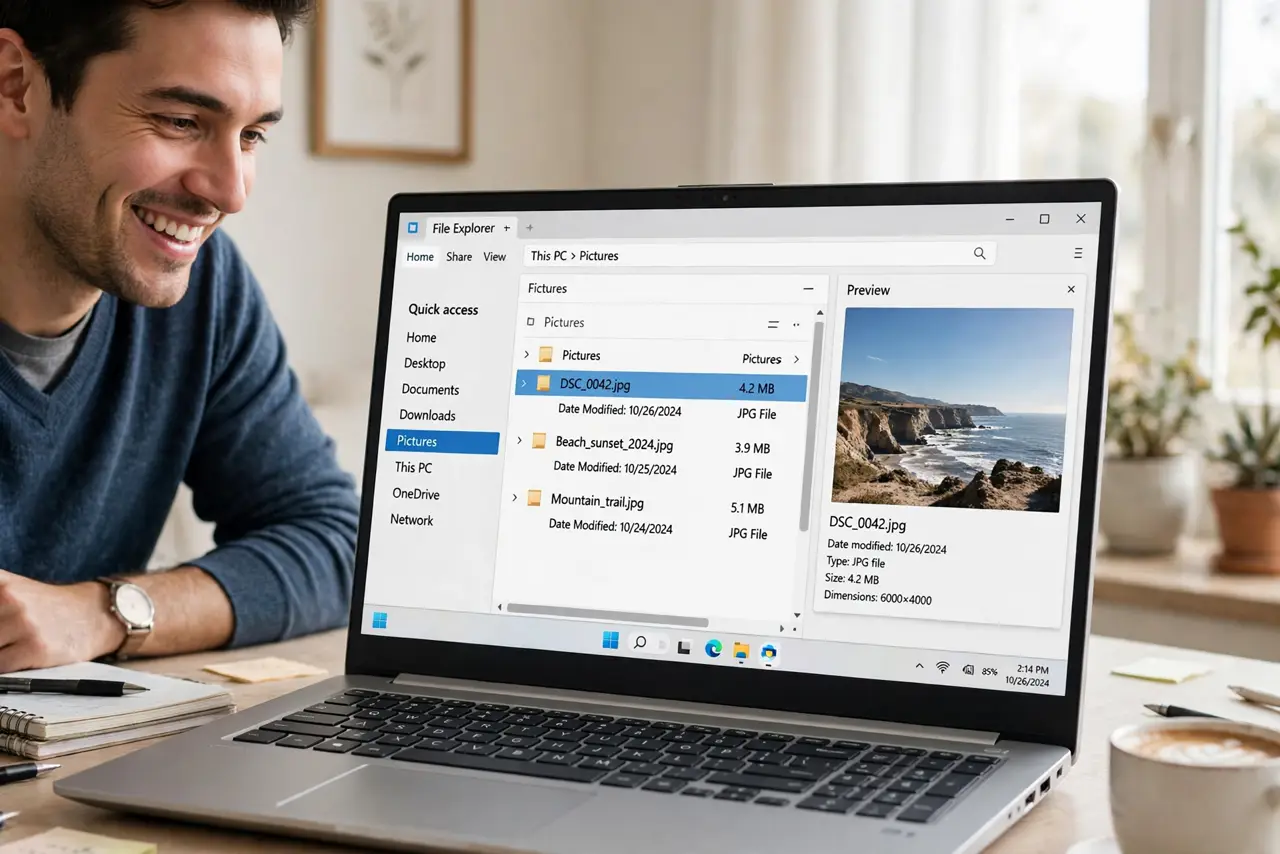
You are hunting for one photo in a folder of two hundred, double-clicking each file to check it. The preview pane shows the contents of the selected file right inside Explorer — photos, PDFs, text documents — with zero double-clicks. It is one toggle, and it changes how fast you find things.
TL;DR / Quick Fix
Quick fix: in File Explorer, open the View menu, hover over Show, and check Preview pane. Click any file to see its contents instantly on the right. It previews photos, PDFs, and documents without launching apps. Turn it off the same way if you ever want the space back.
Follow these steps
- Open File Explorer. Press Windows+E or click the folder icon on the taskbar. Any Explorer window works — the preview pane is a per-window view option, not a system-wide setting.
- Enable the preview pane. Click View in the top menu, hover over Show, then click Preview pane. A panel appears on the right side of the window, initially empty and waiting for a selection.
- Click a file to preview it. Single-click any file and its contents appear in the pane — photos render large, PDFs show pages, text files show their text. No double-click, no app launch, no waiting.
- Browse with the arrow keys. Click once, then use up and down arrows to walk through files while the preview updates live. This is the photo-hunting superpower: two hundred files reviewed in a minute.
- Know its limits. Some formats preview better than others — Office documents and PDFs usually work, exotic formats may show only an icon. For those, a quick double-click still opens the real app.
- Toggle it per window. The pane is per-window, so you can keep it on in your photo folder and off elsewhere. Close it from the same View menu whenever screen space matters more.
What NOT to do
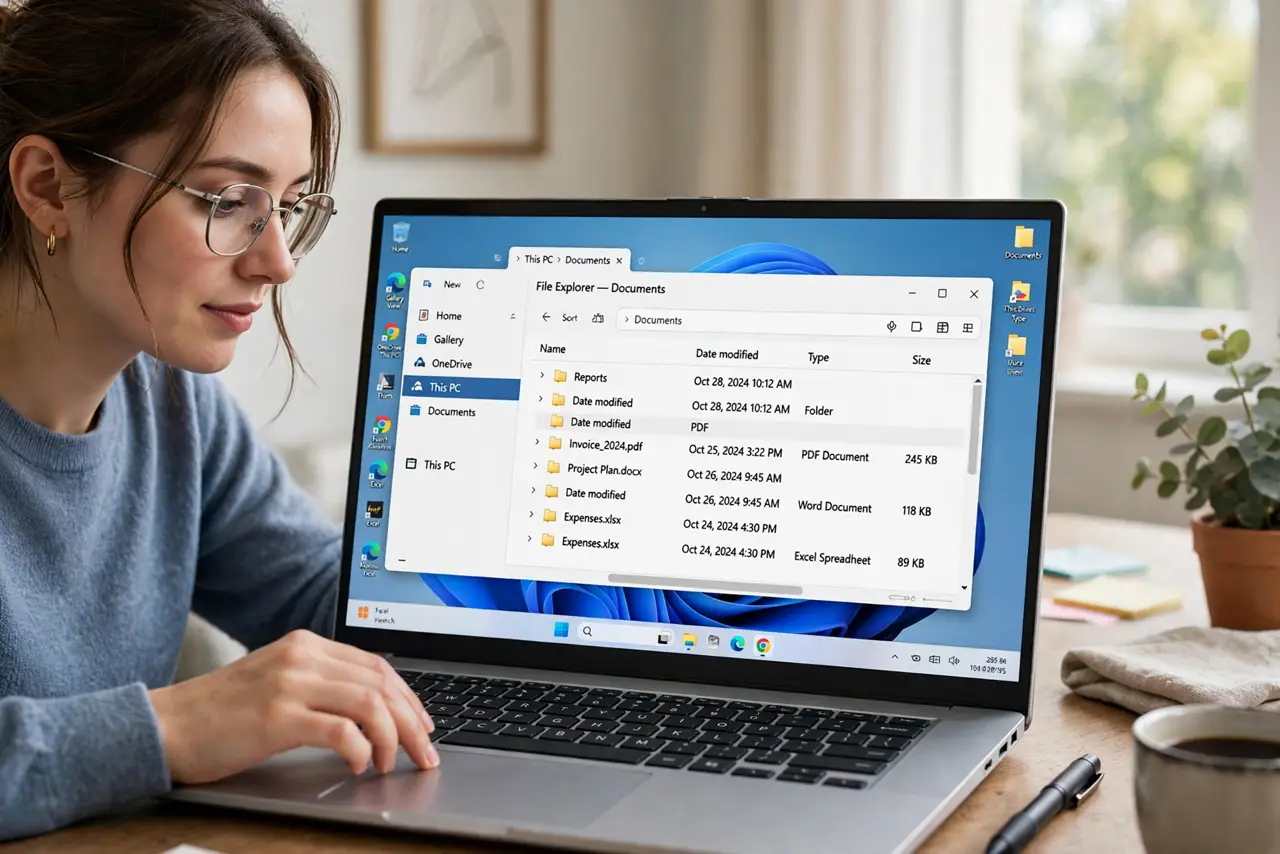
- Do not double-click files just to identify them. That is exactly the habit the preview pane replaces.
- Do not expect video previews to play. Most video files show a thumbnail frame; full playback still needs the app.
- Do not leave it on in tiny windows. On a narrow Explorer window the pane squeezes the file list — toggle it per window as needed.
- Do not confuse it with the details pane. Details shows metadata like size and dates; preview shows the actual content.
Frequently asked questions
Why is my preview pane blank?
The file type has no preview handler, or the pane lost focus. Click the file again; if it stays blank, that format simply does not preview.
Can I make the preview bigger?
Drag the divider between the file list and the pane. Wider pane, bigger preview — especially nice for photos and PDFs.
Does the preview pane work for folders?
No — select a folder and the pane shows folder info, not a slideshow. For browsing photos inside folders, open the folder first.