Duplicate a File Explorer Tab
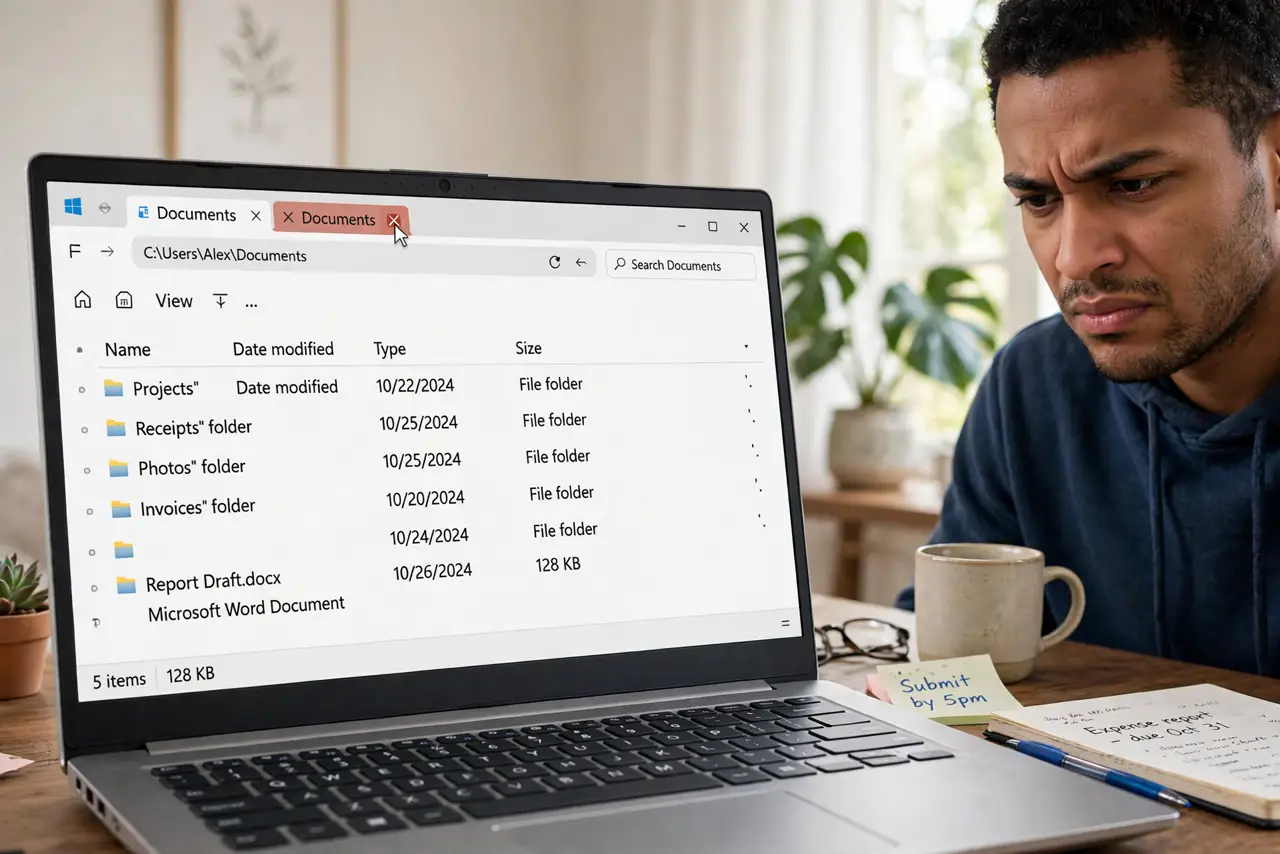
You opened a folder, then opened it again, and now two identical tabs sit side by side in File Explorer. It usually happens after a double-click on a folder that is already open, or when a shortcut reopens the same path in a new tab. It is harmless, but it clutters the tab bar and makes it easy to lose track of which tab you meant to use. Here is how to tidy it up and stop it from happening again.
TL;DR / Quick Fix
Quick fix: close the extra tab with its X or Ctrl+W, and open folders with a single click from now on. If tabs keep doubling, check whether your mouse registers phantom double-clicks and adjust the double-click speed. Use the preview pane to inspect files without opening new tabs.
Follow these steps
- Close the duplicate tab. Click the X on the extra tab, or press Ctrl+W with that tab active. This closes only the tab — the folder and its files are untouched. If both tabs look identical, close either one; the remaining tab keeps your place.
- Open folders with a single click. In File Explorer, single-click a folder in the navigation pane to show it in the current tab. Double-clicking a folder that is already open in another tab can spawn the twin. One calm click is the habit that prevents most duplicates.
- Check your double-click speed. Open Settings, then Bluetooth and devices, then Mouse, and adjust the double-click speed. If the mouse registers two clicks when you meant one, Explorer opens the folder twice — once per phantom click. Slow the setting down a notch and test.
- Use the address bar to navigate. Instead of clicking through folders repeatedly, click the address bar and jump straight to the path you want. This reuses the current tab instead of stacking another copy of the same folder on the tab bar.
- Turn on the preview pane. The preview pane shows a file's contents without opening it in a new tab. With it on, you stop opening folders just to peek, which is the other common source of tab twins.
- Restart Explorer if tabs misbehave. If tabs keep duplicating on their own, open Task Manager, find Windows Explorer, and choose Restart. This clears glitches in the tab bar without touching your files or settings.
What NOT to do
- Do not delete the folder to fix the duplicate tab. The problem is the tab, not the folder — deleting would destroy your files.
- Do not reinstall Windows over a tab quirk. Duplicate tabs are a navigation habit or a mouse setting, never an operating-system failure.
- Do not turn off tabs to avoid duplicates. Tabs are useful; the single-click habit keeps the benefit without the clutter.
- Do not run a registry cleaner promising to fix Explorer tabs. These tools risk real damage for a problem with a two-second fix.
Frequently asked questions
Why does File Explorer open the same folder twice?
Usually a double-click on an already-open folder, a mouse that double-clicks by itself, or a shortcut that launches the same path again. The fix is the single-click habit plus the mouse double-click speed check in step 3.
Can I merge two tabs into one?
There is no merge command — just close one with Ctrl+W. Since both tabs show the same folder, nothing is lost, and the remaining tab keeps your place.
Is there a shortcut to duplicate a tab on purpose?
Right-click a tab and choose Duplicate tab. That is handy when you want two views of the same folder, for example to compare subfolders side by side.