Filter Keys Adds a Delay to Every Keystroke
Filter Keys is an accessibility feature that ignores brief or repeated key presses, which is helpful for some people but feels like a typing delay for everyone else. If it turned on by accident, every keystroke lags or drops. This guide turns it off and stops it returning. If popups are your problem instead, see the Sticky Keys popup keeps appearing.
TL;DR / Quick Fix
Quick fix: Open the Accessibility keyboard settings page. Turn Filter Keys off. Then work through the remaining steps in order, checking one change at a time, and stop for a technician if you see damage, swelling, or a burning smell.
Follow these steps
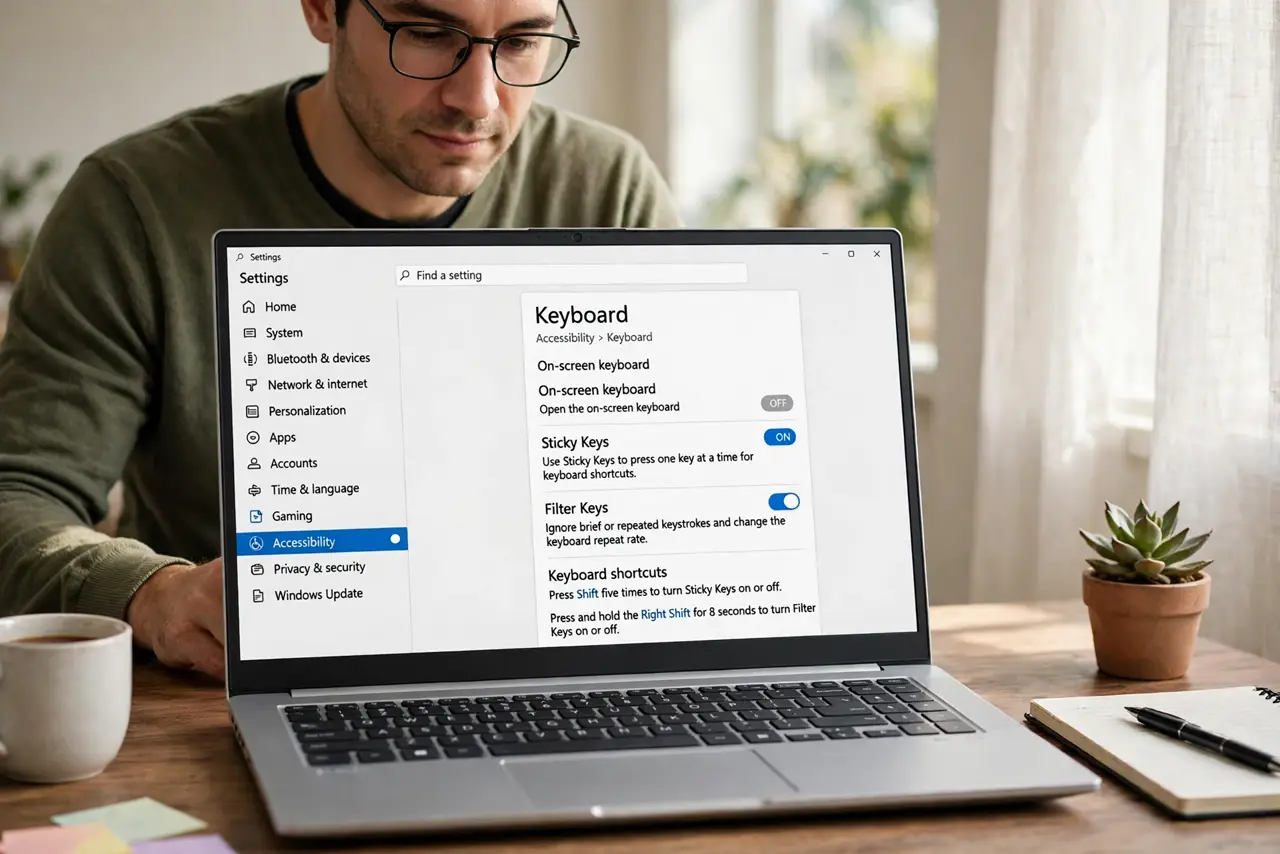
- Open the Accessibility keyboard settings page. Open Settings, then Accessibility, then Keyboard. Filter Keys lives here, along with Sticky Keys, so check both while you are on the page.
- Turn Filter Keys off. Find Filter Keys and turn it off. Type a sentence right away in any text field, and the delay should be gone immediately, with no restart needed.
- Turn off the Filter Keys shortcut. On the same page, turn off the setting that turns Filter Keys on by holding right Shift for eight seconds. That hold is the usual accidental trigger.
- Test fast typing and repeated keys. Type quickly, including double letters, and confirm every keystroke registers. Filter Keys drops brief presses, so fast typing is the fair test that it is truly off.
- Check the keyboard hardware too. If delay remains with Filter Keys off, try another keyboard. A failing keyboard can also drop keystrokes, and swapping hardware separates a setting problem from a hardware one.
- Restart and retest typing. Restart Windows and type again before opening other apps. If the delay returns after restart, recheck the Filter Keys page, because a profile or policy may be re-enabling it.
What NOT to do
- Do not buy a new keyboard before checking Filter Keys. A free toggle is the most common fix for this exact delay pattern.
- Do not turn off all accessibility features. Filter Keys alone is the cause, and other features may be useful later.
- Do not keep the shortcut on after turning the feature off. The eight-second Shift hold will simply turn it back on during normal use.
- Do not assume a slow PC causes keystroke delay. Filter Keys delay affects typing specifically, while a slow PC slows everything.
Frequently asked questions
What is Filter Keys for?
It ignores brief or repeated key presses, which helps people whose hands tremble or who press keys longer than intended.
Why did Filter Keys turn on by itself?
Usually the eight-second right Shift hold, pressed during gaming or while thinking, triggers it without you noticing.
Does Filter Keys affect the mouse?
No. It affects only keyboard input, so mouse movement stays normal even while typing lags.