Block an App in the Firewall
An app keeps phoning home — checking for updates you do not want, uploading telemetry, or just chatting with servers for no good reason. Uninstalling is not always an option, but Windows Defender Firewall can silence any program's internet access with a per-app rule. Two minutes per app, fully reversible, no extra software.
TL;DR / Quick Fix
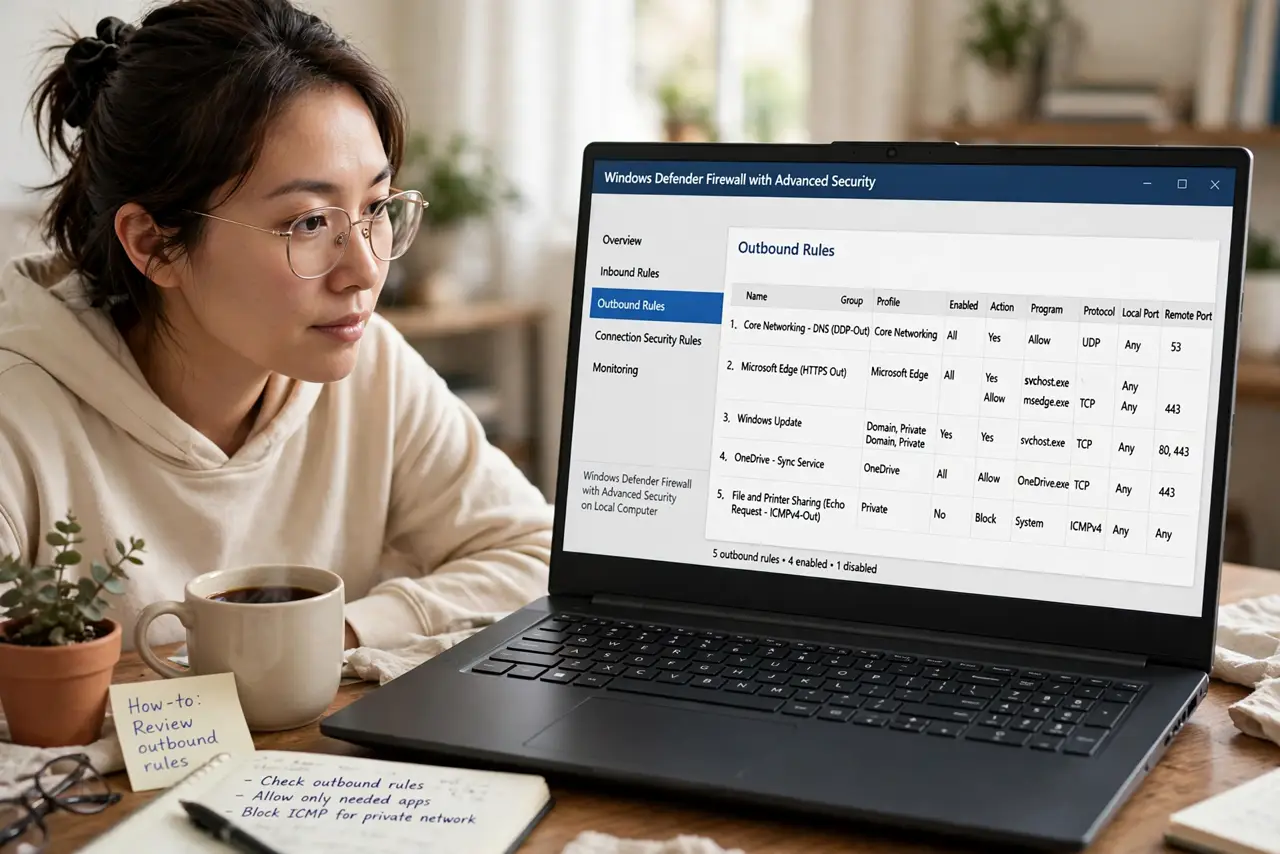
Quick fix: block an app's internet in Windows Defender Firewall — open Advanced settings, create a new Outbound Rule, pick the program, and Block the connection. Two minutes per app. Only block apps you understand; blocking system processes breaks Windows features. See firewall troubleshooting if something stops working.
Follow these steps
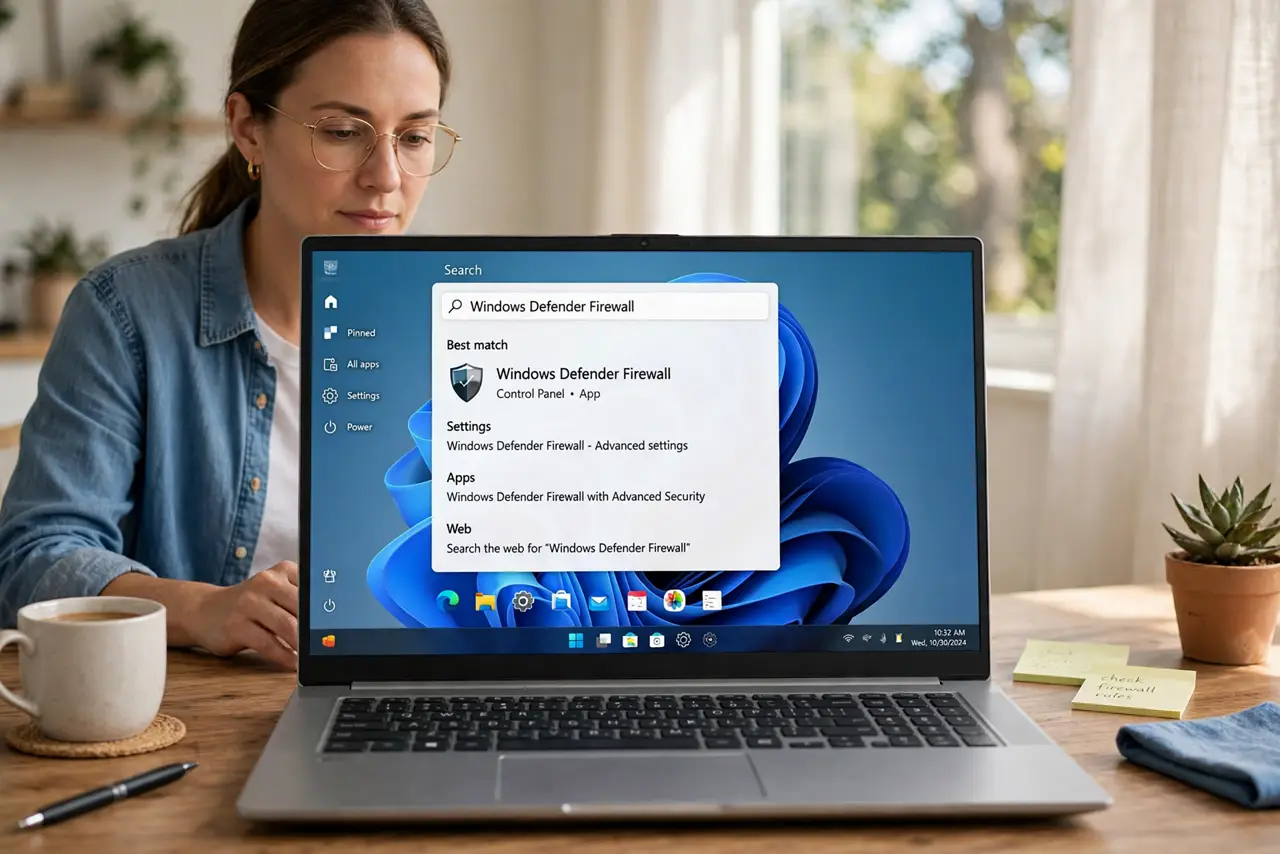
- Open Windows Defender Firewall. Search for Windows Defender Firewall in Start and open it. The blocking happens in Advanced settings — the basic panel does not offer per-app rules.
- Create a new Outbound Rule. In Advanced settings, click Outbound Rules > New Rule. Outbound = stopping the app from reaching the internet. (Inbound rules control what reaches the app — different job.)
- Point it at the program. Choose Program, browse to the app's .exe file, and continue. Be precise — many apps have multiple executables, and blocking the wrong one does nothing.
- Choose Block the connection. Select Block the connection and apply it to all profiles (Domain, Private, Public). Name the rule clearly — Block AppX internet — so future-you knows what it is.
- Test the app. Launch the app and confirm it cannot reach the internet while everything else works. If the app breaks entirely, you blocked a component it needs — delete the rule and target more precisely.
- Know what this does not do. The firewall blocks network traffic; it does not stop the app from running or phoning home through another program. For full privacy from an app, uninstalling beats blocking.
What NOT to do
- Do not block system processes like svchost.exe. Blocking Windows' own networking breaks updates, Store apps, and features in confusing ways.
- Do not use the firewall as antivirus. A blocked malicious app is still malicious — blocking its internet does not clean the infection.
- Do not forget the rule exists. Six months later, why will not this app update is often your own forgotten block rule — name rules clearly.
- Do not confuse inbound and outbound rules. Blocking inbound stops others reaching the app; blocking outbound stops the app reaching out. Most phoning home fixes are outbound.
Frequently asked questions
Will the app know it is blocked?
It just sees failed connections — timeouts and errors. Most apps show a generic no internet message rather than detecting the firewall.
Can I block an app temporarily?
Yes — disable the rule instead of deleting it. Disabled rules can be re-enabled in seconds when you need the app online again.
Does this work for Microsoft Store apps?
Partially — Store apps update through shared system processes, so blocking one app's executable may not stop its updates. Uninstall is cleaner for Store apps.