Forgot Your Windows PIN?
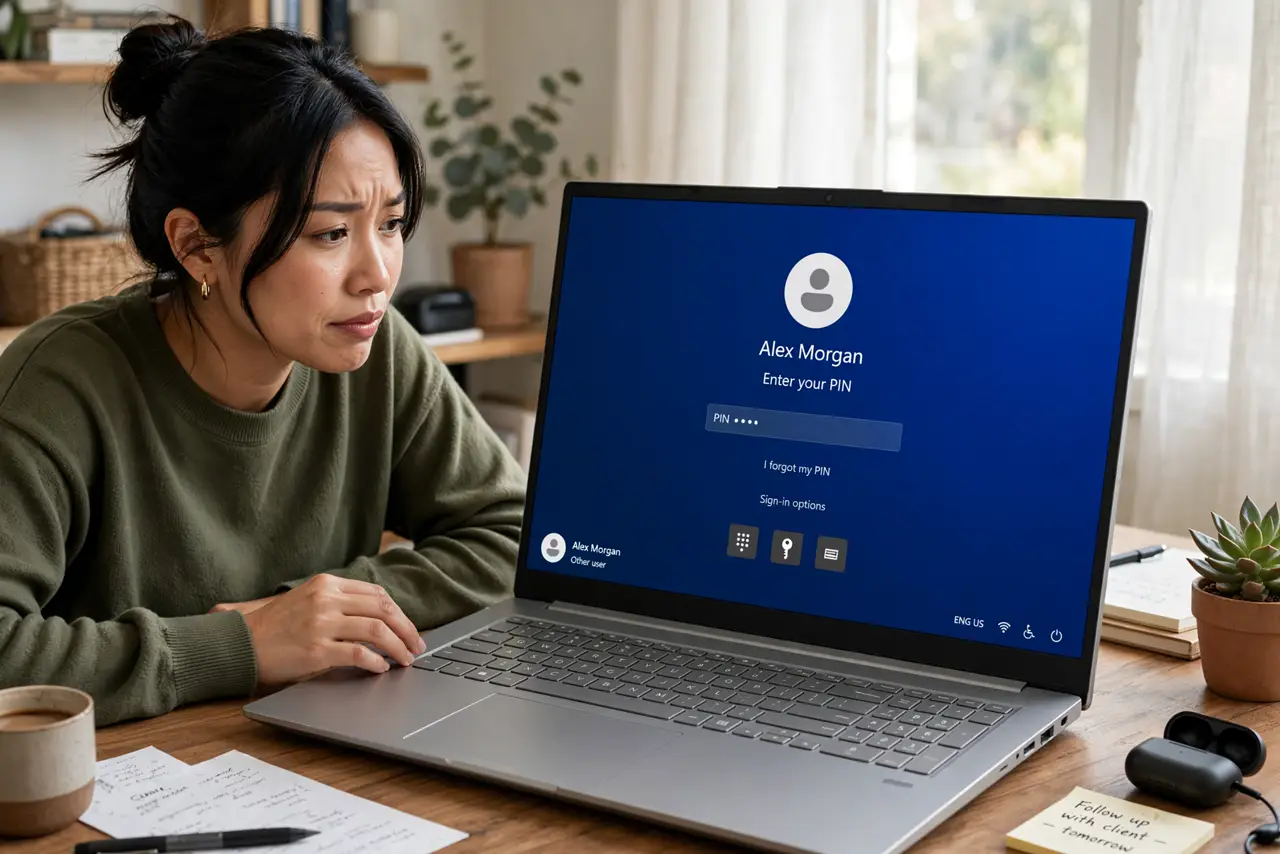
You stare at the PIN prompt and your mind is blank — the four digits you typed a thousand times have evaporated. Good news: a forgotten Windows PIN is one of the easiest lockouts to fix, because the PIN is just a convenience shortcut for your real Microsoft account password. You are never truly locked out.
TL;DR / Quick Fix
Quick fix: on the login screen, click 'I forgot my PIN' and sign in with your Microsoft account password to set a new one. The PIN is local convenience — your account password is the real key. Local accounts use the password reset options instead.
Follow these steps
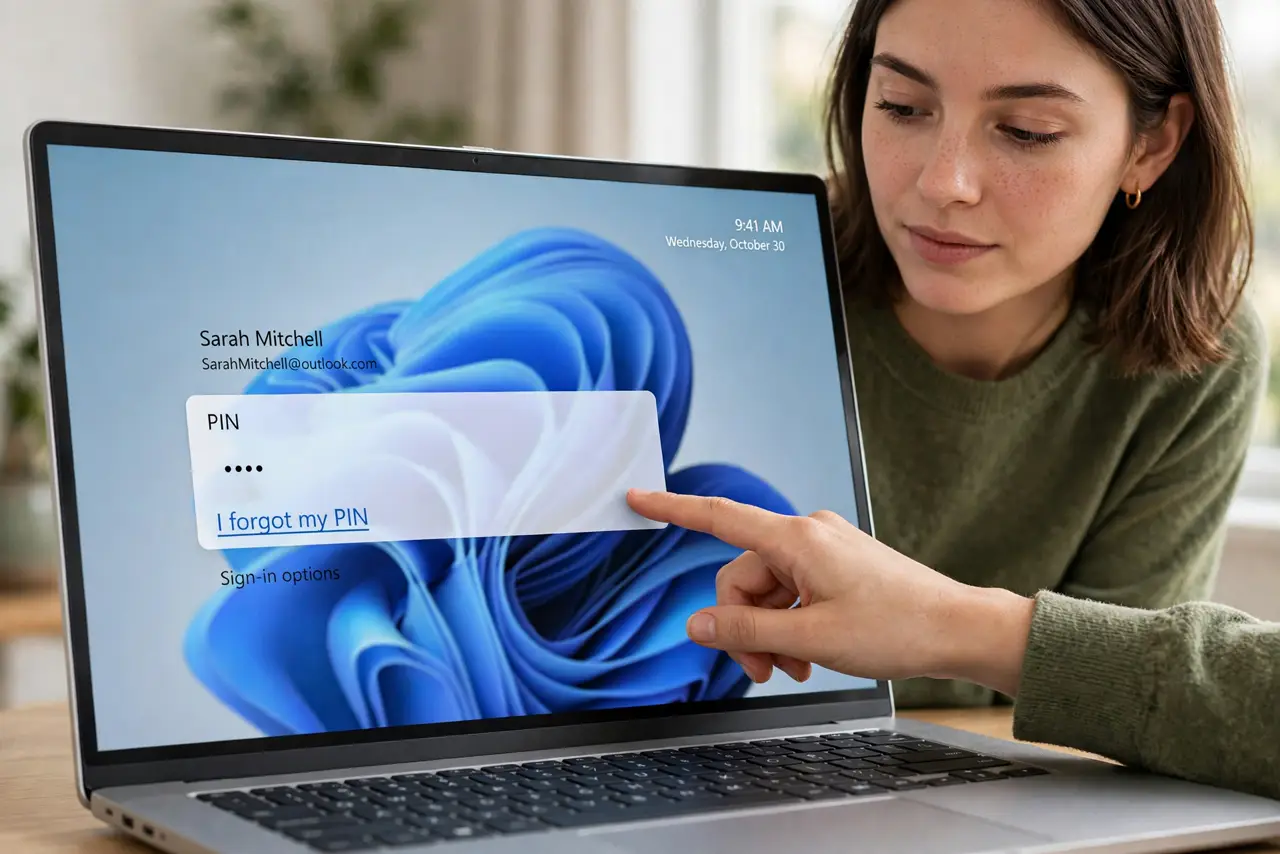
- Use 'I forgot my PIN.' On the login screen, click the 'I forgot my PIN' link under the PIN box. Windows will ask you to verify with your Microsoft account password — the PIN was always just a shortcut for this.
- Verify with your Microsoft password. Enter the Microsoft account password (the one for your email login). This proves ownership and unlocks the PIN reset — no password, no reset, by design.
- Set a new PIN. Choose a new PIN — different from the forgotten one, since that one clearly was not memorable. Windows lets you include letters and symbols for a stronger PIN if you like.
- Know the local-account difference. If the PC uses a local account (no Microsoft email), there is no 'forgot PIN' link — instead use password-reset options for the local account. The local account path walks through it.
- Change it properly in Settings too. You can also manage the PIN anytime in Settings, Accounts, Sign-in options. If you remember the old PIN, change it there without the recovery flow.
- Write it down this time. A PIN in a password manager — or on paper in a safe place — ends the cycle. Forgetting is human; having no recovery record is the actual problem. The sign-in password guide covers the related password side.
What NOT to do
- Do not reinstall Windows over a forgotten PIN. The recovery link exists precisely for this — a reinstall is demolition for a locked door with a key under the mat.
- Do not guess the PIN dozens of times. Repeated failures can trigger lockout delays that waste more time than the proper reset.
- Do not confuse the PIN with the account password. The PIN is device-local convenience; the password is the real credential — resetting the wrong one fixes nothing.
- Do not set the new PIN to something trivial like 1234. A PIN protects a logged-in device from casual snoopers — make it at least non-obvious.
Frequently asked questions
I forgot both my PIN and my Microsoft password. Now what?
Reset the Microsoft password from another device at the account recovery page, then use the new password at the 'I forgot my PIN' prompt. One recovery unlocks the other.
Will resetting the PIN delete my files?
No — nothing is deleted. The PIN is just an authentication method; changing it touches no data at all.
Can someone reset my PIN from the login screen?
Only with your Microsoft account password. Without it, the reset flow stops — which is exactly the security guarantee you want.