Format a USB Drive? Basics
Formatting a USB drive wipes it clean and sets up its file system — needed for a misbehaving stick, one stuck read-only, or a drive that must work on both Windows and Mac. It erases everything, so the safety check comes first: copy anything you need off the drive. Then it is three clicks in File Explorer. Here is the safe way, including which file system to pick.
TL;DR / Quick Fix
Quick fix: back up anything on the drive first — formatting erases everything. In File Explorer right-click the drive, choose Format, pick exFAT for cross-platform use or NTFS for Windows-only large files, and click Start. Quick Format is fine for healthy drives.
Follow these steps
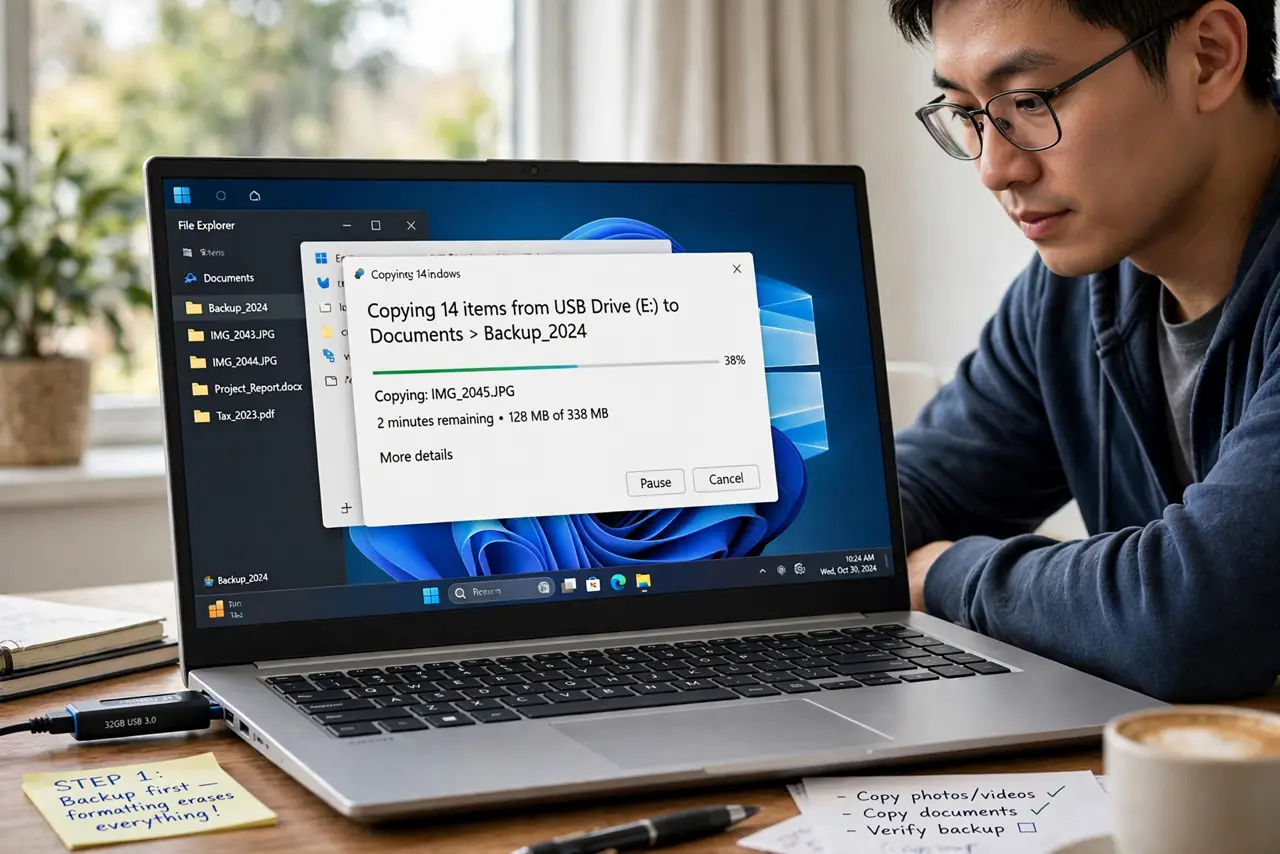
- Back up first — formatting erases everything. Copy any files you need off the drive before starting. Formatting is not undoable — there is no recycle bin for a formatted drive. When in doubt, copy first and ask questions later.
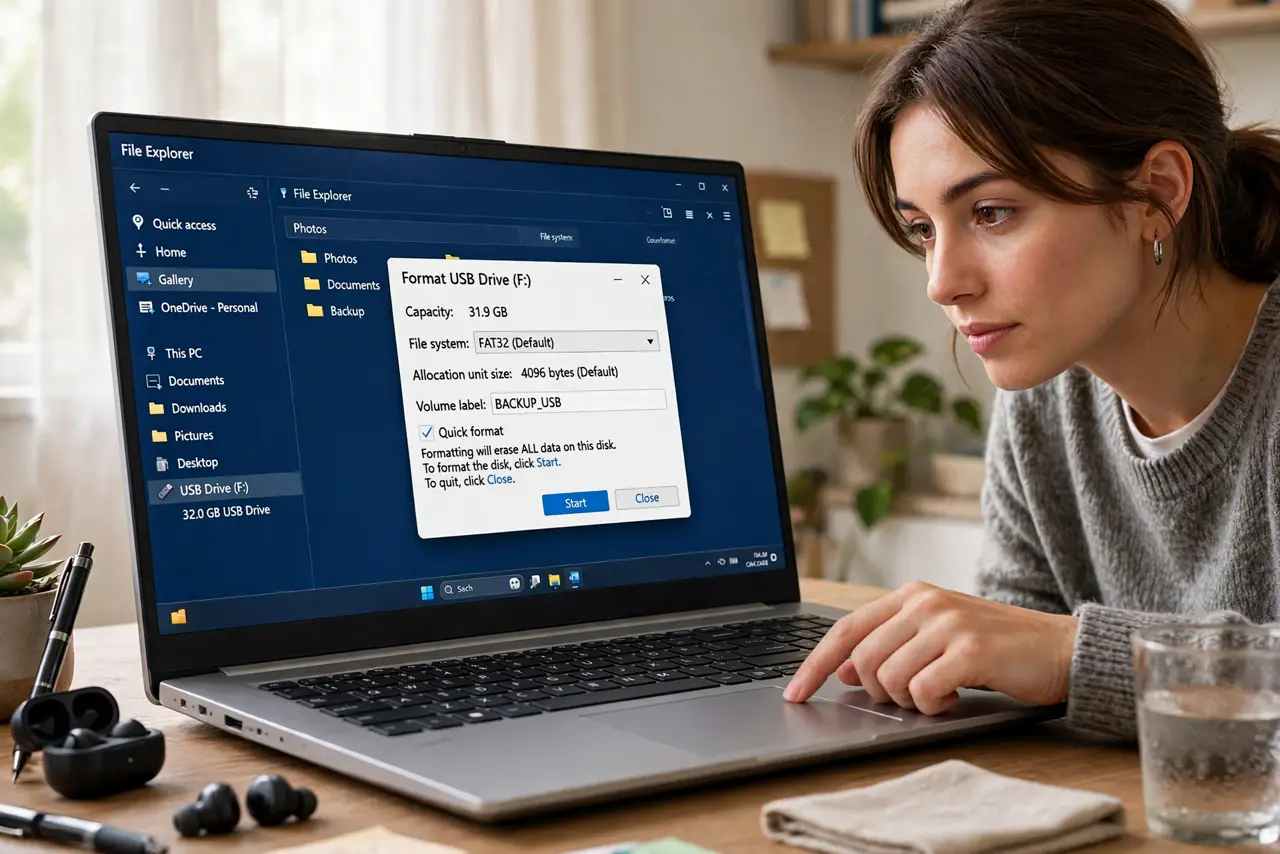
- Open the Format dialog. In File Explorer, right-click the USB drive and choose Format. The dialog shows capacity, file system, and options. If the drive does not appear, fix that first — you cannot format what Windows cannot see.
- Choose the file system. exFAT: works on Windows and Mac, handles large files — the best all-rounder. NTFS: Windows-only but robust for big drives. FAT32: universal but caps files at 4 GB — avoid unless an old device demands it.
- Pick Quick Format wisely. Quick Format (checked) is fast and fine for healthy drives. Uncheck it for a full format on a suspect drive — it scans for bad sectors and takes much longer. A full format will not fix a physically dying stick.
- Start and wait. Click Start, confirm the warning, and wait — do not unplug mid-format. A corrupted format from an interrupted write can brick the stick's file table, though it is usually re-formattable.
- Test the fresh drive. After formatting, copy a few files on and off to confirm it works. If errors persist, the drive hardware is failing — replace it rather than reformatting endlessly.
What NOT to do
- Do not format before backing up. Formatting erases everything with no undo — copy first, always.
- Do not pick FAT32 for large files. Its 4 GB file cap corrupts big videos silently — use exFAT instead.
- Do not unplug during formatting. Interrupting the write corrupts the file table and creates a bigger mess.
- Do not full-format healthy drives routinely. Quick Format is enough; full formats waste time and wear flash memory.
Frequently asked questions
Which format for Windows and Mac?
exFAT. Both systems read and write it natively, and it handles files over 4 GB — the practical universal choice.
Will formatting fix a corrupted USB drive?
Often, if the corruption is logical. If the drive is physically failing, formatting is a temporary mask — replace it.
Why is my USB drive read-only?
A physical lock switch, file-system errors, or a dying controller. Check the switch first, then format — Mac users see the read-only variant.