Game Bar Records No Game Sound? Fix It
When Game Bar records video but no game sound, the recording captured the picture and missed the audio track. The cause is usually the wrong audio source, a muted game, or a recording setting that captures only one source. Checking those three before you record again saves a second silent video.
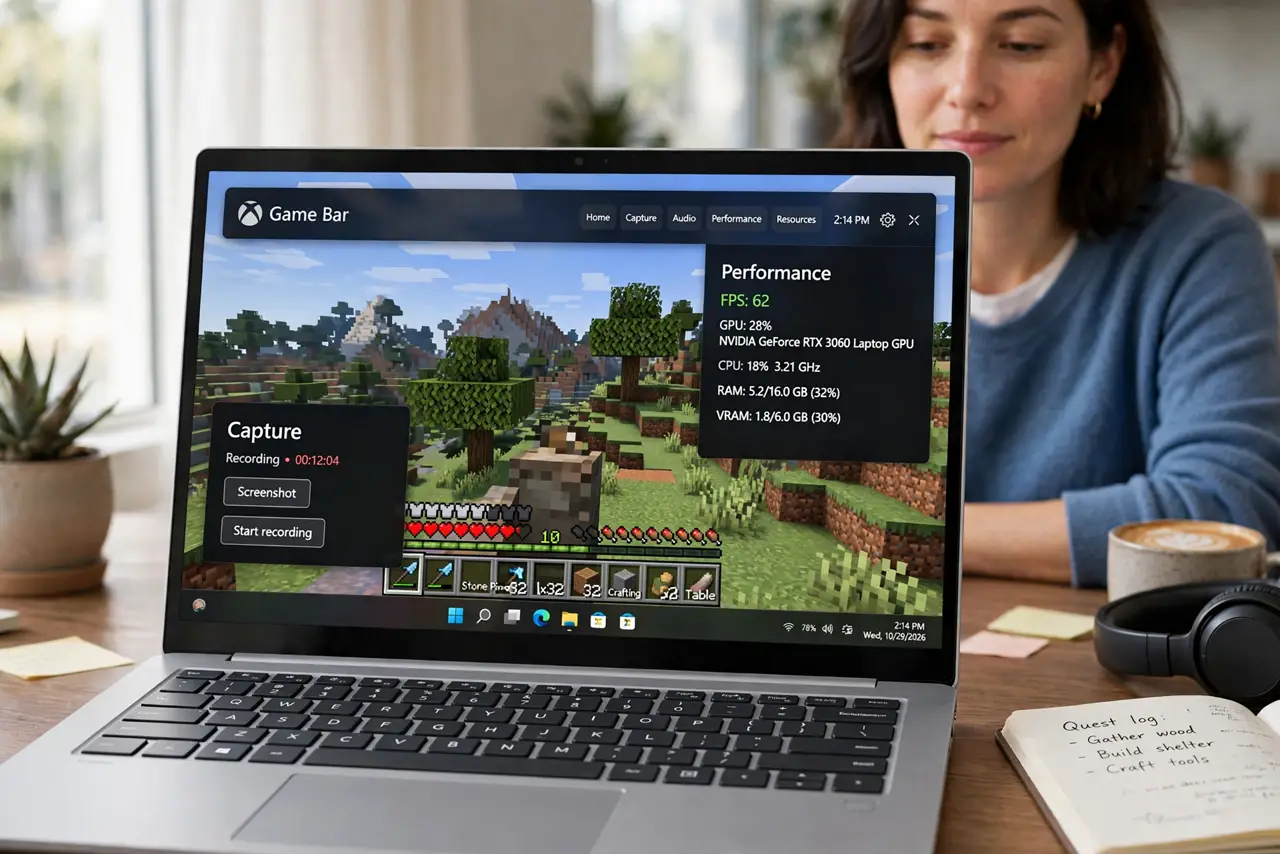
TL;DR / Quick Fix
Quick fix: open Game Bar settings, check that audio recording is on and set to capture game audio, then launch the game, set its volume to a normal level, and record a ten-second test clip. Play the test clip before you record anything long.
Follow these steps
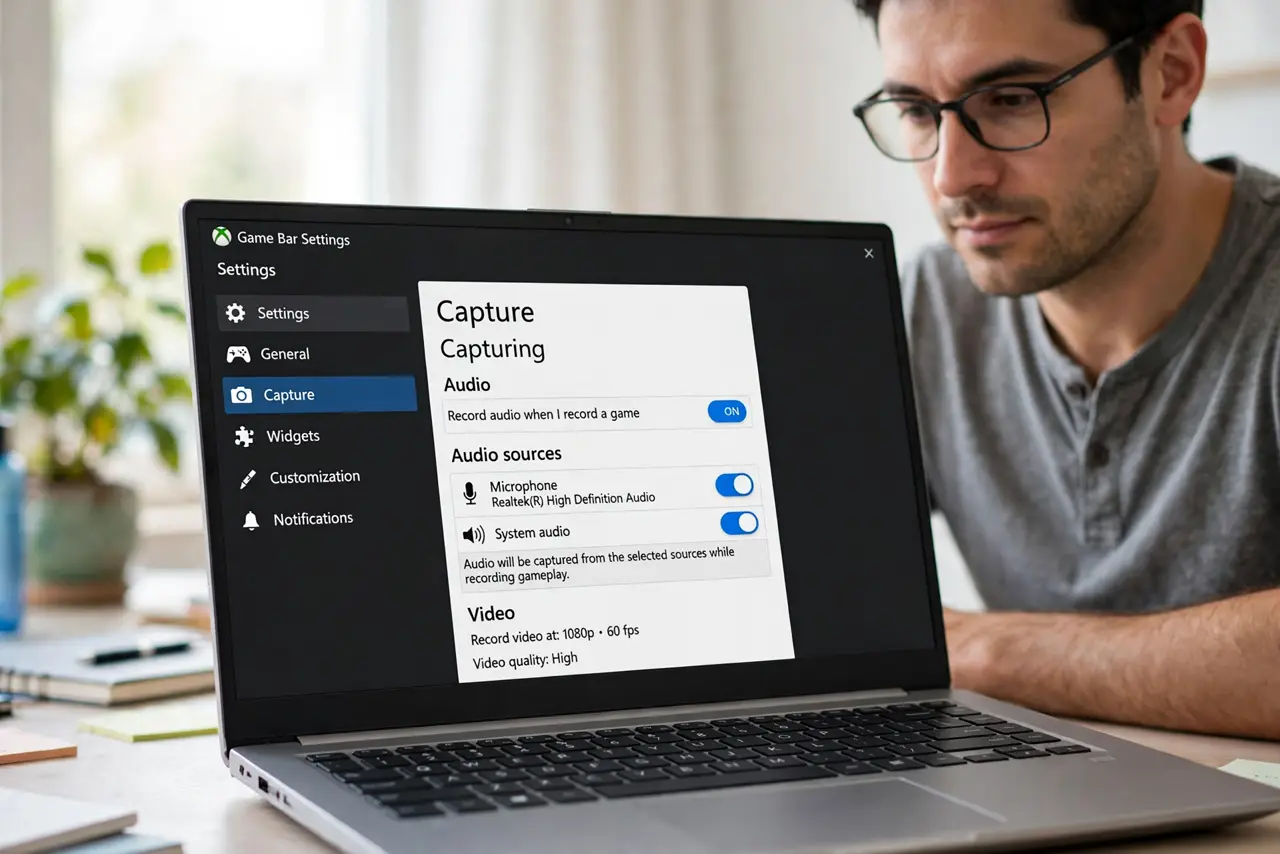
- Open Game Bar settings. Press Windows and G, open Settings in Game Bar, and go to the capturing section. Confirm that audio recording is on, and note which audio sources are selected.
- Set the audio source to game audio. Choose the option that captures game audio, not microphone only. A microphone-only setting records your voice and misses the game entirely, which is the most common cause.
- Check the game volume itself. Launch the game, open its audio settings, and set master volume to a normal level. A muted or very low game will record silence, no matter how correct the Game Bar settings are.
- Check Windows volume for the game. Open the Windows volume mixer and confirm the game is not muted there. Windows can mute one app while others play normally, so check the game entry specifically.
- Record a ten-second test clip. Record a short test clip with game sound playing, then play it back fully. A short test proves the fix before you record a long session you cannot repeat.
- Restart Game Bar if the test is still silent. Close Game Bar and the game, reopen both, and repeat the test. A fresh Game Bar session clears an audio capture state that settings alone may not reset.
What NOT to do
- Do not record a long session before a test clip. A silent long recording cannot be fixed afterwards, while a ten-second test costs almost nothing.
- Do not turn every audio source on at once to fix silence. Capturing everything adds microphone noise and chat audio, and it hides which source was actually missing.
- Do not reinstall the game because a recording was silent. The recording settings, not the game, decide which audio Game Bar captures.
- Do not assume the recording is broken if the game was muted. Check the game volume and the Windows volume mixer first, because silence there means silence in the recording too.
Frequently asked questions
Why does my voice record but not the game?
Game Bar was set to microphone only. Change the capturing audio source to include game audio, then test again with a short clip.
Why is the test clip quiet but not silent?
The game volume, or the Windows volume for the game, is low. Raise the game volume to a normal level and record another short test.
Can I add game sound to a silent recording afterwards?
No. A recording that captured no audio has no sound track to recover. The fix must happen before you record, which is why the test clip matters.