Game Bar Won't Record on Windows? Fix It
You press Win+G or Win+Alt+R and nothing records — no overlay, no clip, no error. Game Bar depends on the Xbox Game Bar app being installed and enabled, plus a compatible graphics driver. The fix is a short checklist from settings to drivers, and the wrong audio in recordings guide covers the case where it records but captures the wrong sound.
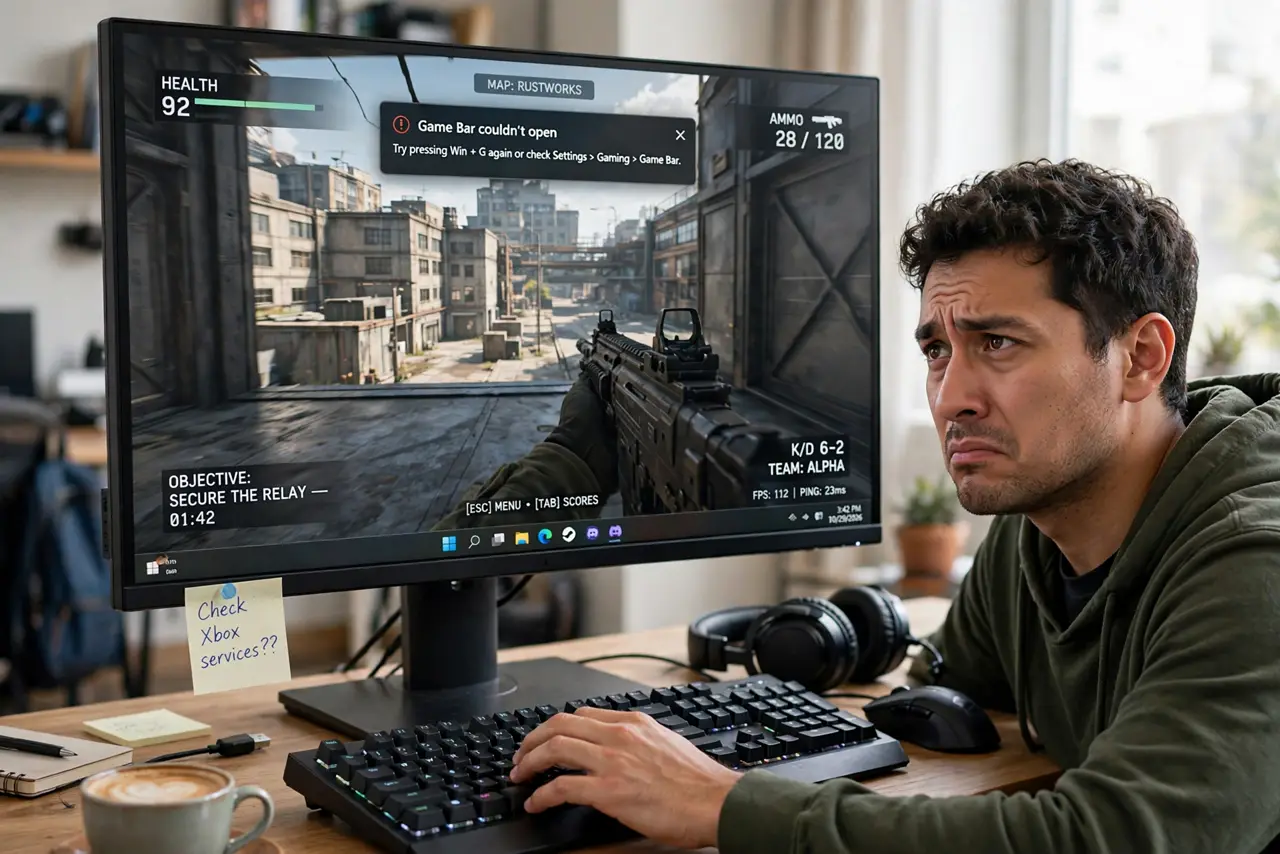
TL;DR / Quick Fix
Quick fix: confirm the Xbox Game Bar app is installed and enabled in Settings under Gaming, then check that background recording is allowed. Update the graphics driver, make sure the game is not running in exclusive modes the bar cannot hook, and test the shortcut in a windowed game first.
Follow these steps
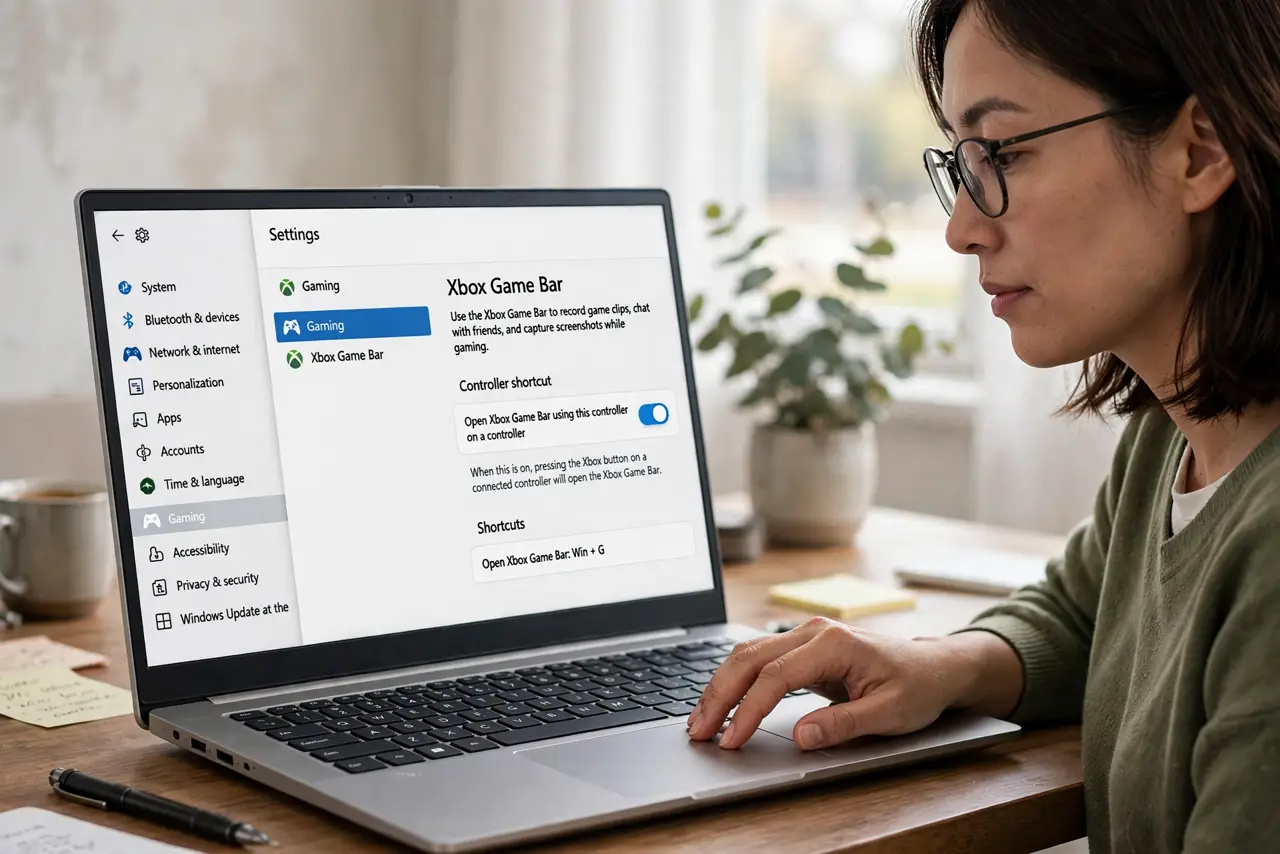
- Confirm Game Bar is enabled in Settings. Open Settings, go to Gaming, then Xbox Game Bar, and make sure the controller-shortcut toggle is on. If the whole Gaming section is missing, the feature may be disabled on this PC.
- Check the Xbox Game Bar app is installed. Look for Xbox Game Bar in the installed apps list. On some stripped or work installs it is removed, and the shortcuts do nothing without it; reinstall it from the Microsoft Store.
- Test the overlay shortcut first. Press Win+G in a normal windowed game and see if the overlay appears. If the overlay works but recording does not, the problem is in the capture settings, not the bar itself.
- Check the capture settings. In Settings under Gaming and Captures, confirm background recording and the record shortcut are enabled. A disabled capture toggle makes the record keys silently do nothing.
- Update the graphics driver. Game Bar hooks into the GPU for capture, and old or broken drivers break the hook. Install the current driver from the GPU maker and test again.
- Check disk space and the save folder. Recordings need free space and a writable Captures folder. If the drive is full or the folder's permissions broke, recording fails without a clear error.
What NOT to do
- Do not assume the keyboard is broken. Test Win+G in several apps first; a dead shortcut in one game is often that game's overlay conflict, not hardware.
- Do not record in exclusive fullscreen if the bar will not hook. Borderless windowed mode cooperates with overlays far better than exclusive fullscreen.
- Do not disable the Xbox services blindly. Debloat guides that kill gaming services will silently break Game Bar recording.
- Do not ignore the app's own overlay. Some games ship their own capture overlay that fights Game Bar for the same hotkeys.
Frequently asked questions
Why does Win+G do nothing at all?
Because the Xbox Game Bar app is missing, disabled, or its services were turned off — the shortcut has nothing to call.
Can Game Bar record my desktop or a browser?
It can record most apps, but some protected content like streaming video may record as a black screen by design.
Where do Game Bar clips get saved?
In the Videos library under Captures, unless you changed the save location in the capture settings.