Game Bar Records the Wrong Audio
Your Game Bar clip has game sound but no voice chat, or your microphone but no game — the wrong audio source got captured. Game Bar records specific audio endpoints, and Windows loves to switch the default device behind your back. The fix is pinning the right devices in the Game Bar audio widget, a cousin of the audio switching to the monitor problem.
TL;DR / Quick Fix
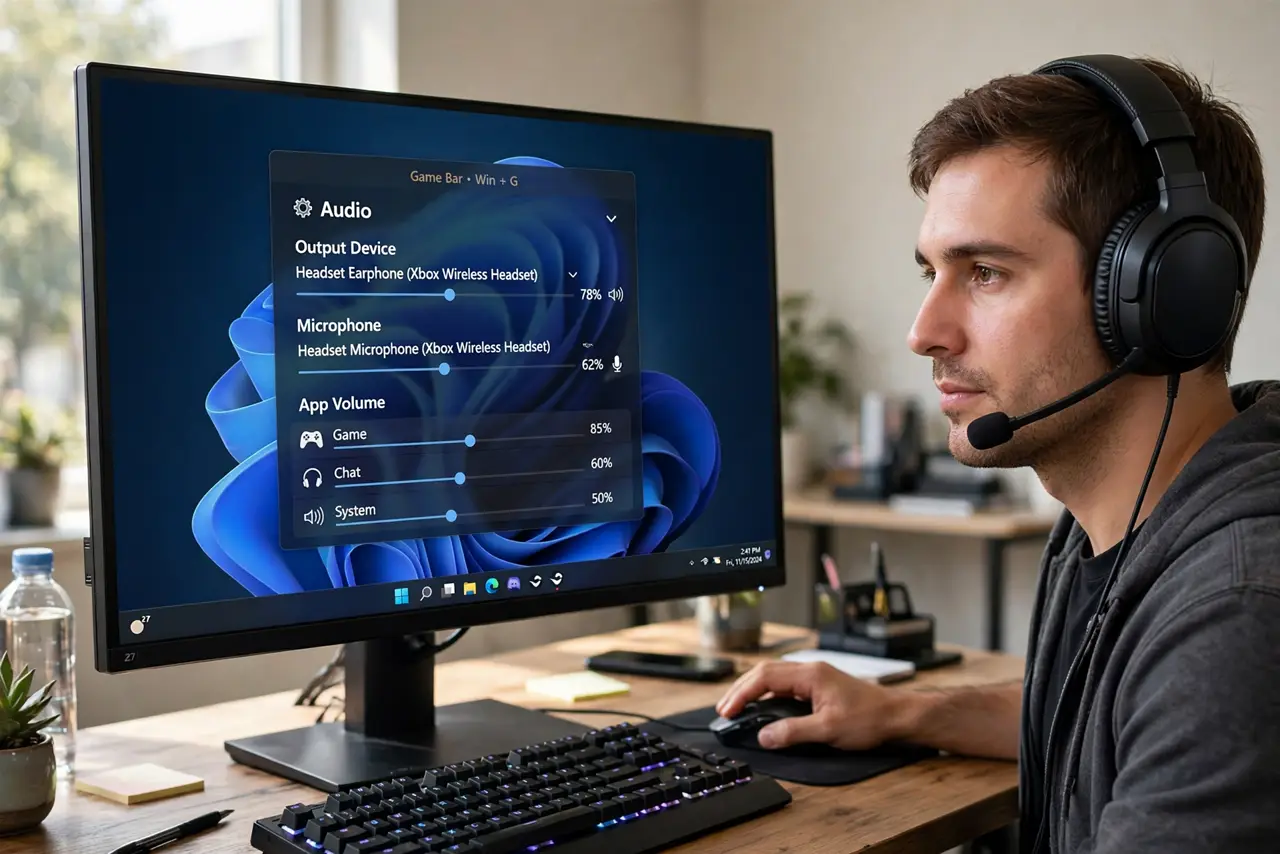
Quick fix: open the Game Bar audio widget with Win+G and check which devices are assigned to game, chat, and microphone. Set the correct default playback and recording devices in Windows sound settings first, then match them in the widget. Record a ten-second test clip and listen first.
Follow these steps
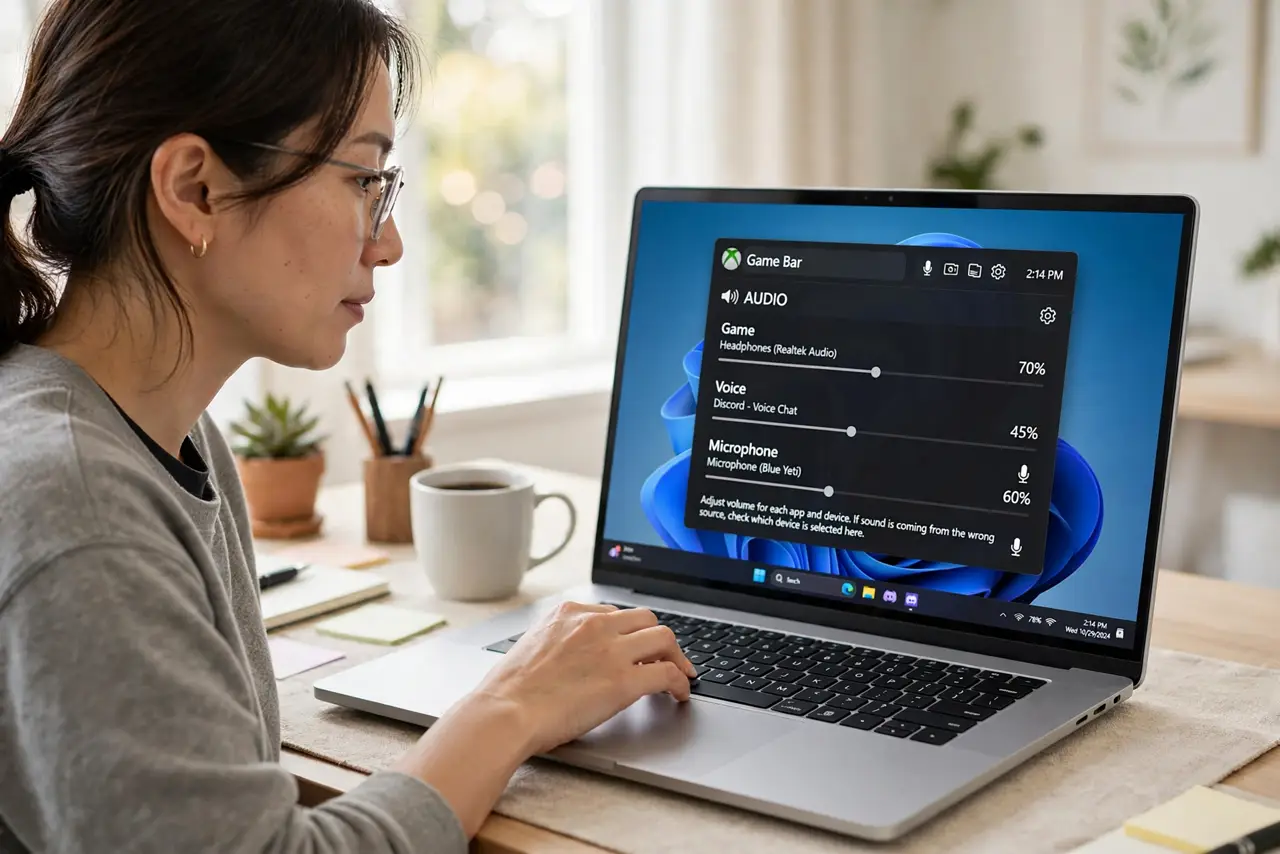
- Open the Game Bar audio widget. Press Win+G and open the Audio widget. It shows separate sliders for game, voice, and microphone sources, which is where the wrong-source problem lives.
- Check Windows' default devices first. In sound settings, confirm the correct headphones are the default playback device and the right mic is the default recording device. Game Bar follows these defaults unless told otherwise.
- Match each widget slider to the right device. Assign game audio to your headphones, chat to the chat mix, and the microphone to your actual mic. A slider pointed at the wrong device is the direct cause of most bad captures.
- Disable devices you never use. In sound settings, disable old headsets, monitor speakers, and phantom devices. Fewer devices means fewer chances for Windows to pick the wrong one mid-session.
- Record a ten-second test clip. Capture a short clip with game sound and a spoken word, then play it back. Ten seconds of testing beats discovering the problem in an hour of footage.
- Recheck after plugging or unplugging audio gear. USB headsets and docks reshuffle device order when connected. After any hardware change, glance at the widget before recording.
What NOT to do
- Do not record a long session before testing. Audio routing mistakes are only discovered on playback, so always test first.
- Do not leave monitor speakers enabled as a device. Windows may route game audio to the monitor while you listen on headphones, splitting your capture.
- Do not set the mic to a webcam by accident. Webcam mics are common wrong picks and sound distant compared to a headset mic.
- Do not max every slider hoping for louder audio. Clipping from hot levels sounds worse than slightly quiet audio you boost later.
Frequently asked questions
Why does my clip have game audio but no voice?
Because the voice-chat slider is pointed at the wrong device or muted. Game Bar treats game, chat, and mic as separate sources.
Why did it work yesterday and break today?
Because plugging or unplugging audio gear reshuffles Windows' device list, and the widget can end up pointing at a device that is gone.
Can Game Bar record Discord and the game separately?
It records them on separate widget channels, but the final clip mixes them. For truly separate tracks you need dedicated recording software.