God Mode? The Plain Truth
You've heard Windows has a secret 'God Mode' folder that unlocks every setting in one place — it sounds like a hack, but it's just a hidden Control Panel view. Creating it is safe and takes ten seconds, but it's not magic: it lists settings that already exist, scattered across Settings and Control Panel. Here's what it really is.
TL;DR / Quick Fix
Quick fix: create a new folder and rename it to GodMode.{ED7BA470-8EC4-465E-BB04-37F505B440AC} — the icon changes and it opens a master list of 200+ settings. It's safe, reversible (just delete the folder), and handy — but it's a directory, not a superpower.
Follow these steps
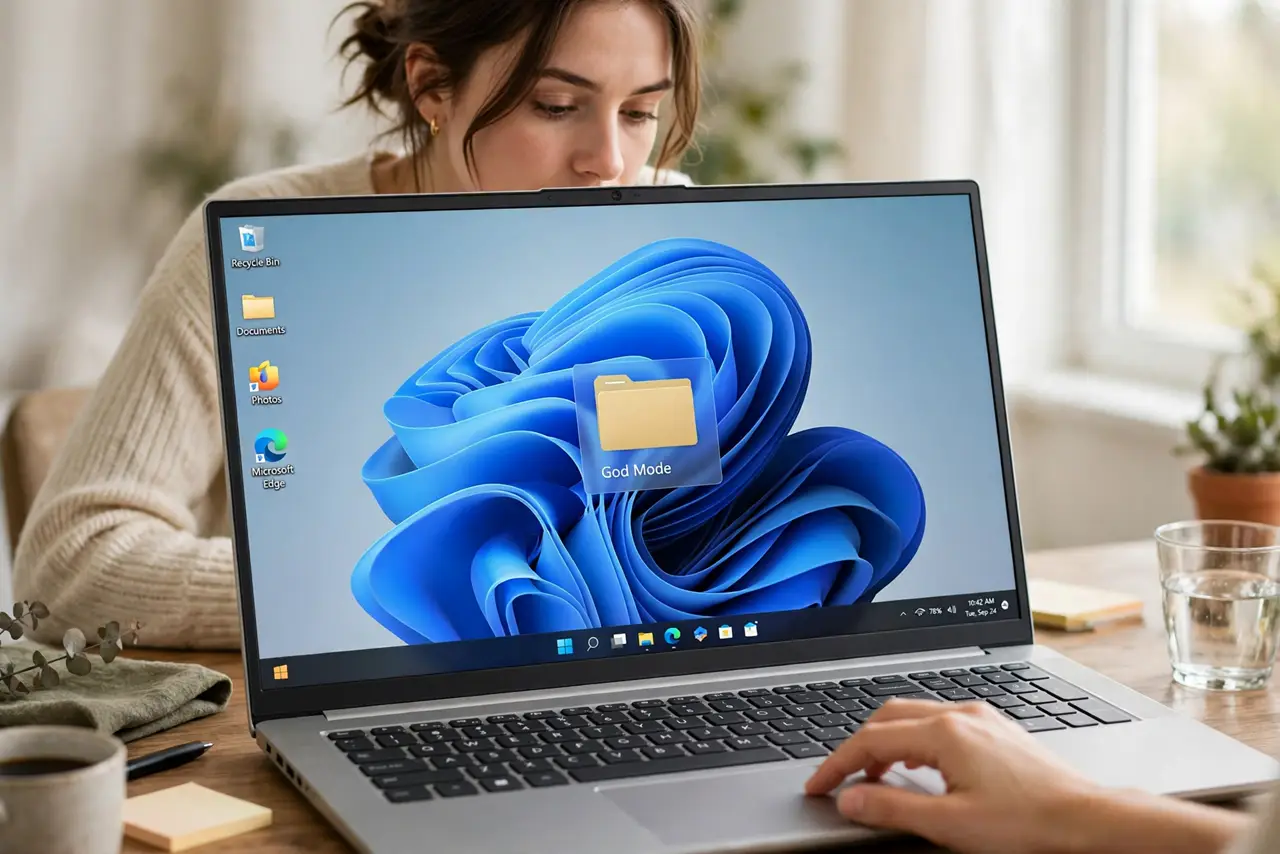
- Create the folder. Right-click the desktop, New, Folder. Rename it to exactly GodMode.{ED7BA470-8EC4-465E-BB04-37F505B440AC} — copy the code carefully, one wrong character and it's just a folder.
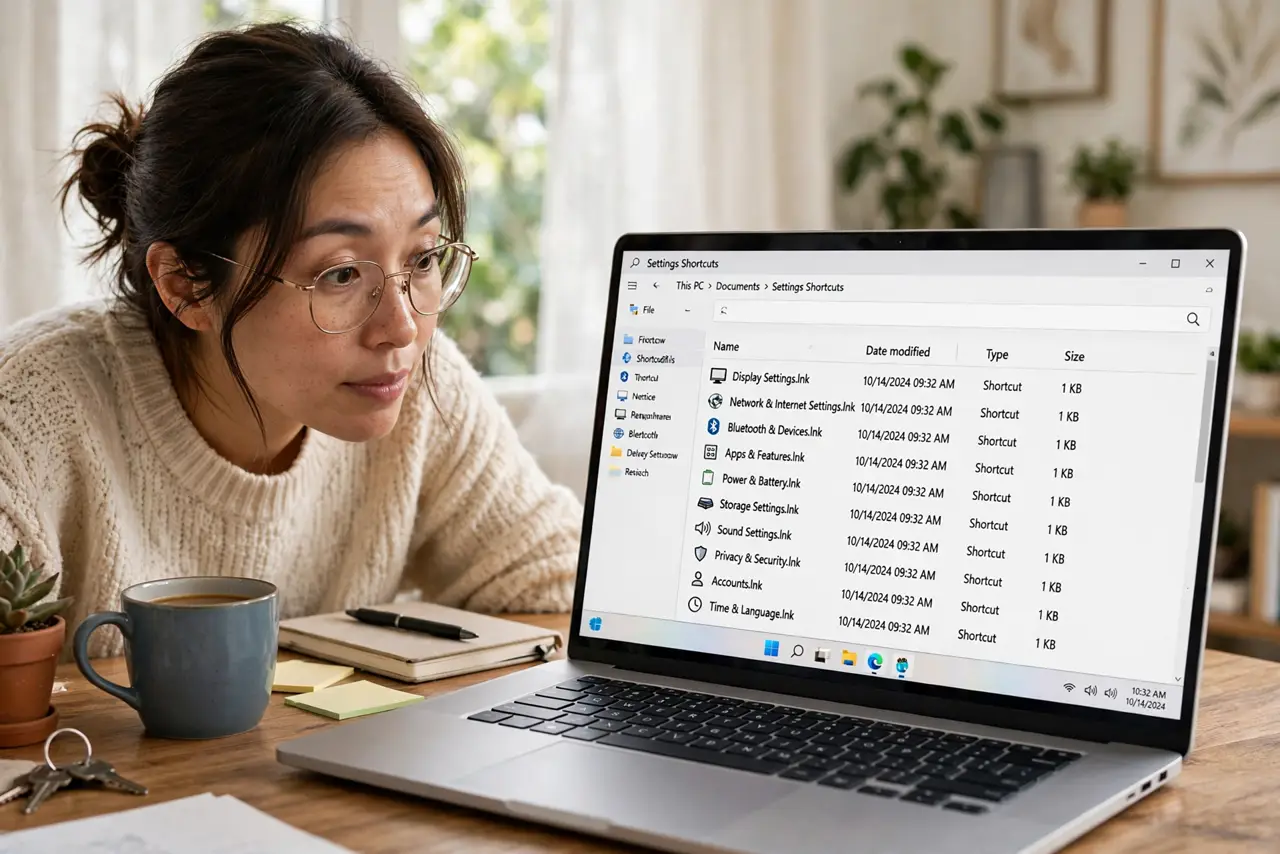
- Open the master list. Double-click the new icon. You'll see 200+ settings grouped by category — everything from mouse pointers to BitLocker, each a direct shortcut to the real setting.
- Use search inside it. With that many entries, scroll less and search more — the folder's search box finds the setting you want instantly. It's a settings index, so treat it like one.
- Know what it isn't. God Mode doesn't unlock hidden features, boost performance, or bypass anything. Every entry opens a normal settings page you could reach another way — it just gathers them.
- Compare with Settings search. Windows Settings already has its own search that finds most of these. God Mode's edge is the browsable full list — handy when you don't know what the setting is called.
- Delete it if you don't use it. Not impressed? Delete the folder like any other. Nothing changes in Windows — it was only ever a view, and removing it removes nothing else.
What NOT to do
- Do not download 'God Mode activator' tools. The folder trick needs no software — any download claiming to enable it is bundling something you don't want.
- Do not rename it with a typo and panic. A mistyped code just makes a normal folder — rename it correctly or delete it and start over.
- Do not expect hidden performance tweaks. God Mode lists existing settings; it doesn't reveal secret speed options — those don't exist.
- Do not create it inside system folders. Desktop or Documents is fine; burying it in Windows directories just makes it hard to find later.
Frequently asked questions
Is God Mode safe?
Completely — it's a documented Windows shell feature, not a hack. It changes nothing by itself; it only links to existing settings pages.
Does it work on Windows 11?
Yes, the same folder trick works on Windows 10 and 11. The settings list reflects whichever version you're running.
Why is it called God Mode?
A blogger coined the nickname years ago for the all-settings-in-one-place effect. Microsoft never used the name — the technical term is just a shell folder.