Calibrate HDR the Right Way
You turn on HDR in Windows and everything looks worse — the desktop goes gray and washed out, games look hazy, and you wonder what the hype was about. The problem is rarely your monitor: Windows needs a calibration profile that tells it exactly how bright your specific display gets. The free Windows HDR Calibration app builds that profile in minutes. Here is the right way to run it.
TL;DR / Quick Fix
Quick fix: washed-out HDR on Windows means the display's HDR calibration is off. Run the Windows HDR Calibration app, follow its brightness and saturation patterns, and apply the color profile. Keep SDR content brightness balanced so the desktop doesn't look gray, and game or video HDR will finally look right.
Follow these steps
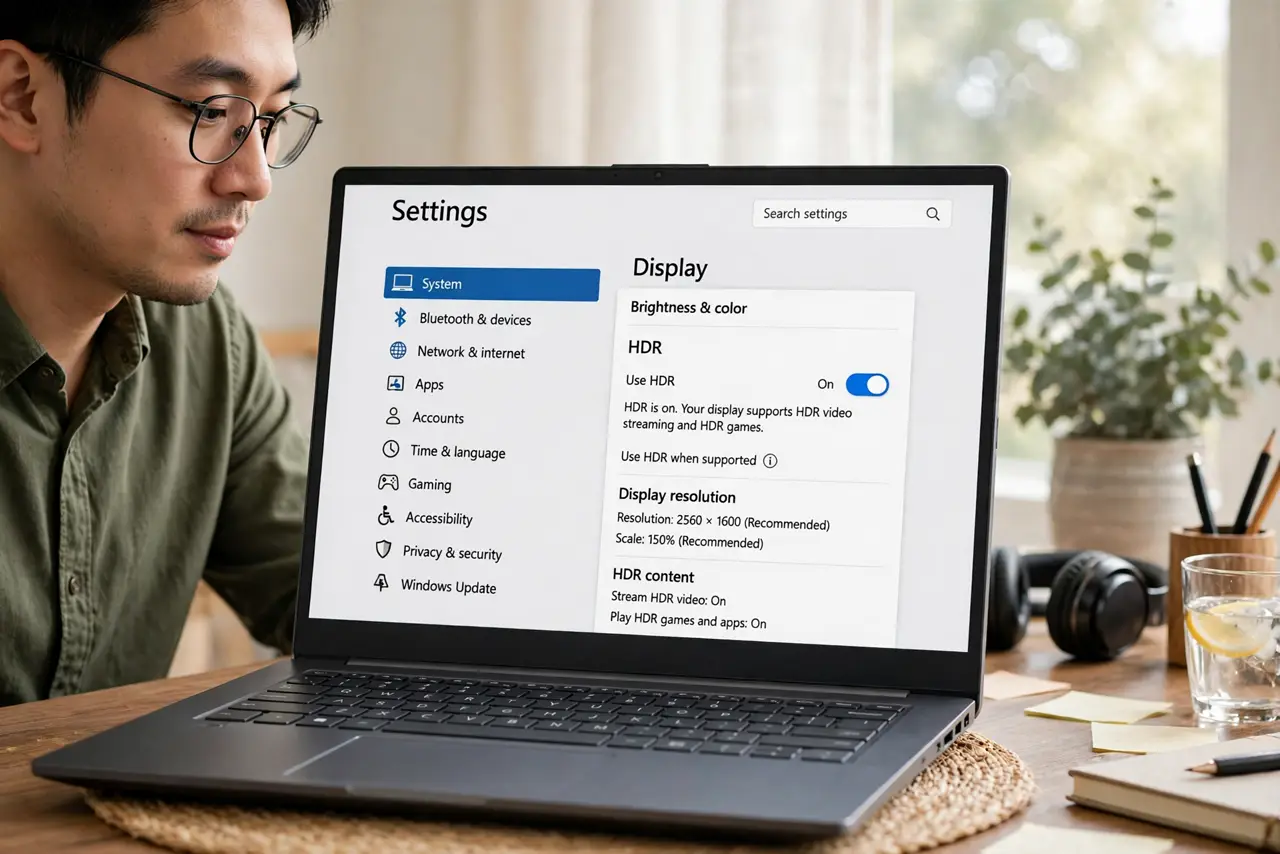
- Confirm your display actually supports HDR. Check Settings > System > Display > HDR — Windows shows whether the display is HDR-capable. A non-HDR monitor with HDR forced on is the classic cause of the washed-out look; no calibration fixes hardware that isn't there.
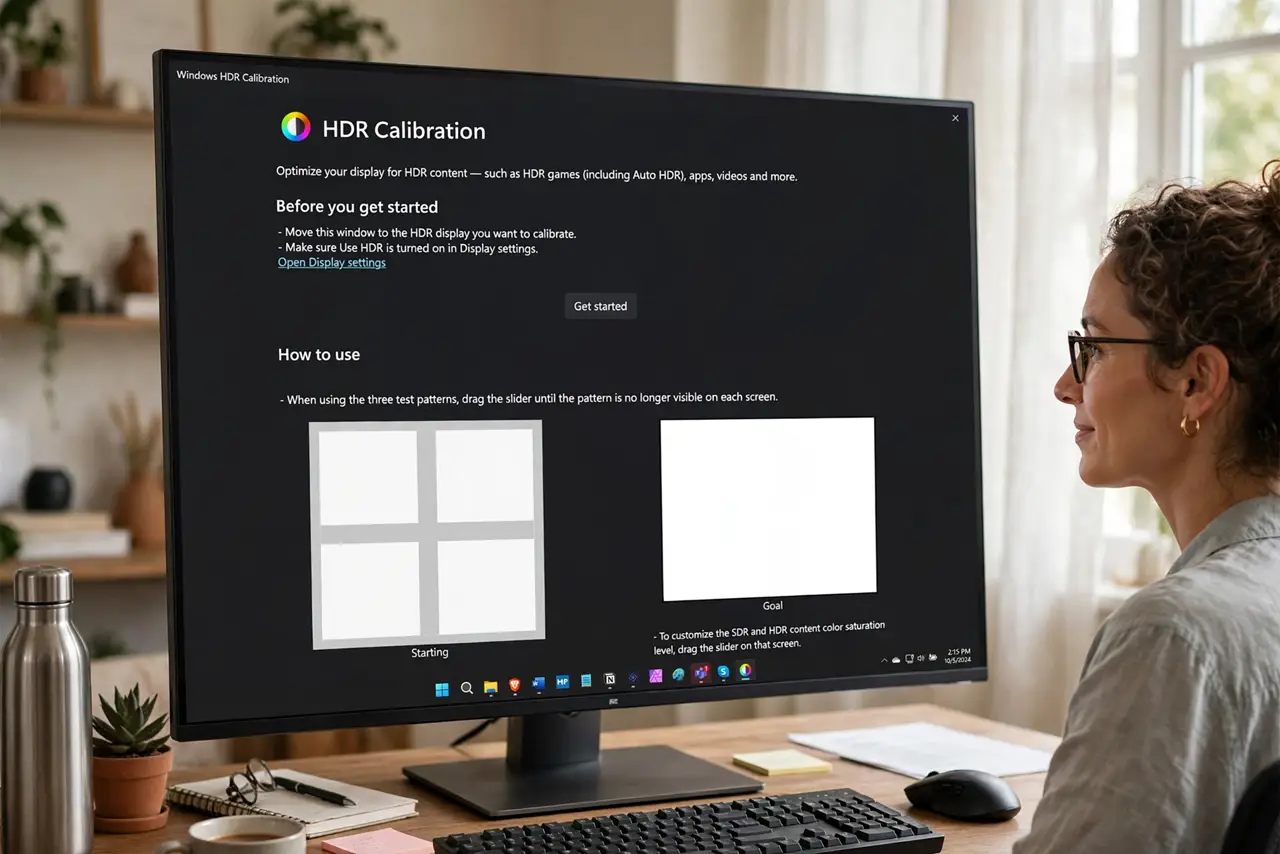
- Install the Windows HDR Calibration app. Get it free from the Microsoft Store — search 'Windows HDR Calibration.' It is Microsoft's own tool, built for exactly this job, and it takes minutes.
- Run the test patterns in a dim room. The app shows brightness patterns where you drag a slider until a test image just disappears. Do this with normal room lighting — calibrating under blazing daylight or pitch black skews the result toward the wrong middle.
- Set the SDR content brightness carefully. The app's SDR brightness slider controls how bright normal desktop content looks in HDR mode. This is the setting that fixes the gray desktop — nudge it until white windows look white, not dingy.
- Apply the profile and name it. The app saves a color profile for your display. Keep it applied — deleting display profiles later is the mysterious way HDR 'breaks' months after you fixed it.
- Verify with real HDR content. Play an actual HDR video or game after calibrating. If highlights now pop while the desktop stays normal, you are done. If the desktop still washes out, recheck the SDR brightness slider before blaming the monitor.
What NOT to do
- Do not calibrate with the monitor's own 'HDR mode' fighting Windows. Set the monitor to its standard or HDR preset as the manual says, then let the Windows app do the tuning — two cooks spoil the tone mapping.
- Do not max out every brightness slider. Calibration is about correct, not maximum — crushed highlights look worse than dim ones.
- Do not expect HDR miracles on a dim display. True HDR needs real brightness; on a 300-nit screen the improvement is subtle by physics, not by settings.
- Do not delete color profiles to 'clean up.' That mystery profile is your calibration — removing it silently unfixes everything.
Frequently asked questions
Why does HDR look worse than SDR?
Uncalibrated HDR maps brightness wrong, so everything looks gray and flat. The calibration profile teaches Windows your display's real limits — that is the whole fix.
Do I need to recalibrate after a driver update?
Sometimes — graphics driver updates can reset the color profile. If HDR suddenly looks off after an update, rerun the app before troubleshooting anything else.
Is the calibration app better than the monitor's settings?
They do different jobs. The monitor settings control the panel; the Windows app builds the software profile Windows uses. You want both sane, not one compensating for the other.