HDR Makes the Desktop Look Washed Out
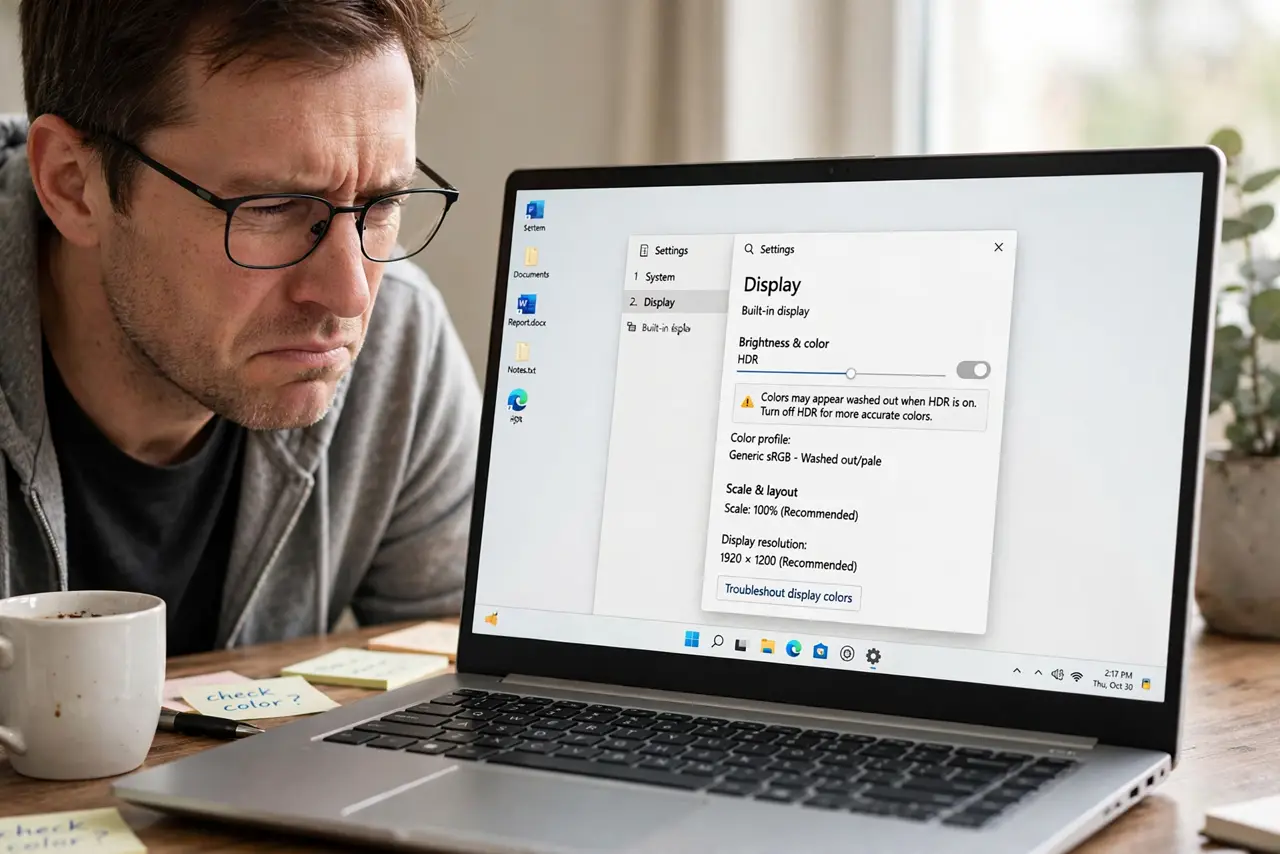
You turned on HDR and instead of vivid color, the whole desktop looks pale and washed out — SDR apps grey, whites glowing, everything slightly wrong. Windows HDR is tuned for HDR video and games, and the desktop often looks worse with it on. This guide shows how to fix the balance or turn it off cleanly.
TL;DR / Quick Fix
Quick fix: open Settings > System > Display > HDR and adjust the SDR content brightness slider until the desktop looks normal. If it never looks right, turn HDR off for desktop use and enable it only for HDR games and videos.
Follow these steps
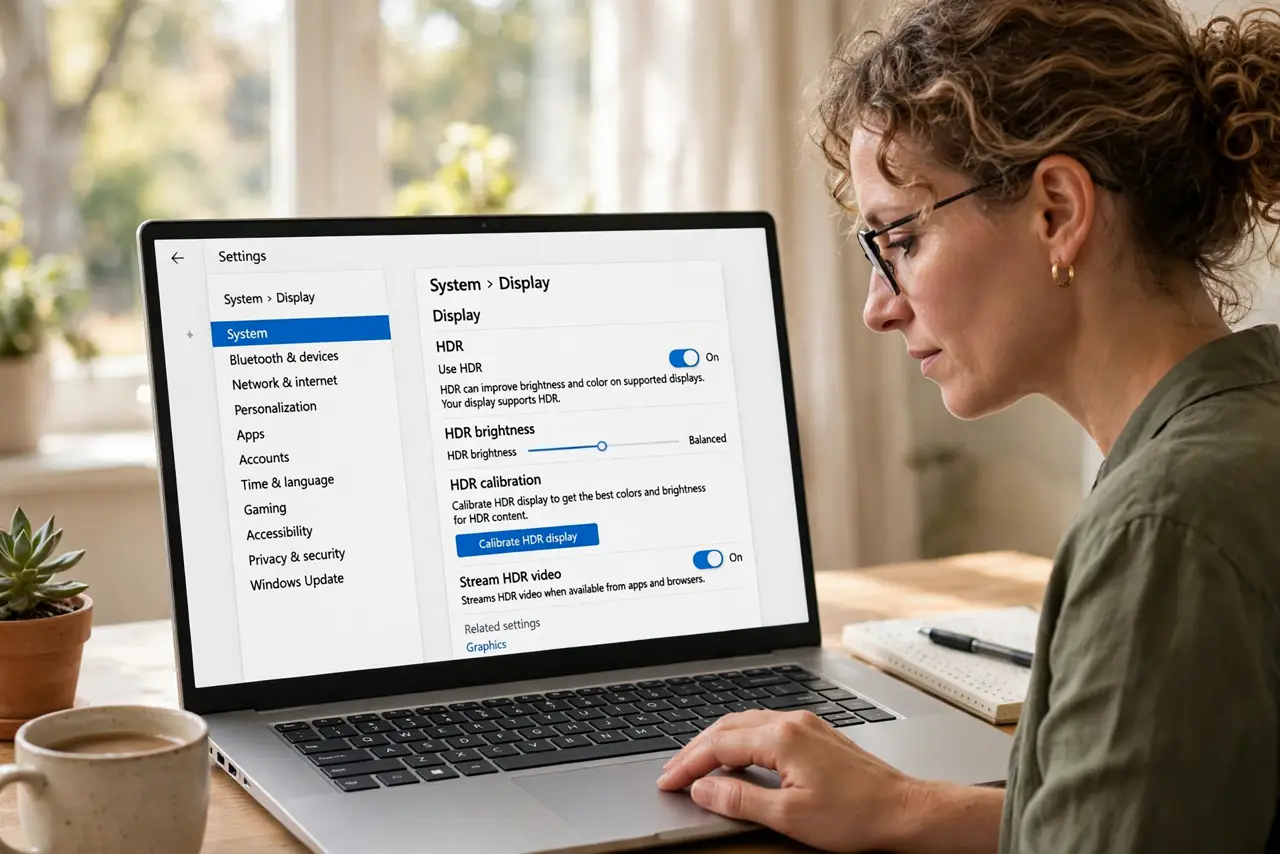
- Open the HDR settings page. Go to Settings > System > Display and select HDR. This page holds the per-display HDR toggle and the calibration tools, separate from the main display page.
- Balance SDR content brightness. Use the SDR content brightness slider on the HDR page. Drag it until desktop apps look normal — this single slider fixes most washed-out HDR complaints.
- Run the HDR calibration app. Install the Windows HDR Calibration app from the Microsoft Store and follow its steps. Calibration tunes the tone mapping to your specific display instead of a generic profile.
- Check the monitor's own HDR mode. Open the monitor's on-screen menu and confirm its HDR mode matches the input. A monitor stuck in the wrong HDR preset fights Windows' settings.
- Turn HDR off for desktop work. If the desktop never looks right, toggle Use HDR off. Enable it only when launching an HDR game or video — HDR off gives the best desktop, HDR on gives the best movies.
- Verify with real HDR content. Play an actual HDR video after any change. Judging HDR by the desktop alone misleads; the setting exists for HDR content, not for File Explorer.
What NOT to do
- Do not leave HDR on because it sounds better. If your desktop looks worse, the feature is hurting the 90% of time you are not watching HDR video.
- Do not max the SDR brightness slider blindly. Too high washes out highlights; adjust until text and photos look natural, then stop.
- Do not buy a new monitor over washed-out HDR. Most 'bad HDR' is settings and calibration, and a new display with the same settings looks the same.
- Do not enable HDR in games and Windows separately without checking. Some games need Windows HDR on first, others toggle it themselves — check the game's own setting.
Frequently asked questions
Why does HDR look worse than SDR on my monitor?
Many monitors have weak HDR hardware. Windows sends HDR signals the panel cannot show well, so SDR mode actually looks better.
Should I keep HDR on all the time?
No. Keep it off for desktop work and turn it on for HDR games and videos — that split gives the best of both.
Does HDR affect screenshots?
Screenshots can look odd with HDR on because they capture the tone-mapped image. Turn HDR off before capturing the desktop.