HEIC Photos Won't Open on Windows? Fix It
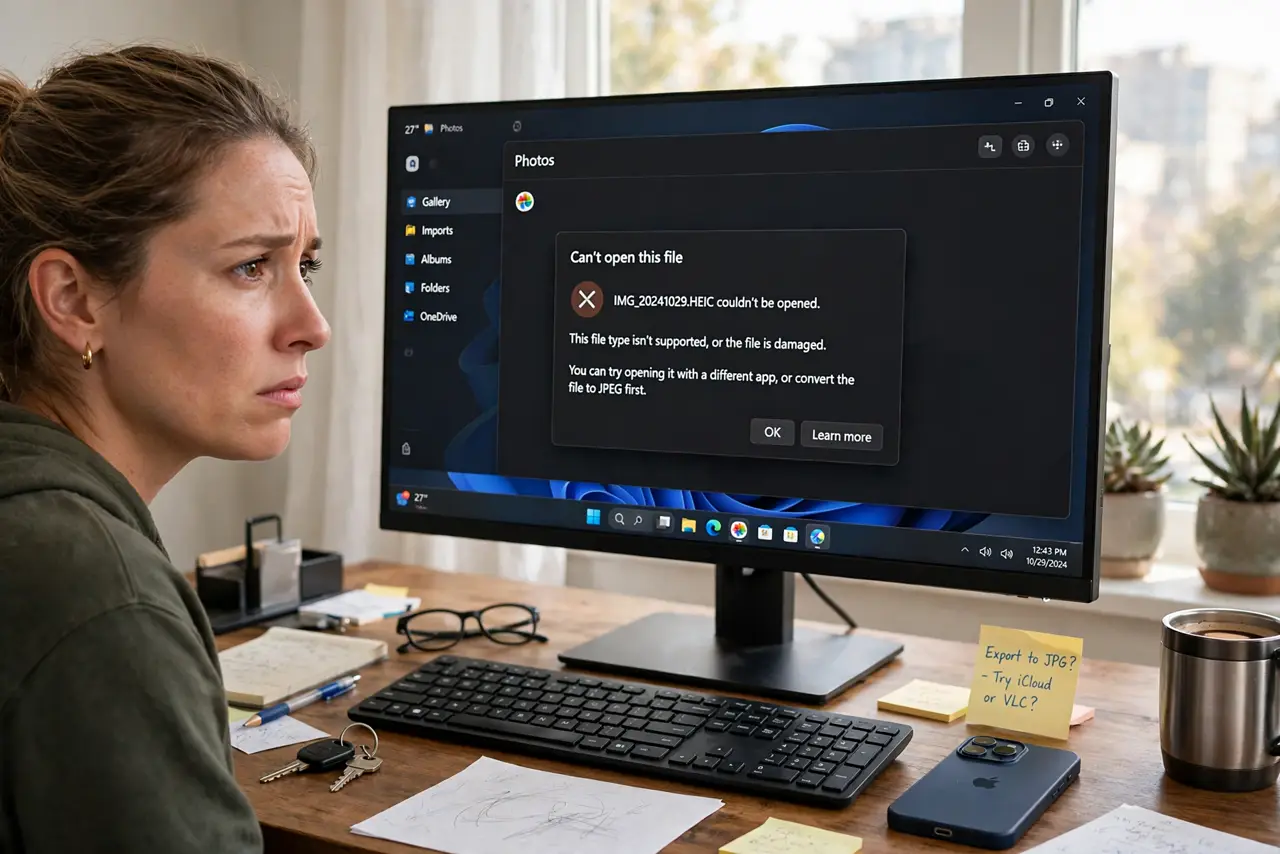
Photos from an iPhone arrive as HEIC files, and Windows Photos says it cannot open them. Windows needs the free HEIF codec extension to read the format, and it is a quick Microsoft Store install. Videos in HEVC are the separate paid extension, so photos and videos are two different fixes — with blank video thumbnails covering the preview side.
TL;DR / Quick Fix
Quick fix: install the free HEIF Image Extensions from the Microsoft Store, which teaches Windows Photos to open HEIC stills. After installing, double-click an HEIC file and it opens normally. If iPhone videos also fail, those need the separate HEVC extension, which is a different install.
Follow these steps
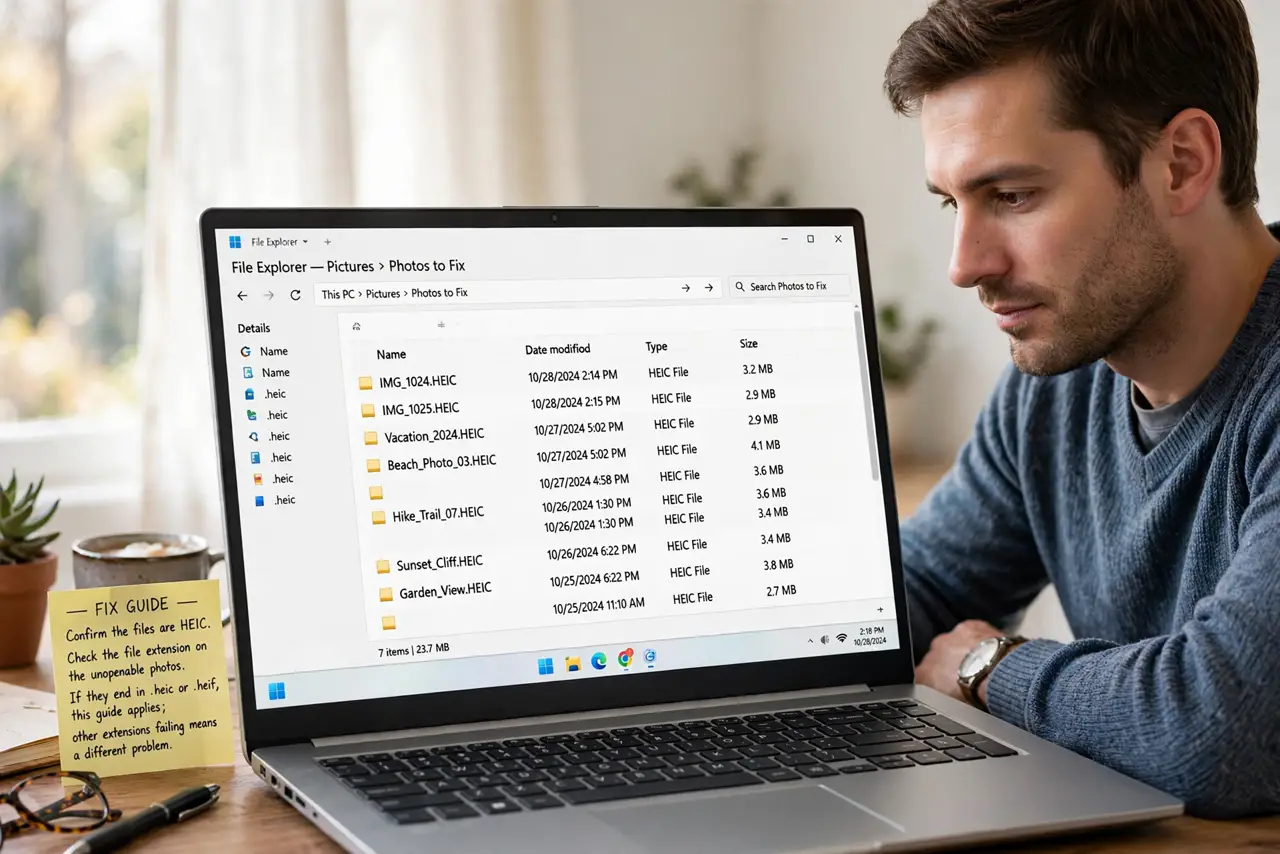
- Confirm the files are HEIC. Check the file extension on the unopenable photos. If they end in .heic or .heif, this guide applies; other extensions failing means a different problem.
- Install the HEIF Image Extensions. Open the Microsoft Store, search for HEIF Image Extensions, and install it. It is Microsoft's free codec that adds HEIC photo support to Windows.
- Open an HEIC photo to test. Double-click one of the iPhone photos. Windows Photos should now display it normally, including thumbnails in File Explorer.
- Check HEVC separately for videos. If iPhone videos (.mov with HEVC) also fail, they need the HEVC Video Extensions, which is a separate, paid extension. Photos and videos are genuinely two codecs.
- Consider converting on the iPhone. On the iPhone, the camera settings can shoot in Most Compatible (JPEG) instead of High Efficiency (HEIC). That avoids the codec question for future photos entirely.
- Verify thumbnails appear in Explorer. Browse the photo folder and confirm thumbnails generate. Working thumbnails prove the codec is fully registered, not just half-installed.
What NOT to do
- Do not download codec packs from random sites. The Microsoft Store extensions are the safe source; mystery codec packs are a classic malware vector.
- Do not confuse HEIF with HEVC. The free extension covers still photos; expecting it to also fix videos leads to a second round of confusion.
- Do not re-export every photo as JPEG in a panic. Install the codec once and the originals open natively at full quality.
- Do not blame the iPhone. HEIC is a legitimate modern format; Windows just needs the decoder installed.
Frequently asked questions
Why can't Windows open iPhone photos by default?
Because HEIC needs a licensed decoder that Microsoft ships as a separate Store extension rather than bundling with Windows.
Is the HEIF extension really free?
Yes. HEIF Image Extensions is free; only the HEVC video extension carries a small charge.
Will this work on Windows 10 too?
Yes. The same Store extensions add HEIC support to Windows 10 as well.