Hello Face Says It Can't Recognize You
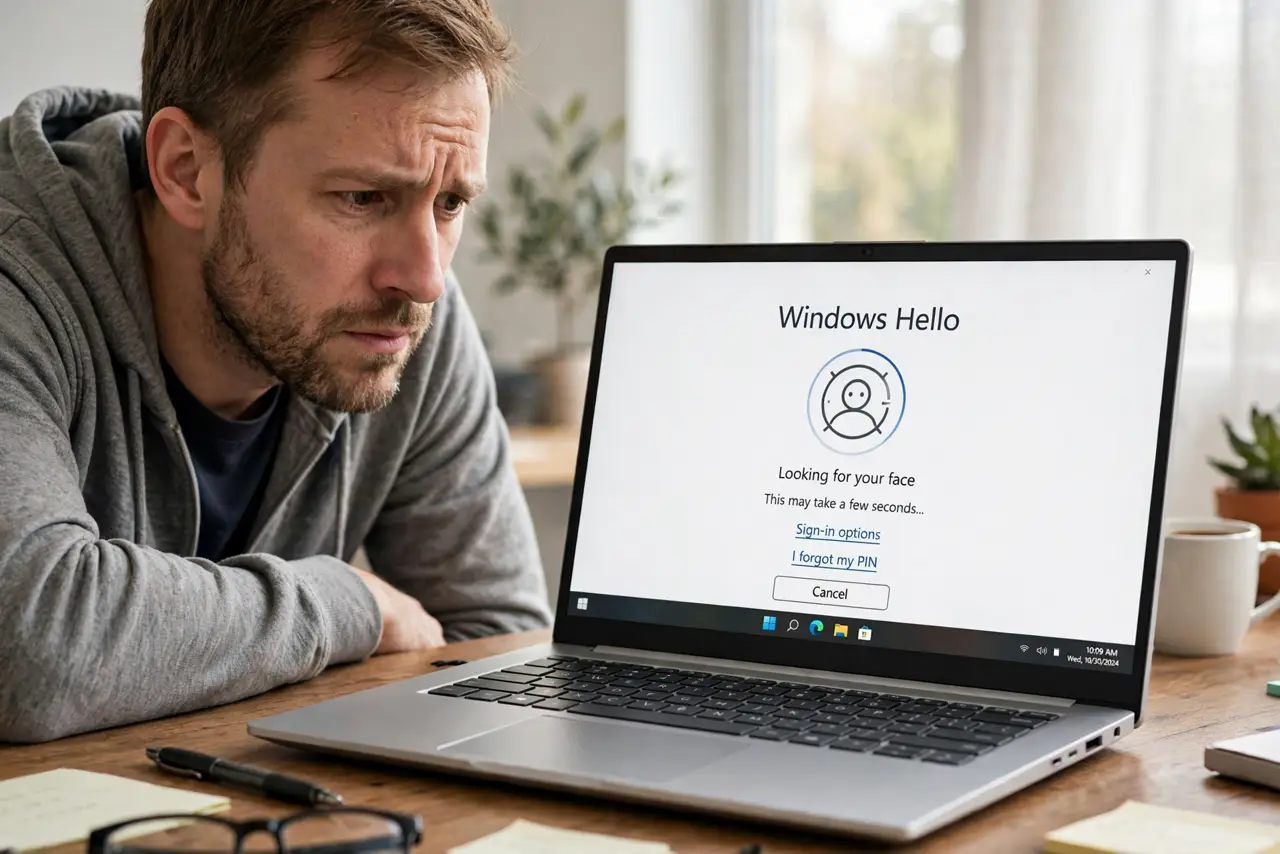
Windows Hello face sign-in is wonderful until the camera suddenly claims it cannot recognize you. The cause is rarely your face — it is usually lighting, a dirty lens, a driver hiccup, or a changed appearance like glasses. This guide walks through the quick checks that bring face sign-in back.
TL;DR / Quick Fix
Quick fix: clean the camera lens and improve the lighting on your face, then try again. If it still fails, go to Settings > Accounts > Sign-in options > Facial recognition and choose Improve recognition. Re-enroll your face only as a last step.
Follow these steps
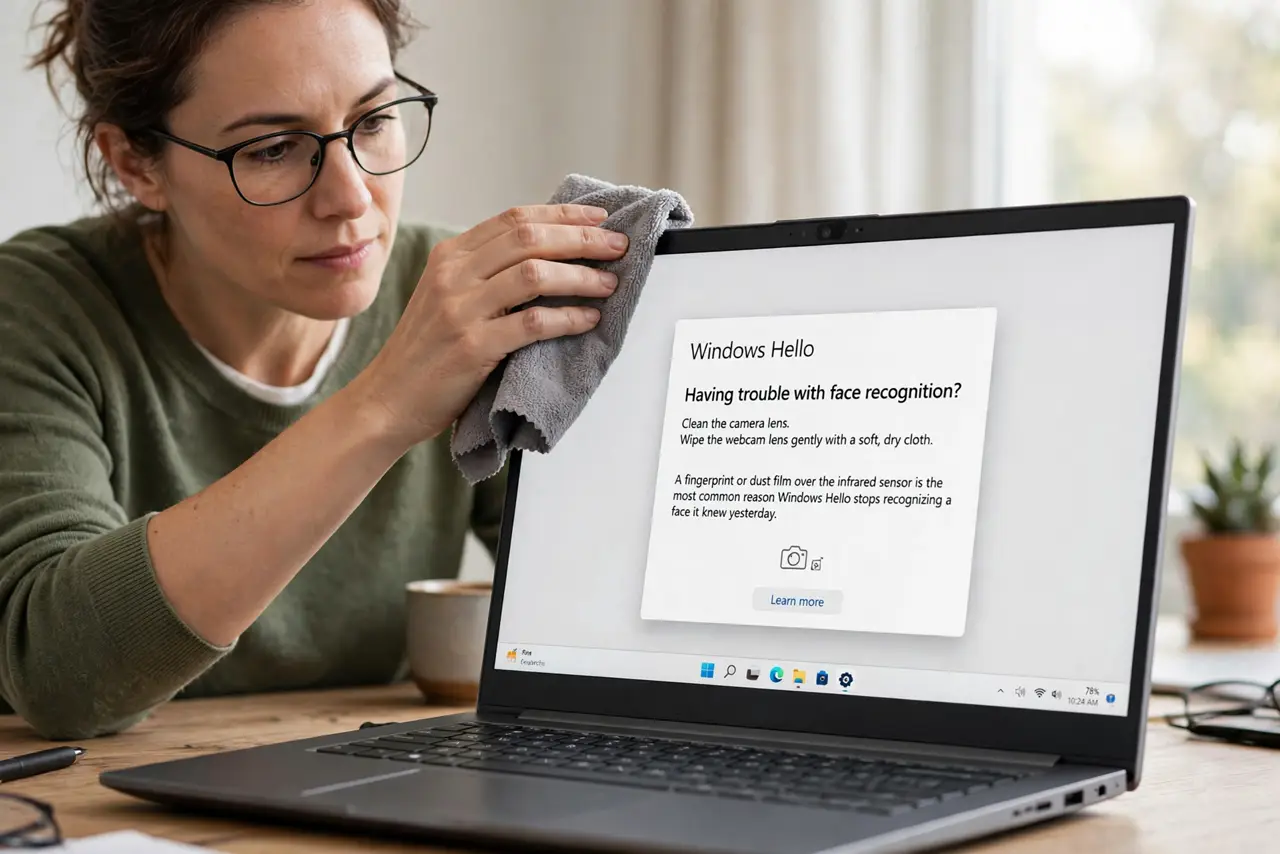
- Clean the camera lens. Wipe the webcam lens gently with a soft, dry cloth. A fingerprint or dust film over the infrared sensor is the most common reason Hello stops recognizing a face it knew yesterday.
- Fix the lighting on your face. Sit facing a window or lamp so light falls on your face, not behind you. Strong backlight turns your face into a silhouette the camera cannot read.
- Remove the change, then retry. Take off sunglasses, a hat, or a mask and try again. If a new pair of glasses is the trigger, the Improve recognition option below can learn the new look.
- Use Improve recognition. Go to Settings > Accounts > Sign-in options > Facial recognition (Windows Hello) and choose Improve recognition. Follow the prompts to add your current appearance without deleting the original scan.
- Update the camera driver. Open Device Manager, expand Cameras, right-click your camera, and choose Update driver. A driver updated badly by Windows Update can break the infrared camera Hello depends on.
- Remove and re-enroll your face. As a last resort, choose Remove under Facial recognition, restart the PC, then set it up again. A fresh enrollment clears a corrupted face profile.
What NOT to do
- Do not disable the infrared camera in Device Manager to save battery. Hello needs the IR sensor, and disabling it kills face sign-in silently.
- Do not re-enroll in a dark room. A poor enrollment scan fails in normal light, so set up face recognition in the lighting you actually use.
- Do not assume someone else's face will unlock it. Hello failing on you does not mean it accepts others — it means the sensor data is off.
- Do not skip the PIN backup. If face sign-in breaks, the PIN you set during Hello setup is the fallback that keeps you in.
Frequently asked questions
Why did Hello work yesterday but not today?
Something changed: lighting, a dirty lens, new glasses, a hat, or a driver update overnight. Work through the checks above in order.
Does face recognition work in the dark?
Hello uses infrared, so it works in low light — but a dirty lens or a strong light behind you still defeats it.
Can I use Hello with glasses on and off?
Yes. Enroll without glasses, then use Improve recognition while wearing them, and Hello learns both looks.