Windows Hello Face Not Working? Fix It
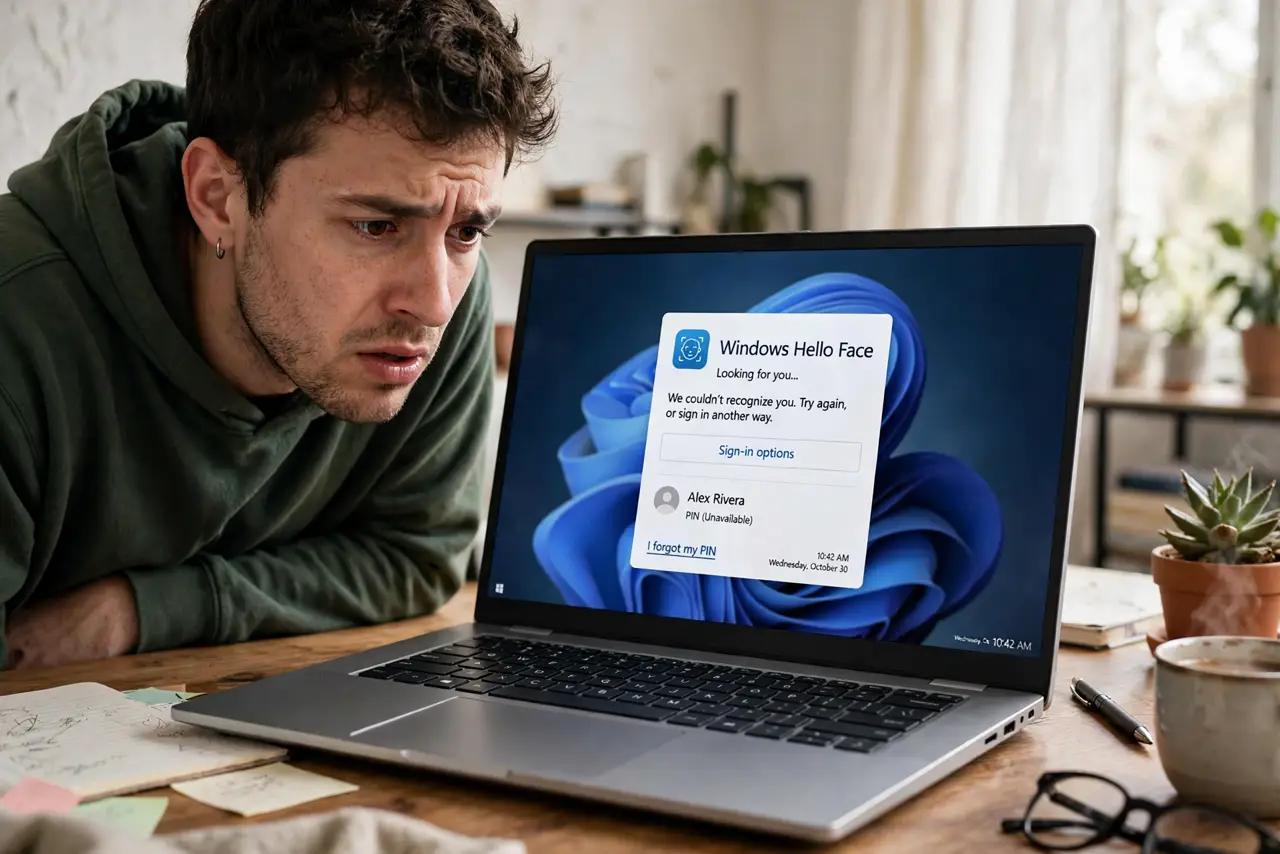
You lean in, the little light blinks, and Windows shrugs instead of signing you in. Hello face recognition is picky about lighting, glasses, and camera position — and Windows updates love to disturb it. Most failures are fixed by improving recognition, not by giving up on it.
TL;DR / Quick Fix
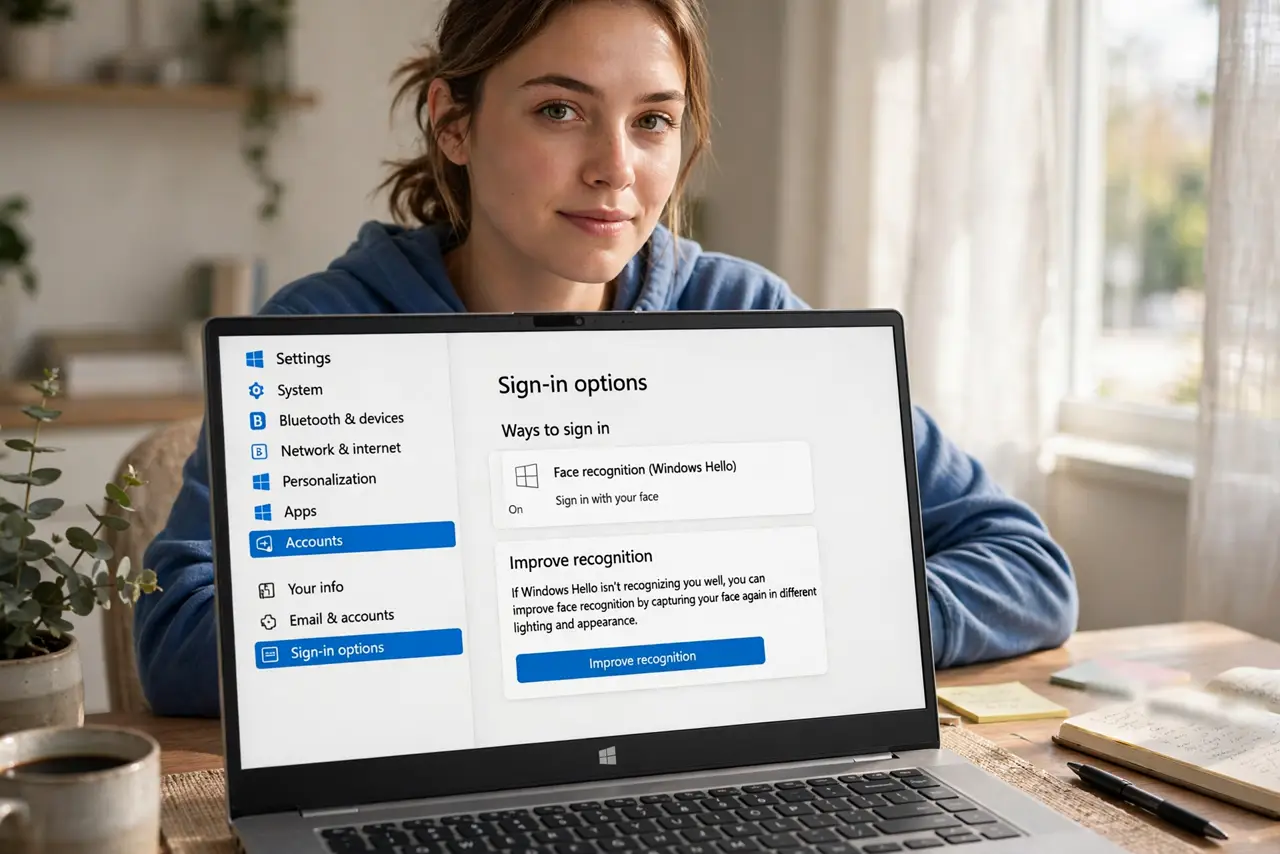
Quick fix: go to Settings, Accounts, Sign-in options, and choose Improve recognition under Face recognition. Ensure good lighting on your face and remove anything covering the camera. If it still fails, remove face data and set it up again from scratch.
Follow these steps
- Improve recognition first. Settings > Accounts > Sign-in options > Face recognition > Improve recognition. Look at the camera in varied lighting — this alone fixes most failures.
- Fix the lighting. Face the light source; don't sit with a bright window behind you. Hello's infrared camera still needs a reasonably lit face — see the glasses issue if eyewear is involved.
- Check nothing covers the camera. Privacy shutters, stickers, and smudged lenses all defeat it. Open the shutter fully and wipe the lens.
- Re-register your face cleanly. Remove the face data and set it up again, holding still and centering your face. Register once with glasses on and once off if you alternate.
- Check the camera itself works. Open the Camera app. If the camera shows nothing, the problem is hardware or driver — see camera not recognized.
- Update the biometric driver after Windows updates. Updates sometimes replace the Hello driver with a generic one. Grab the driver from the laptop maker's site — the same class of issue hits fingerprint readers too.
What NOT to do
- Do not disable Hello in frustration before trying Improve recognition. Most 'broken' Hello just needs a fresh sample.
- Do not set up face recognition in a dark room. The enrollment quality determines everyday reliability.
- Do not forget your PIN still works. Hello is a convenience layer — the PIN is the real fallback, so keep it memorable.
- Do not assume someone who looks like you can unlock it. A failed login for you doesn't mean it accepts everyone — the infrared depth check is stricter than it feels.
Frequently asked questions
Why did Hello stop working after an update?
Updates often swap the biometric or camera driver. Re-running Improve recognition or reinstalling the maker's driver restores it — this is the most common cause by far.
Does it work with glasses, hats, or masks?
Glasses usually fine after re-registering with them on; hats are fine; masks covering the nose defeat it — that's what the PIN is for.
Is face recognition secure enough?
For a personal laptop, yes — it uses an infrared depth map, not a photo, so a printed picture won't fool it. Pair it with BitLocker for a stolen-laptop scenario.