Fingerprint Sign-In Fails After an Update
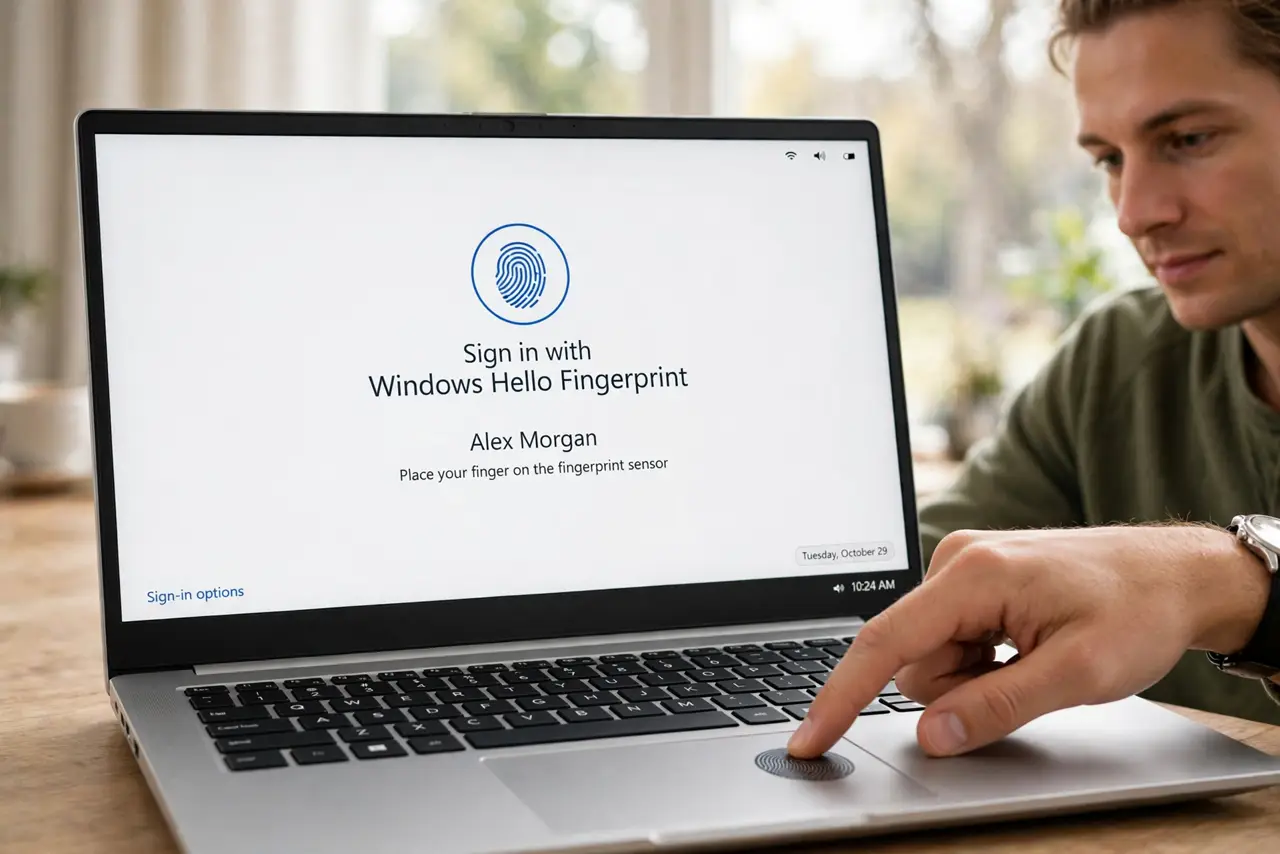
Fingerprint sign-in that worked before an update and fails after it usually lost its stored data, its driver, or its sensor setting in the update. This guide re-enrolls the finger and checks the driver, in that order. If you forgot your PIN instead, see forgot your PIN but remember the password.
TL;DR / Quick Fix
Quick fix: Sign in with your PIN first. Remove the old fingerprint. Then work through the remaining steps in order, checking one change at a time, and stop for a technician if you see damage, swelling, or a burning smell.
Follow these steps
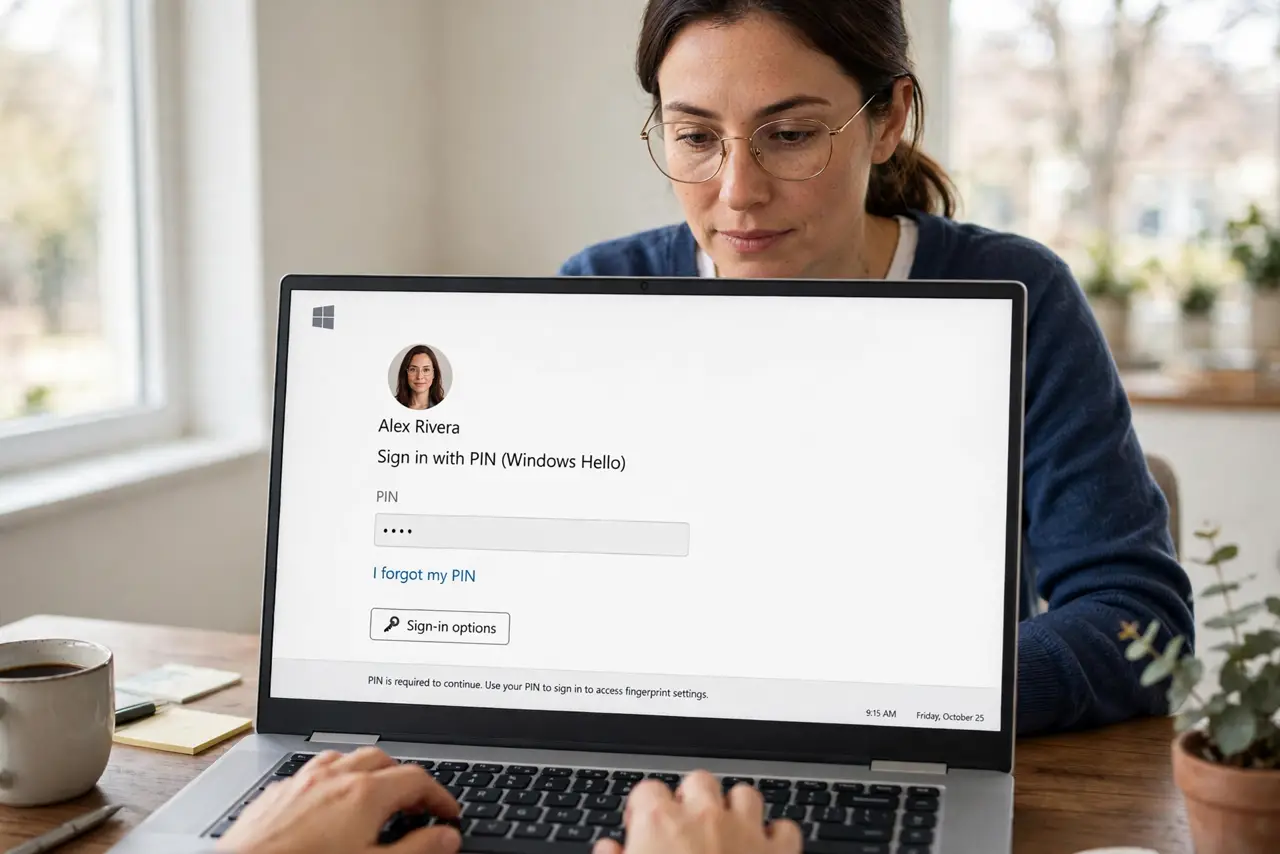
- Sign in with your PIN first. At the sign-in screen, choose the PIN option and sign in with your PIN. You need a working sign-in to reach the fingerprint settings, so the PIN is the key step, not a workaround to skip.
- Remove the old fingerprint. Open Settings, then Accounts, then Sign-in options, then Fingerprint recognition, and remove the stored fingerprint. An update can corrupt stored data, and a fresh enrollment beats patching it.
- Re-enroll the same finger slowly. Choose Set up, then follow the prompts, lifting and placing the finger as asked until enrollment completes. Slow, full presses record a better print than quick taps.
- Enroll a second finger too. Add a second finger, such as the other hand index finger, as a backup. If one finger is wet, cut, or cold, the second one keeps sign-in working.
- Update the fingerprint driver. Get the newest fingerprint sensor driver from the laptop maker site for your exact model. Updates can replace a working driver with a generic one, and the maker driver restores sensor features.
- Test sign-in from lock. Lock Windows with the Windows key plus L, then sign in with the fingerprint. A lock-screen test proves it works for daily use, not just in settings.
What NOT to do
- Do not keep trying a failing finger dozens of times. Repeated failures can lock fingerprint sign-in temporarily, so re-enroll instead.
- Do not remove your PIN while fingerprint fails. The PIN is your guaranteed way in, and removing it risks a lockout.
- Do not install driver updater tools for the sensor. Get the driver from the laptop maker, since generic updaters can install the wrong sensor driver.
- Do not assume the sensor broke in the update. Stored data and drivers are the usual casualties, and both are fixable without repair.
Frequently asked questions
Why does my finger fail when wet or cold?
Moisture and cold change the fingerprint surface, so the sensor cannot match it. A dry, warm finger or the backup finger solves it.
Does re-enrolling delete my other sign-in methods?
No. Removing a fingerprint affects only that method, so your PIN and password stay intact.
Can I enroll the same finger twice?
Yes, enrolling the same finger at slightly different angles can improve matching, and a second finger is still worth adding.