Set Up a Windows Hello PIN
Typing a long Microsoft account password every time your PC locks gets old fast. A Windows Hello PIN is a short code that unlocks only your device — faster to type and, surprisingly, safer than a password in several ways. Setup takes about a minute in Settings. Here is how to create one and what to know about how it protects you.
TL;DR / Quick Fix
Quick fix: a Windows Hello PIN replaces your full Microsoft password at sign-in, and it works only on that PC. Set it up in Settings → Accounts → Sign-in options → PIN (Windows Hello). A stolen PIN is useless anywhere else. Add it now — signing in takes seconds.
Follow these steps
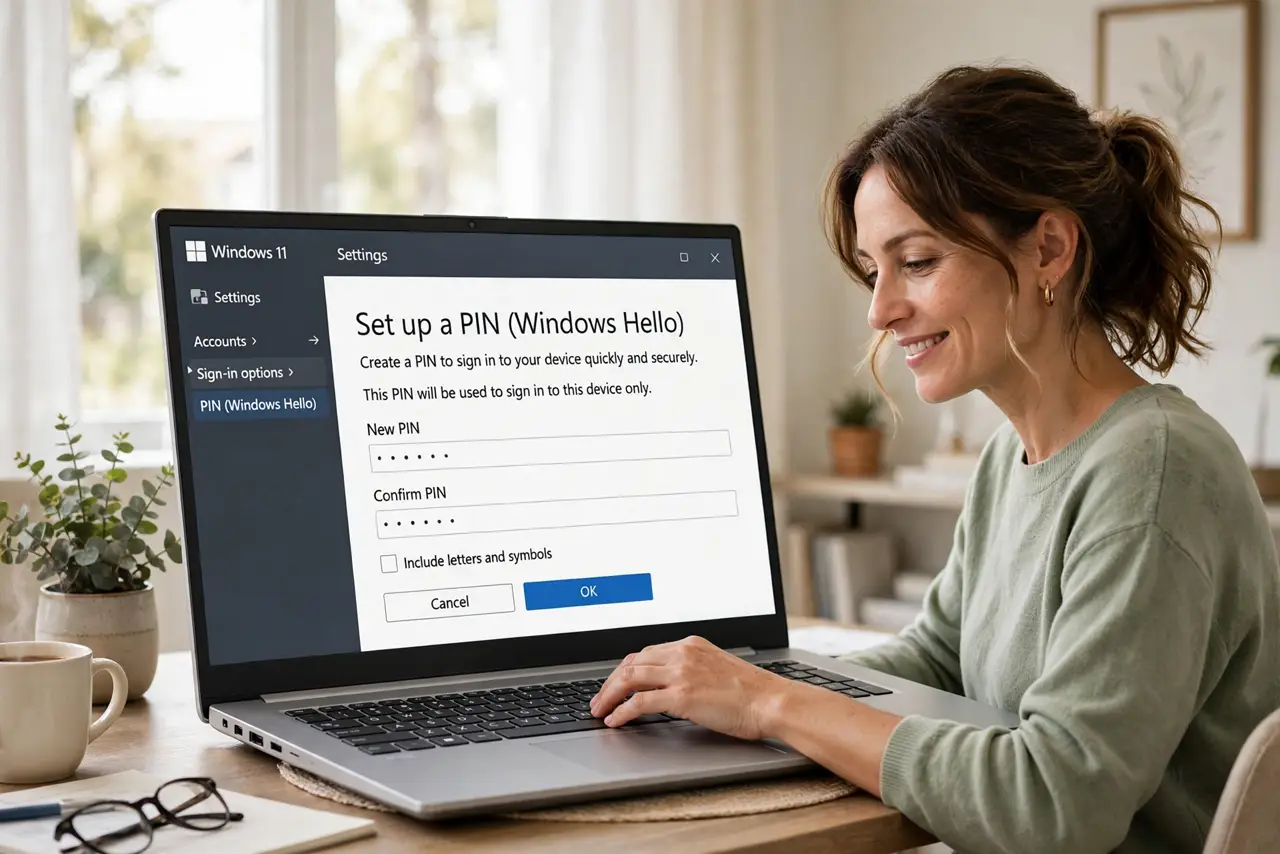
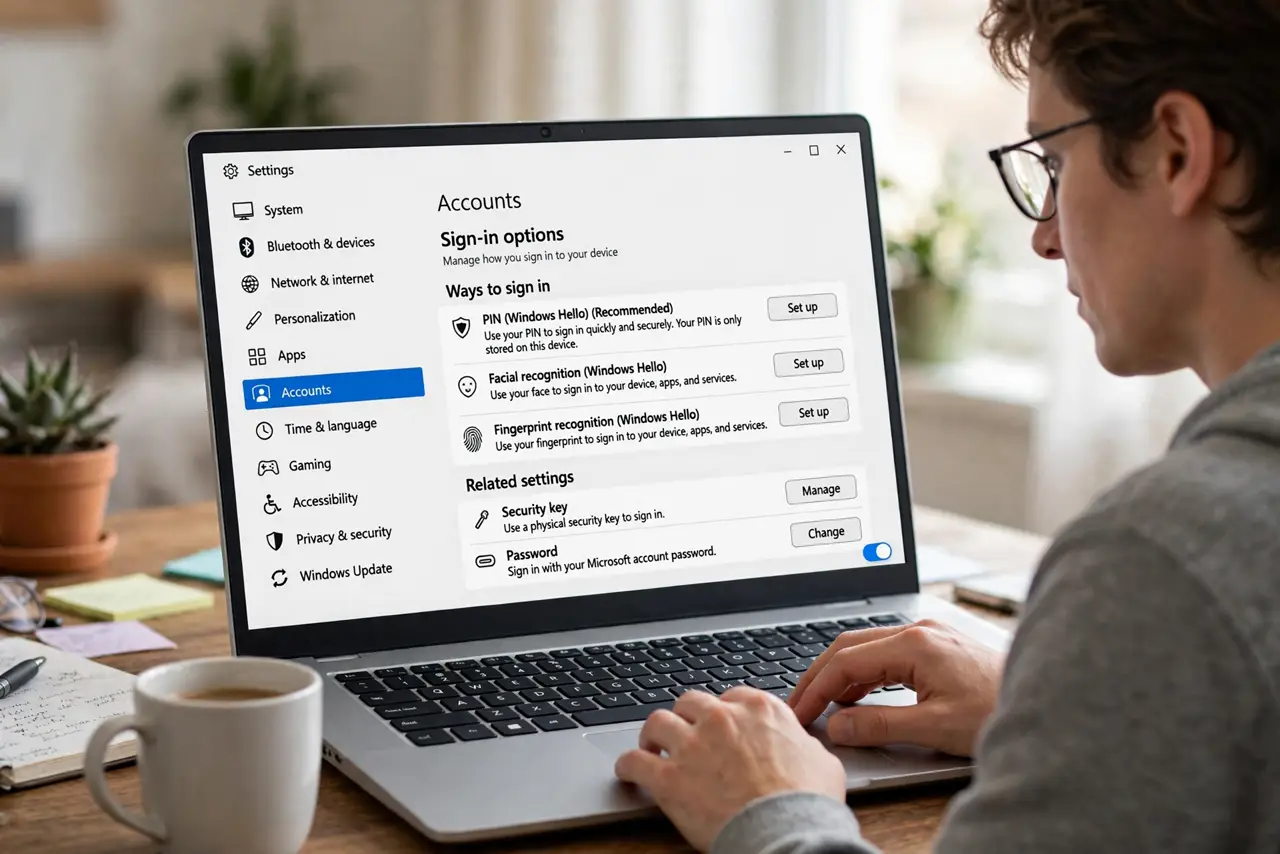
- Open Sign-in options. Go to Settings → Accounts → Sign-in options. You will see PIN (Windows Hello) listed among the sign-in methods. You need to know your current account password once to set the PIN up.
- Create the PIN. Click PIN (Windows Hello) → Set up, enter your account password when asked, then choose a PIN. Six digits beats four — still fast to type and far harder to guess. Confirm it and you are done.
- Understand why a PIN is safer here. The PIN is tied to the device's security chip and never leaves the PC — unlike a password, it cannot be phished from a fake website. Someone who learns your PIN still needs your physical laptop. That is why Microsoft treats it as the better default.
- Add a longer PIN for sensitive use. The setup lets you include letters and symbols for a stronger PIN. If the laptop holds work data or travels with you, use the longer option. Convenience and security scale together here.
- Set up a backup sign-in method. If the PIN ever fails, your account password still works — do not forget it. Consider adding fingerprint or face recognition too; Hello face issues have their own fixes if that route misbehaves.
- Know when the PIN is required. Windows sometimes asks for the full password after major updates or long inactivity — that is normal, not a PIN failure. If the PIN option disappears entirely, a work policy may have disabled it; check with IT.
What NOT to do
- Do not use 1234, your birth year, or repeating digits. A PIN's strength is its secrecy plus the device requirement — a guessable PIN wastes both.
- Do not forget your Microsoft account password after setting the PIN. Updates and account recovery still need it, and being locked out of both is a bad day.
- Do not share your PIN 'because it's just a PIN.' On that device it unlocks everything your password does.
- Do not disable the PIN to avoid typing anything. An unattended unlocked PC is worse than a two-second PIN entry.
Frequently asked questions
Is a PIN really safer than a password?
For device sign-in, yes in the ways that matter: it cannot be phished remotely and it never travels the internet. A strong unique password still matters for the account itself — the PIN just replaces it at the keyboard.
Can I use the PIN on another computer?
No — that is the security feature. Each device gets its own PIN, so stealing one PIN compromises nothing else. Set up a separate PIN per device.
Why does Windows sometimes demand my full password?
After feature updates, security changes, or long idle periods, Windows re-verifies with the full password. It is a safety check, not a sign your PIN broke.