Shrink the Hibernation File
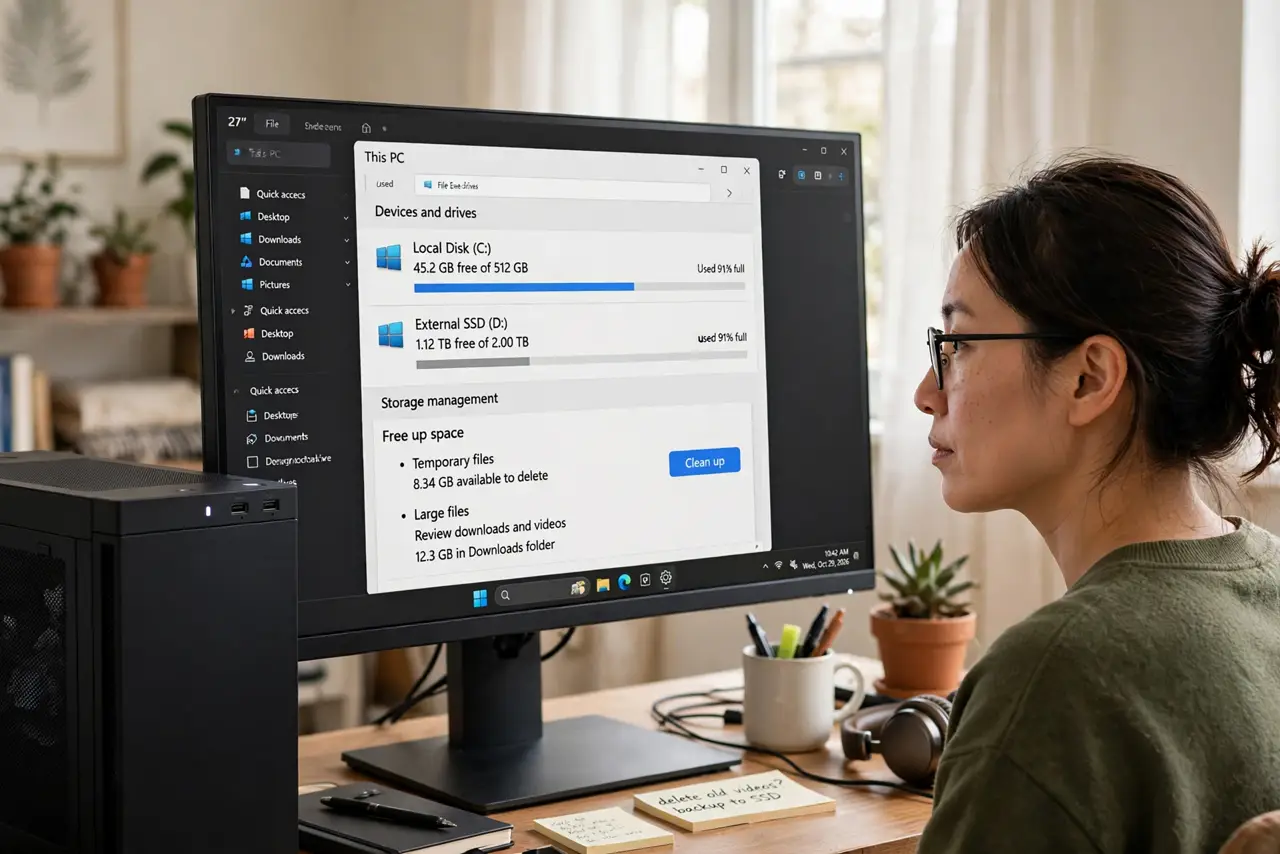
Disk cleanup shows a mysterious file called hiberfil.sys eating gigabytes — often as large as your RAM — and it cannot be deleted like a normal file. It is Windows' hibernation storage, reserved in advance so your session can be saved to disk. You can shrink it safely, and here is how, including the tradeoff involved.
TL;DR / Quick Fix
Quick fix: hiberfil.sys reserves disk space equal to a large slice of your RAM for hibernation. Open an administrator Command Prompt and run 'powercfg /hibernate /size 50' to shrink it to half — 40 is the minimum safe value. If disk space is tight, disabling hibernation reclaims the whole file.
Follow these steps
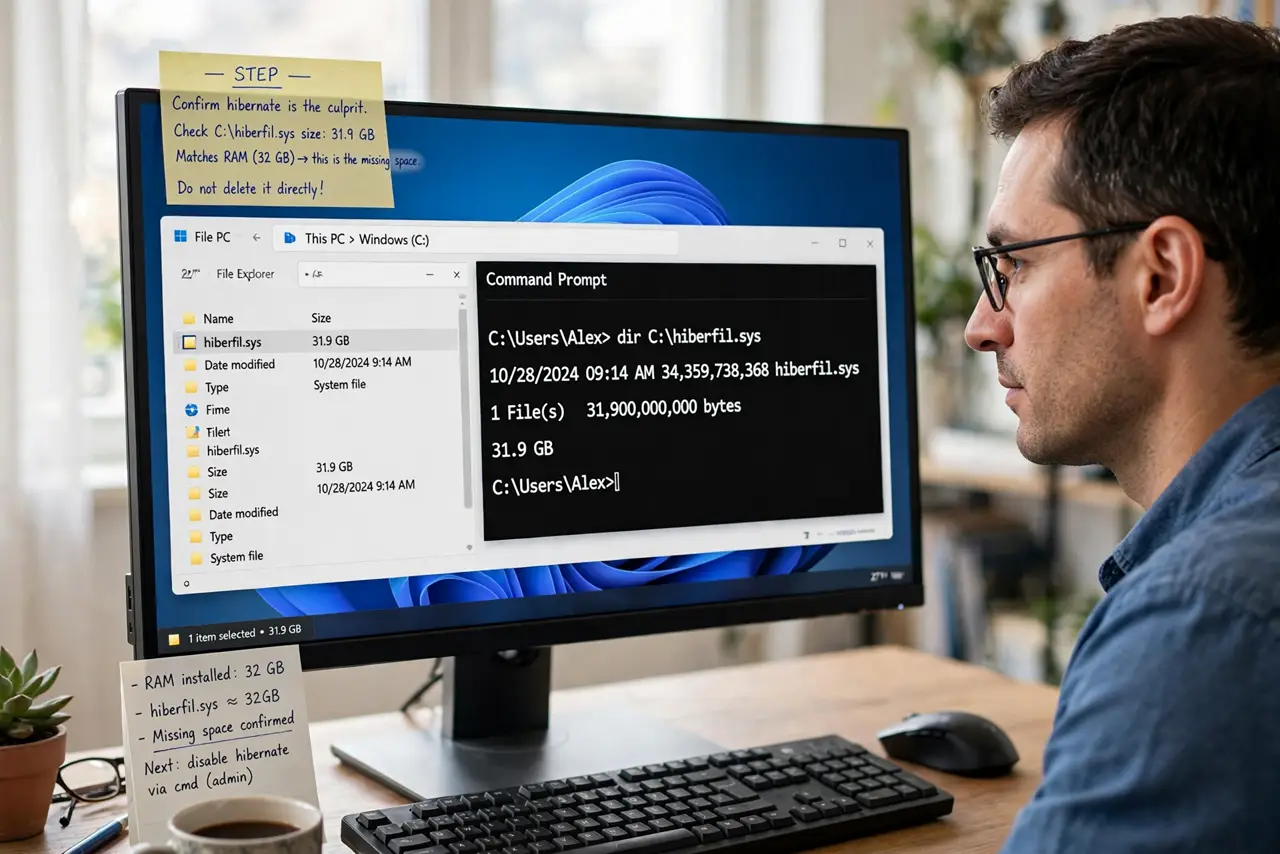
- Confirm hibernate is the culprit. Check the file size at C:\hiberfil.sys — if it roughly matches your RAM size, that is your missing space. Do not delete it directly; Windows protects it for a reason.
- Decide: shrink or disable. If you sometimes hibernate, shrink. If you never hibernate and always shut down or sleep, disabling reclaims everything — but read the hibernation option guide first so you know what you are giving up.
- Open an administrator Command Prompt. Search for 'cmd', right-click Command Prompt, and choose Run as administrator. The powercfg commands need elevation to touch the hibernation file.
- Shrink with powercfg. Type 'powercfg /hibernate /size 50' and press Enter — this caps the file at 50% of RAM. Values below 40 are rejected; 40-50 is the safe range that still allows hibernation to work.
- Or disable hibernation entirely. Run 'powercfg /hibernate off' to delete hiberfil.sys completely and reclaim all of it. Re-enable anytime with 'powercfg /hibernate on' — nothing is permanent.
- Reboot and verify. Restart, then check free space. The reclaimed gigabytes should show up immediately — if not, the pagefile is the next suspect for mystery disk usage.
What to avoid
- Do not delete hiberfil.sys by hand. Windows recreates it on boot — the powercfg command is the only supported way to change it.
- Do not shrink below 40 percent. Windows enforces this minimum because smaller values can corrupt hibernation saves.
- Do not disable hibernate on a laptop without thinking. Hibernate is the safety net that saves your work when the battery dies — sleep alone does not survive a dead battery.
- Do not confuse hiberfil.sys with pagefile.sys. They are separate files with separate fixes — shrinking one does nothing to the other.
Frequently asked questions
How big is hiberfil.sys normally?
By default it reserves about 40% of installed RAM, and Windows can grow it toward 100% if hibernation needs more room. 16GB of RAM means roughly 6-16GB of disk.
Will shrinking it break hibernation?
At 40-50% it still works for typical sessions. Only extreme memory loads at hibernate time could fail to save — rare on machines that are not maxing out RAM.
Why can't I see the file?
It is a protected system file. Enable 'show hidden files' and uncheck 'hide protected operating system files' in Folder Options — or just trust the disk cleanup numbers.