What Is the Huge Pagefile?
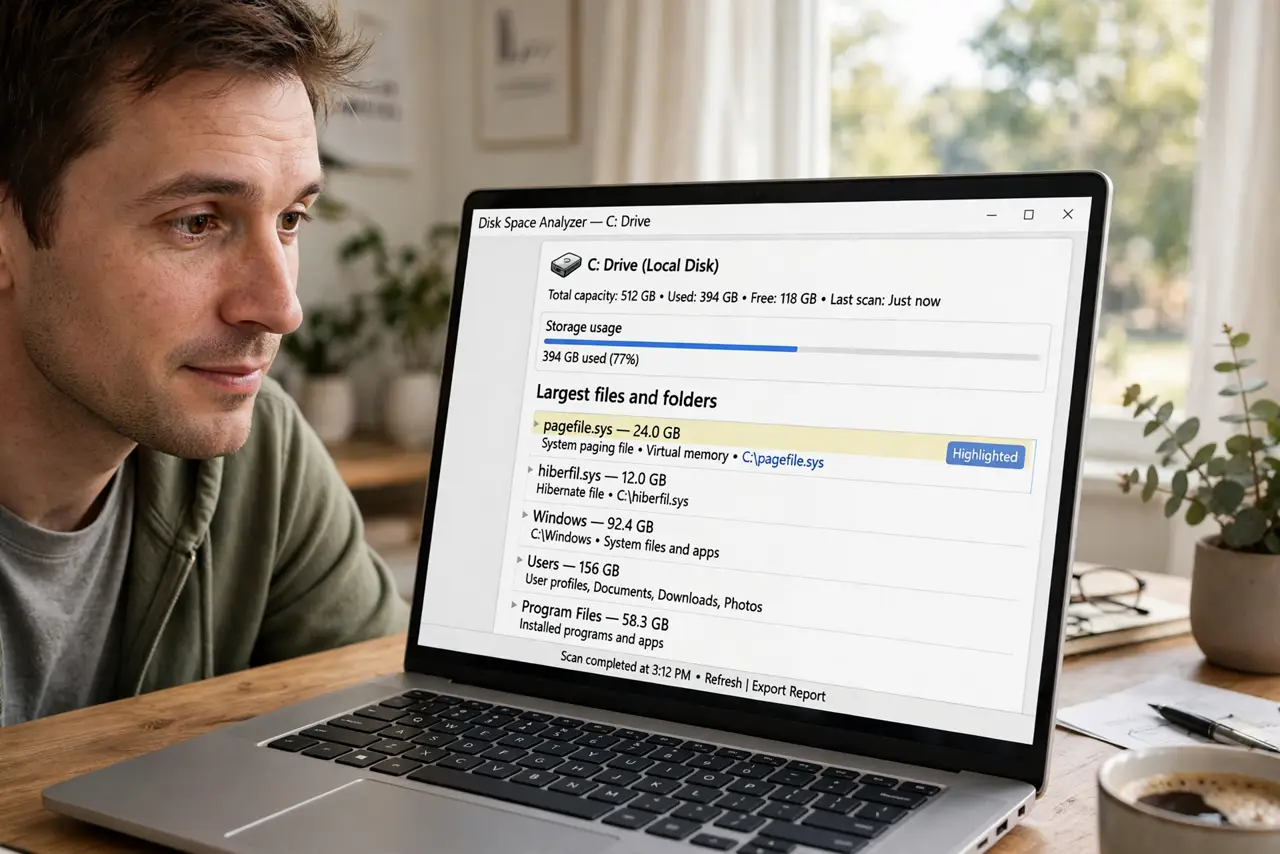
You ran a disk-space scan and found pagefile.sys — a single file eating tens of gigabytes. Deleting it feels tempting, but the pagefile is Windows' overflow memory, and messing with it causes crashes. Here is what it is, why it is huge, and the only safe ways to shrink it.
TL;DR / Quick Fix
Quick fix: the pagefile is Windows' overflow memory on disk — huge is normal with lots of RAM, and shrinking it can cause crashes. Leave it system-managed unless you have a reason. If disk space is tight, free space elsewhere first; the pagefile is the wrong place to hunt gigabytes.
Follow these steps
- Understand what the pagefile is. When RAM fills up, Windows parks less-used memory on disk in pagefile.sys. It is overflow parking for memory — essential, not junk.
- Know why it is huge. Windows sizes it relative to your RAM — lots of RAM means a big pagefile. That is normal and by design, not a bug.
- Do not delete it. You cannot delete it while Windows runs, and forcing it causes instability. The pagefile is load-bearing — treat it like a wall, not clutter.
- Leave it system-managed. The default setting lets Windows grow and shrink it as needed. Manual sizes are for edge cases — servers, tiny SSDs with expert owners — not typical PCs.
- Free space elsewhere first. If disk space is tight, the pagefile is the wrong hunt. Clean downloads, empty the recycle bin, and run disk cleanup — real gigabytes live there.
- Shrink it safely if you must. In Advanced System Settings, Virtual Memory, you can set a custom size — but keep it at least as large as your RAM for crash dumps, and only if you know why you are doing it.

What NOT to do
- Do not delete pagefile.sys. It is protected for a reason — removing it destabilizes the system.
- Do not disable the pagefile to save space. Some programs expect it to exist; disabling causes mysterious crashes.
- Do not set a tiny fixed size casually. Too small means out-of-memory crashes under load — the default exists for a reason.
- Do not confuse it with hiberfil.sys. That is the hibernation file — a different giant, with its own separate toggle.
Frequently asked questions
How big should the pagefile be?
Whatever Windows chooses automatically — usually a multiple of your RAM. Manual tuning helps almost nobody on a home PC.
Can I move the pagefile to another drive?
Yes, in the Virtual Memory settings — useful if your system drive is a tiny SSD and you have a roomy second drive.
Will a bigger pagefile make my PC faster?
No. The pagefile is emergency overflow, not extra RAM — more of it does not speed anything up.