Enable Hibernate
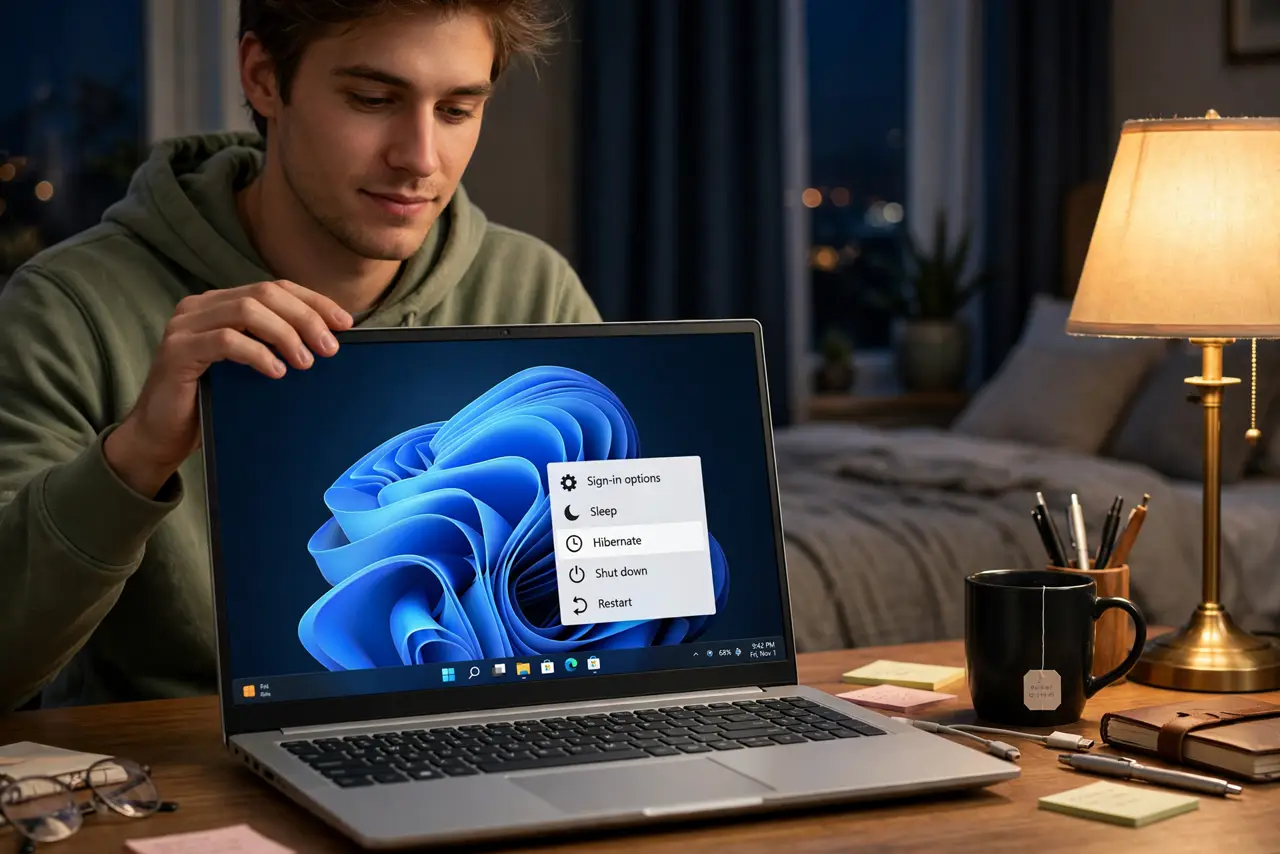
Your laptop sleeps overnight and wakes with a dead battery — sleep sips power constantly, and long sleeps drain it dry. Hibernate saves everything to disk and powers off fully: zero drain, same open windows when you return. It is often hidden by default; here is how to enable it.
TL;DR / Quick Fix
Quick fix: open Control Panel, Power Options, and choose what the power buttons do — enable Hibernate so it appears in the menu. Hibernate saves your session to disk and uses zero power, unlike sleep. Use it for laptops that sit unused for days; use sleep for short breaks.
Follow these steps
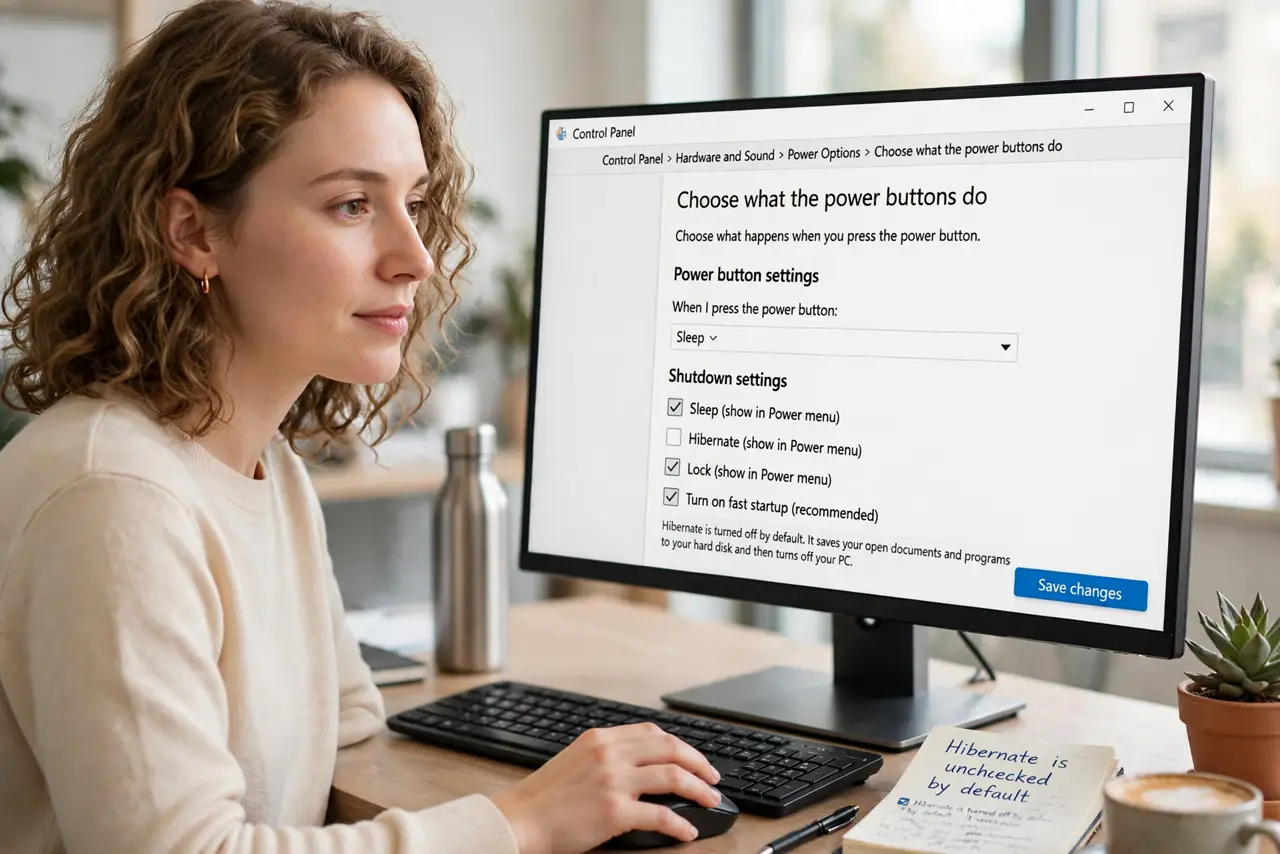
- Open the power button settings. Open Control Panel, Power Options, and click Choose what the power buttons do. Hibernate lives here, often unchecked by default.
- Enable Hibernate. Click Change settings that are currently unavailable, then check Hibernate. It now appears in the Start menu power options — see the sleep vs hibernate comparison for when to use each.
- Fix it if the option is missing. If Hibernate does not appear even after enabling, it may be disabled at a deeper level — the hibernate missing fix covers the usual causes.
- Choose hibernate for long breaks. Overnight, weekends, travel — hibernate. Zero power drain and your session waits on disk. Sleep is for coffee breaks.
- Understand the tradeoff. Hibernate takes longer to wake than sleep — ten to twenty seconds versus instant. That is the price of zero drain; for days idle it is worth it.
- Pair it with good timeouts. Set screen timeouts sensibly too — hibernate handles the long idle, timeouts handle the short ones.
What NOT to do
- Do not use hibernate for quick breaks. The slow wake is annoying for five-minute pauses — sleep is the right tool there.
- Do not enable hibernate and expect instant wake. Ten to twenty seconds is normal — that is the disk-restore price.
- Do not confuse hibernate with shutdown. Hibernate saves your session; shutdown closes everything — pick based on whether you want your windows back.
- Do not ignore a missing hibernate option. If it will not enable, something deeper is off — investigate rather than settling for sleep.
Frequently asked questions
Does hibernate wear out my SSD?
Negligibly on modern SSDs — the occasional full-memory write is nothing compared to daily normal use.
Why did my battery still drain in hibernate?
Something kept the machine awake — check wake timers and USB devices. True hibernate uses zero power.
Sleep or hibernate for overnight?
Hibernate for overnight and longer. Sleep is fine for a few hours; beyond that, hibernate wins on battery.