Toggle Hidden Files Quickly
You need to peek at the AppData folder — but digging through Folder Options every time is tedious. The View menu has a one-click checkbox, and pinning it to the Quick Access Toolbar makes it instant. Just remember to hide them again: hidden files are hidden for a reason.
TL;DR / Quick Fix
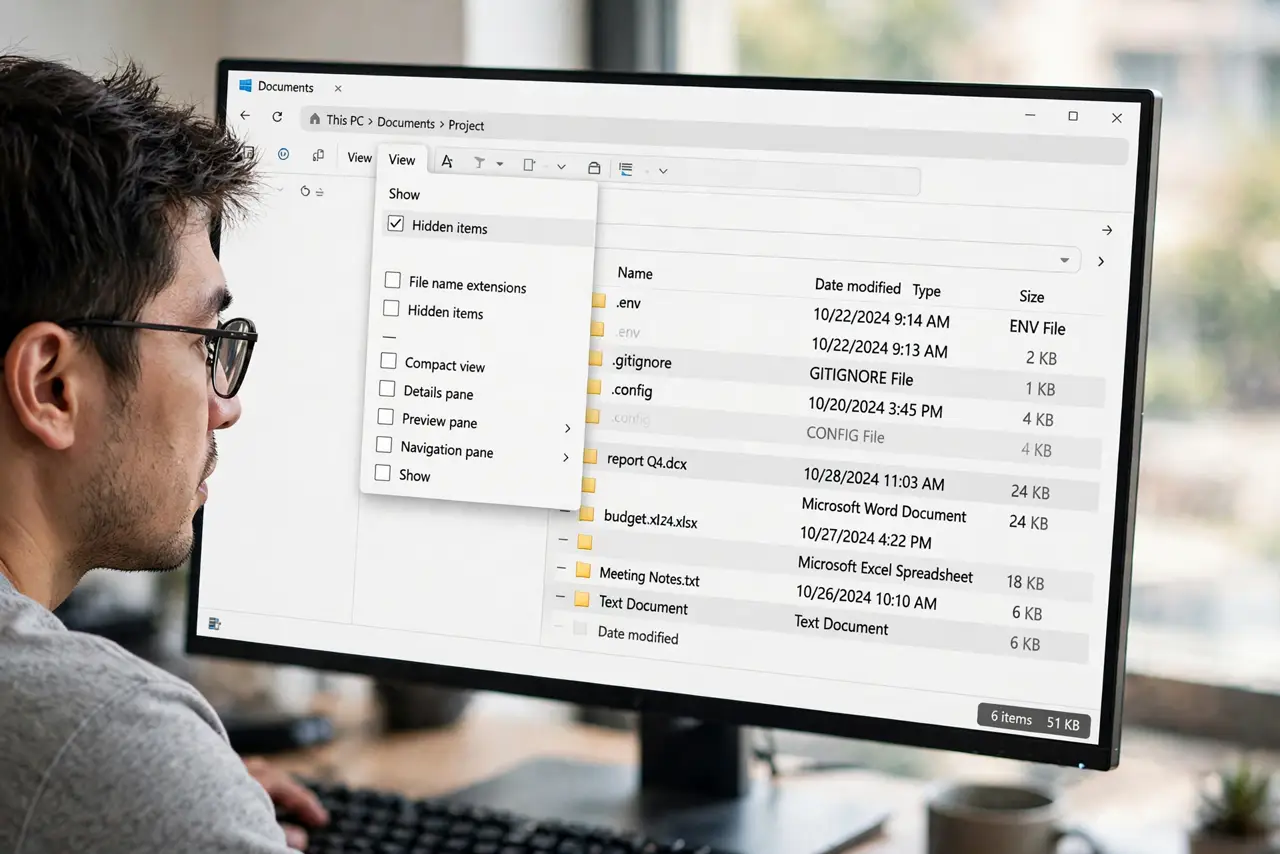
In File Explorer's View menu, check 'Hidden items' — hidden files appear immediately. For a faster toggle, pin the command to the Quick Access Toolbar so it is one click away. Hide them again afterward: files are hidden because deleting the wrong one can break programs.
Follow these steps
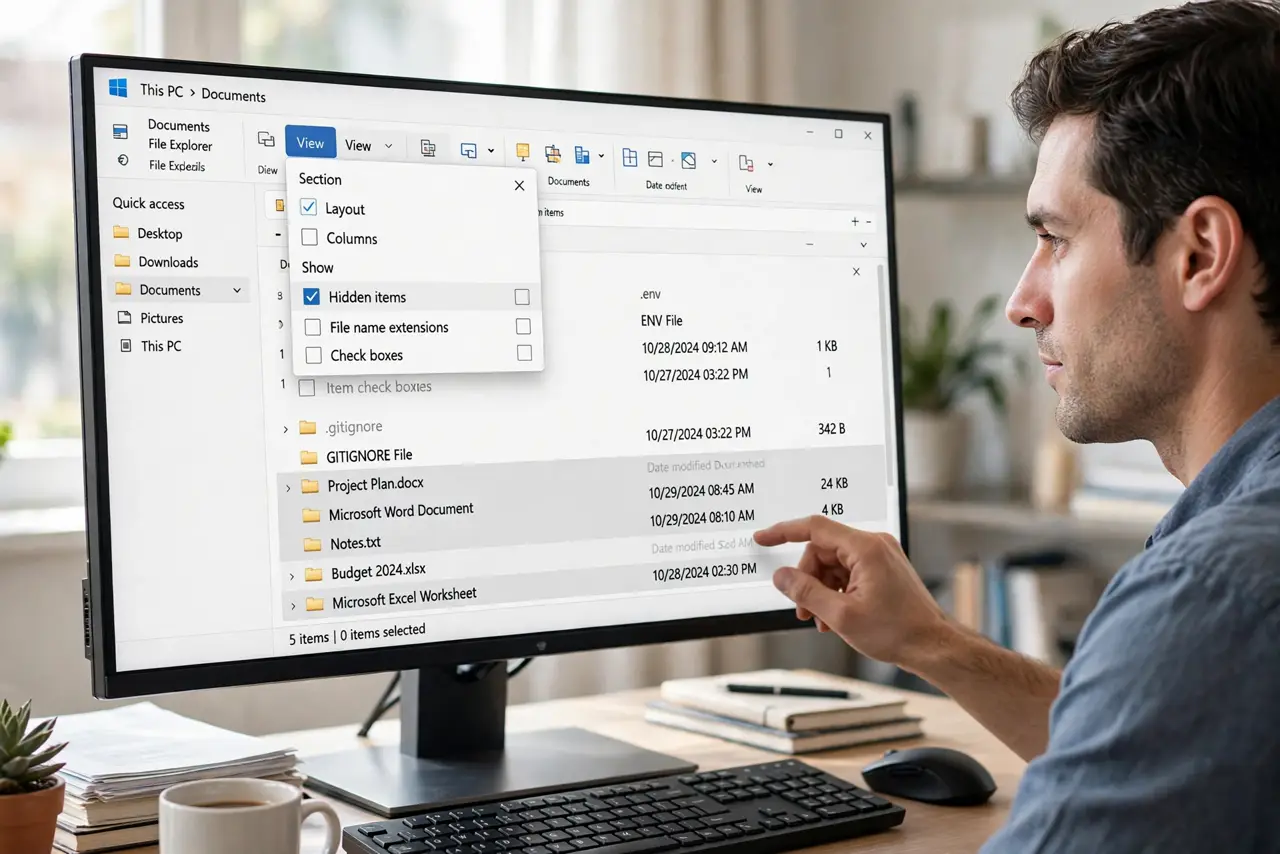
- Use the View menu checkbox. In File Explorer, open the View menu (or View > Show on Windows 11) and check 'Hidden items'. Hidden files appear at once, shown slightly faded.
- Pin it to the Quick Access Toolbar. Right-click the 'Hidden items' entry and add it to the Quick Access Toolbar. The toggle is then one click, always visible.
- Learn what the faded look means. Hidden files and folders render semi-transparent. That faded look is your reminder that these are system files — look, don't casually delete.
- Hide them again when done. Uncheck the same box after your task. Leaving hidden files visible invites accidental damage during routine cleanup.
- Know the deeper Folder Options switch. Folder Options > View has 'Show hidden files' plus 'Hide protected operating system files' — the latter needs a separate, deliberate uncheck.
- Watch for reappearing settings. Some updates reset the hidden-files choice — see the show-after-update note if it keeps flipping.
What NOT to do
- Do not delete faded files casually. The faded look marks system and program files — removing the wrong one breaks software.
- Do not uncheck 'Hide protected operating system files' unless you must. That deeper layer guards boot-critical files.
- Do not leave hidden files visible permanently. The one-click toolbar toggle exists precisely so you can flip it back.
- Do not confuse hidden files with encrypted files. Hidden means invisible by attribute; encrypted means unreadable without a key — different things.
Frequently asked questions
Why are some files hidden at all?
To protect you from yourself. System and program files that users rarely need — and often break things by deleting — stay out of sight.
Is it safe to show hidden files?
Showing is safe; deleting is where the risk lives. Look freely, touch carefully.
Why do hidden files keep reappearing in view?
An update or a Folder Options reset can flip the switch back. Re-hide with the same checkbox — it takes a second.