Hide the Taskbar? Basics
That strip at the bottom of your screen is always there, eating space even when you are not using it. Auto-hiding the taskbar makes it slide away until your cursor touches the screen edge — more room for your work, a cleaner look, and your pinned apps still one nudge away. Here is how to hide it and bring it back at will.
TL;DR / Quick Fix
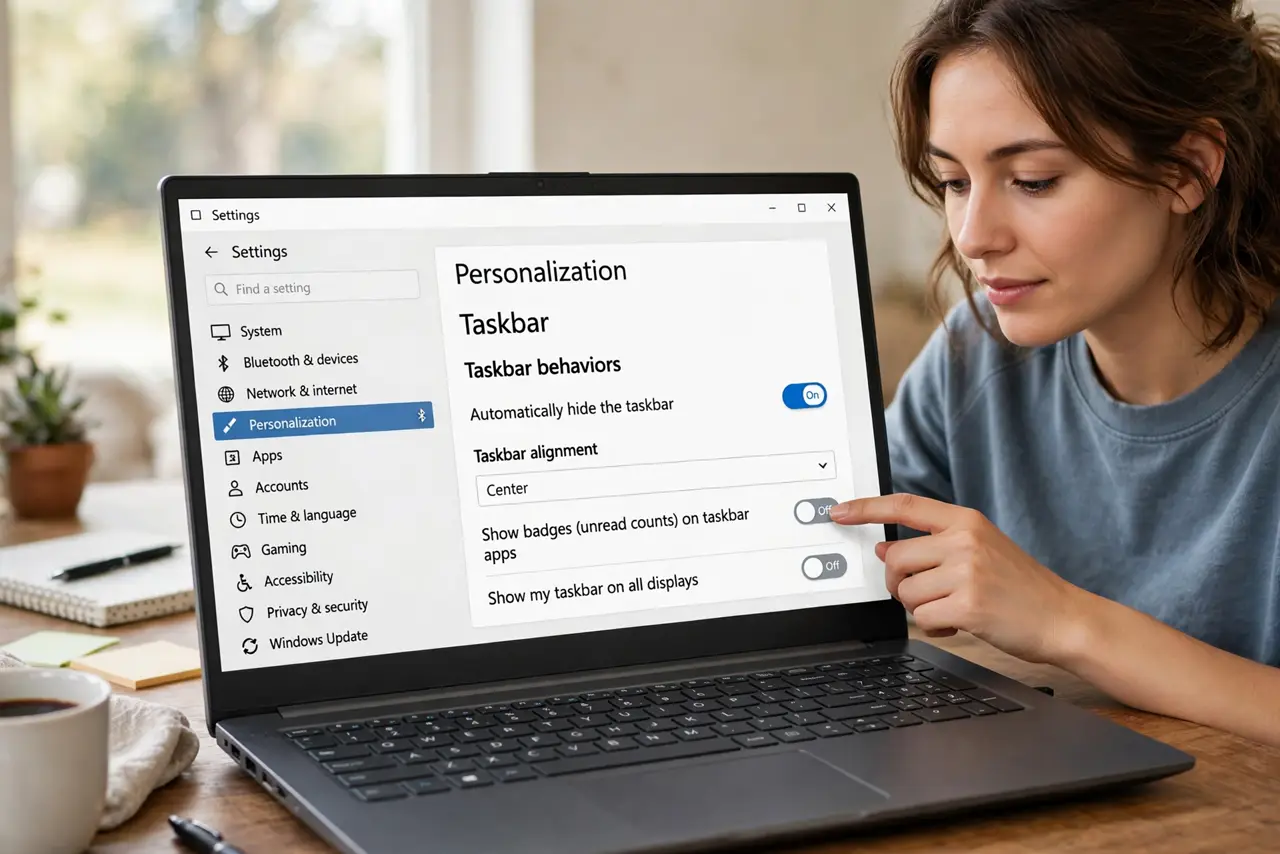
Quick fix: right-click the taskbar, choose Taskbar settings, and turn on 'Automatically hide the taskbar.' Move your cursor to the screen edge to reveal it. Turn the same switch off to bring it back permanently — nothing is deleted either way.
Follow these steps
- Turn on auto-hide. Right-click an empty spot on the taskbar, choose Taskbar settings, and enable 'Automatically hide the taskbar.' It slides away immediately — your apps keep running untouched.
- Learn the reveal nudge. Push your cursor against the bottom edge (or wherever your taskbar lives) and it slides back up. Notifications and the clock peek through when something needs you.
- Choose per-setup behavior. Windows lets you set hiding separately for desktop and tablet mode. Hide it on a small laptop screen but keep it visible on a big external monitor — match each display to its size.
- Keep your pins reachable. Auto-hide pairs perfectly with pinned apps — one nudge reveals your whole launcher row. Your muscle memory for icon positions keeps working.
- Troubleshoot a stubborn taskbar. If it refuses to hide, an app is demanding attention — look for a flashing icon or an open notification. Close or acknowledge it and the taskbar hides again.
- Turn it off just as easily. Hate it? Flip the same switch off. Hiding is pure preference — no apps, files, or settings are affected either way.
What NOT to do
- Do not panic if the taskbar 'disappears.' It is hidden, not gone — nudge the screen edge and check this setting first.
- Do not hide it and then complain about missed notifications. Hidden taskbars still flash for attention, but subtly — check the notification center regularly.
- Do not expect it to hide during fullscreen video. Fullscreen apps cover it anyway; auto-hide matters most for windowed work.
- Do not forget where you put it. If you moved the taskbar alignment or position, the reveal edge moves with it — nudge the right edge.
Frequently asked questions
Why won't my taskbar stay hidden?
An app is requesting attention — a flashing icon, an update prompt, or a background notification. Find the flashing icon, address it, and hiding resumes.
Does auto-hide work on multiple monitors?
Yes — set it per display in Taskbar settings. Each monitor's taskbar hides and reveals independently.
Can I hide it only on one screen?
Yes. In Taskbar settings under multiple displays, you can show the taskbar on all displays or just the main one, with hiding applied per your choice.