Windows Hotspot Password Rejected? Fix It
When a Windows hotspot password keeps getting rejected, the phone or tablet is usually typing the right password into the wrong network, or the hotspot settings changed after an update. Checking the exact password, the network name, and the band narrows it down fast.
TL;DR / Quick Fix
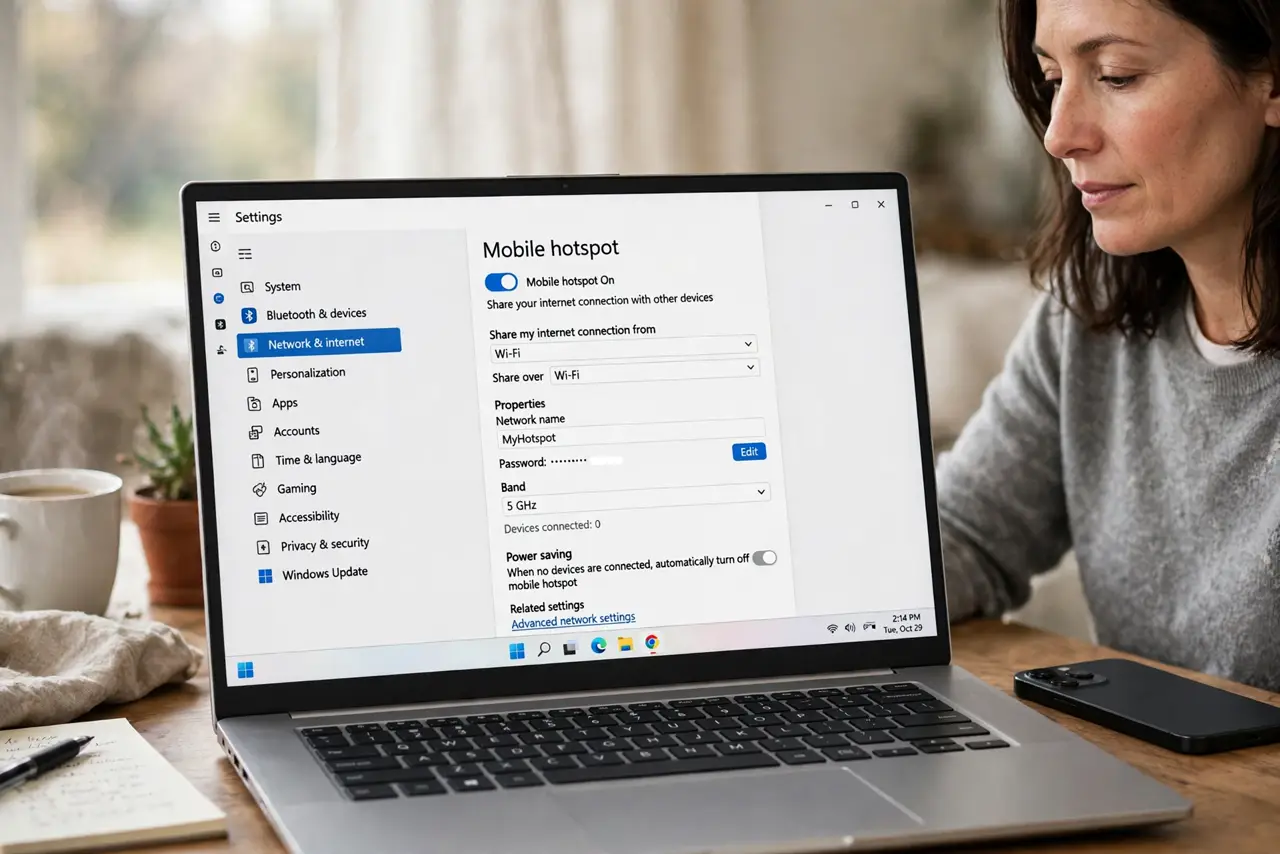
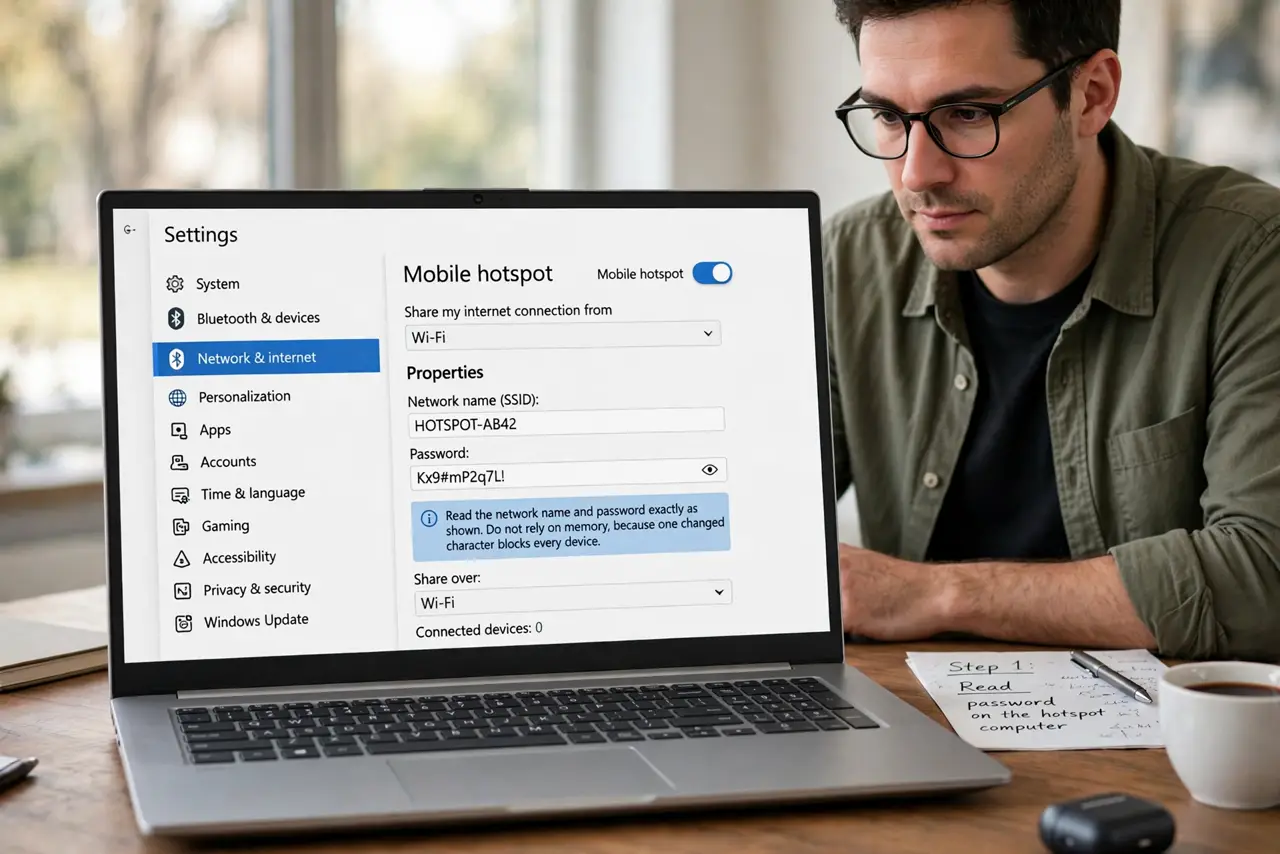
Quick fix: on the Windows computer, open Settings, then Network and internet, then Mobile hotspot, and check the exact network name and password shown there. On the joining device, forget that network, then reconnect and type the password exactly as shown, watching for capital letters.
Follow these steps
- Read the password on the hotspot computer. Open Settings, then Network and internet, then Mobile hotspot, and read the network name and password exactly as shown. Do not rely on memory, because one changed character blocks every device.
- Forget the network on the joining device. On the phone or tablet, forget the hotspot network. An old saved password will keep being tried first, even after you change the hotspot password.
- Type the password by hand, carefully. Reconnect and type the password character by character, watching capitals and similar characters. If your keyboard autocorrects, turn that suggestion off for this entry.
- Change the hotspot password once. If careful typing still fails, change the hotspot password to a short, simple one temporarily, save it, and test again. If the simple password works, the original password had a character problem.
- Check the network band. In hotspot properties, check whether the hotspot uses 5 GHz only. Some older devices cannot see a 5 GHz network, so switch to 2.4 GHz if the joining device is older, then test again.
- Restart the hotspot and test one device. Turn the hotspot off and back on, then connect one device only. If one device connects, add the others one at a time, so a single faulty device cannot confuse the test.
What NOT to do
- Do not keep retyping the same password faster and faster. Speed does not fix a wrong character, and repeated failures can lock you out of trying for a while.
- Do not remove the hotspot password to make connecting easier. An open hotspot lets anyone nearby use your connection and your data.
- Do not share the hotspot password in a screenshot online. A screenshot can reveal the password to strangers, and changing it afterwards is extra work you can avoid.
- Do not reset network settings on the phone before you check the hotspot password. A reset wipes every saved network, while the problem may be one wrong character.
Frequently asked questions
Why does the password fail if I am sure it is right?
You may be connecting to an old network name with the same name, or a capital letter differs. Forgetting the network and reading the password fresh usually reveals the mismatch.
Should I use a simple password permanently?
No. Use the simple password only as a test. Once connecting works, set a longer password again and update the joining devices.
What if no device can connect?
Restart the hotspot on the Windows computer and test one device. If none connects, the hotspot settings, not the joining devices, are the problem.