Hyper-V on Home Edition? Workarounds
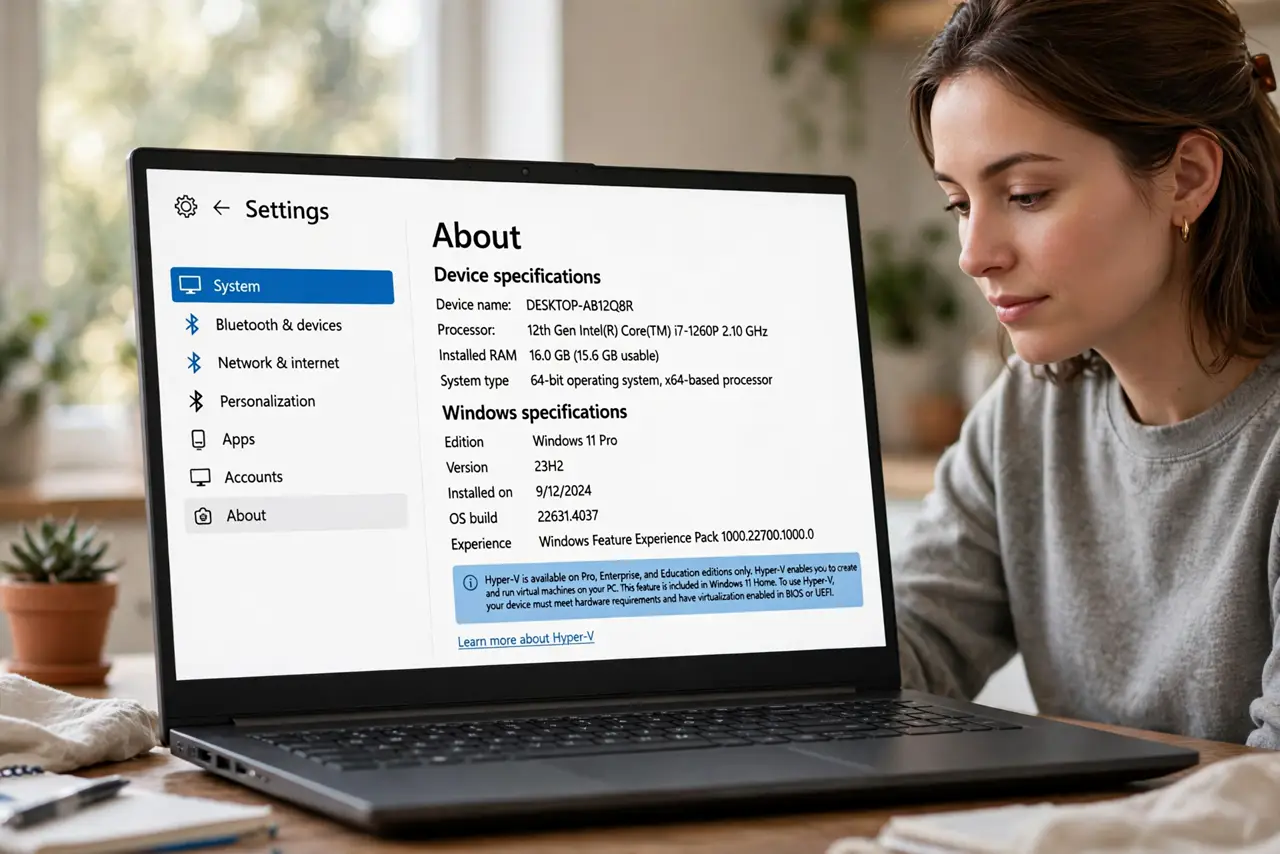
You followed a tutorial that says open Hyper-V Manager — but on Windows Home, Hyper-V simply is not there. Microsoft reserves it for Pro, Enterprise, and Education. The good news: for most people who want virtual machines, free alternatives are easier anyway. Here is the honest map of your options.
TL;DR / Quick Fix
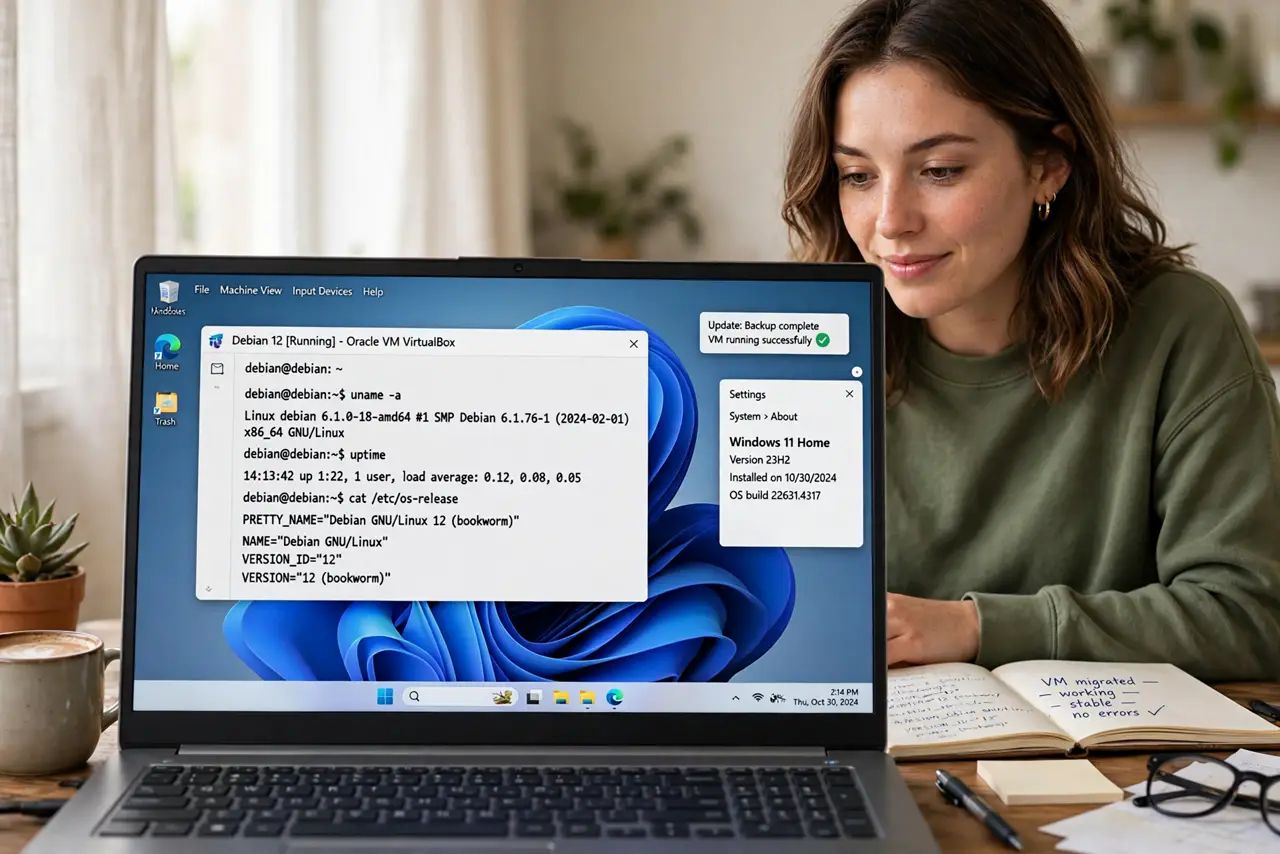
Quick fix: Hyper-V is not available on Windows Home and there is no supported way to add it. Use VirtualBox or VMware Workstation Player instead — both are free and run the same virtual machines. Power users who truly need Hyper-V should upgrade to Pro. WSL covers the Linux-terminal case.
Follow these steps
- Accept the edition limit. Hyper-V is a Pro-and-up feature; Home editions cannot install it through any supported path. Internet scripts that claim to enable it are unofficial and break on updates.
- Pick VirtualBox for general use. Oracle VirtualBox is free, well documented, and runs Windows, Linux, and older systems. Download it only from the official site.
- Pick VMware Workstation Player for simplicity. VMware's free Player is lighter than VirtualBox for many users and handles Windows guests smoothly. Either choice is legitimate — there is no wrong answer here.
- Consider WSL for Linux only. If you only wanted a Linux terminal, skip virtual machines entirely: install WSL gives you real Linux inside Windows with far less overhead.
- Upgrade to Pro only if you must. If work or a course requires actual Hyper-V, the clean path is Settings > System > About and upgrading the edition of Windows. No script substitutes for the real feature.
- Enable virtualization first. Whichever tool you pick needs Intel VT-x or AMD-V switched on in the BIOS. One restart to flip that switch saves an hour of confusing errors.
What NOT to do
- Do not run sketchy batch scripts that promise Hyper-V on Home. They patch system files and routinely break after the next Windows update.
- Do not run two hypervisors at once. VirtualBox and VMware fight over the same hardware virtualization — pick one per machine.
- Do not expect gaming performance in a virtual machine. Virtual machines are for testing and learning, not for graphics-heavy games.
- Do not give the virtual machine all your RAM. Leave at least half for Windows itself or both systems crawl.
Frequently asked questions
Can I install Hyper-V on Windows 11 Home?
Not through any Microsoft-supported path. The feature packages are simply absent from Home, and unofficial enablers tend to break on updates.
Is VirtualBox really free?
Yes, for personal and educational use. Businesses should check the current license terms, which have changed over the years.
Do I still need virtualization in the BIOS?
Yes — every virtual-machine tool, Microsoft's or not, needs the CPU's virtualization extensions enabled to run 64-bit guests at usable speed.