Filename Characters You Can't Use
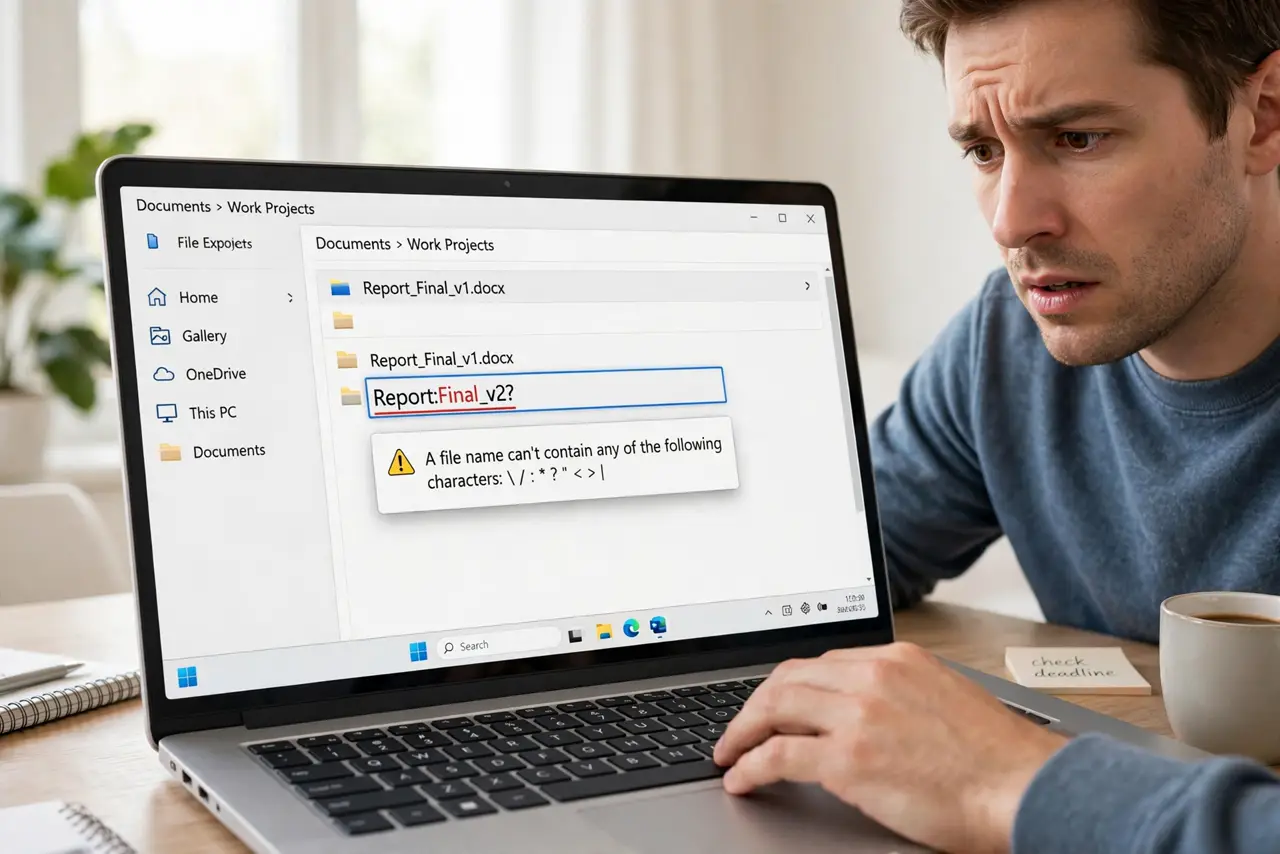
You type a filename with a question mark or a colon and Windows refuses — or worse, the file came from a Mac and now Windows will not touch it. Windows bans a small set of characters from filenames for deep technical reasons, plus a list of reserved names from the DOS era. Here is the full list and the easy workarounds.
TL;DR / Quick Fix
Quick fix: Windows forbids these characters in filenames: less-than, greater-than, colon, quote, slash, backslash, pipe, question mark, and asterisk. Replace them with dashes or underscores. Also avoid the reserved names like CON, PRN, and AUX, and never end a name with a space or period.
Follow these steps
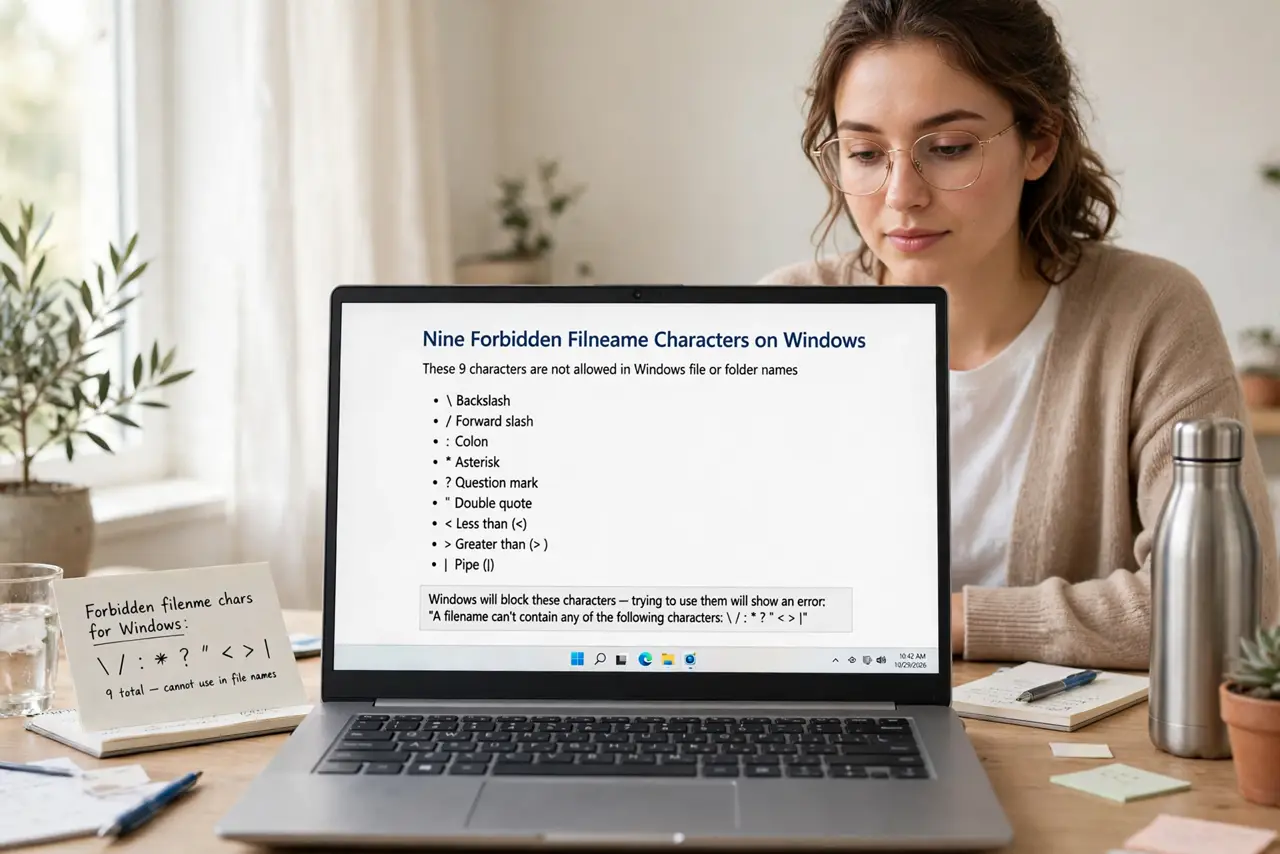
- Learn the nine forbidden characters. They are < > : " / \ | ? *. Windows rejects them because they have special meanings in paths and commands — it is structural, not arbitrary.
- Substitute smartly. Use a dash or underscore where the colon or question mark wanted to go: 'Meeting Notes - Q3' reads as well as 'Meeting Notes: Q3'.
- Avoid the reserved names. CON, PRN, AUX, NUL, and COM1 through COM9 plus LPT1 through LPT9 are forbidden as whole names — relics of the DOS era that still bite.
- Never end with a space or period. Windows strips trailing spaces and dots, which confuses sync tools and other systems. End every name with a real character.
- Fix batches with rename tools. Dozens of bad names from a Mac transfer? Rename them in bulk rather than clicking through one by one.
- Think cross-platform from the start. If files travel to Mac or cloud storage, stick to letters, numbers, dashes, underscores, and single spaces — the universally safe set.
What NOT to do
- Do not force forbidden characters with third-party tricks. Names that break Windows conventions corrupt backups and confuse every tool downstream.
- Do not use reserved names 'because it worked on Mac.' CON and friends are Windows-specific traps waiting for the file to arrive.
- Do not end filenames with dots to look clever. Windows trims them silently, and the mismatch breaks syncing and scripts.
- Do not assume the cloud will fix bad names. Sync services may rename, skip, or choke on them — clean names at the source.
Frequently asked questions
Why are these characters banned?
They are reserved for system use: slashes separate folders, colons mark drive letters, wildcards drive searches. Letting filenames use them would break path parsing.
The file came from a Mac with a colon — now what?
Rename it on first contact with Windows. One rename now beats mysterious sync failures for months.
Are emojis allowed in filenames?
Technically yes on modern Windows, but avoid them — they break older tools, scripts, and some cloud services unpredictably.