Laptop Runs Hot With the Lid Closed
You close the laptop lid, put it in your bag, and later find it hot with the battery drained — it never really slept. Modern standby keeps the PC half-awake, and wake timers from updates or apps can rouse it fully. This guide shows how to make 'closed' actually mean 'asleep.'

TL;DR / Quick Fix
Quick fix: change the lid-close action to Sleep or Hibernate in Power Options, and disable wake timers that rouse the PC overnight. Check what last woke the laptop and remove the culprit. For carrying in a bag, Hibernate is the safest choice.
Follow these steps
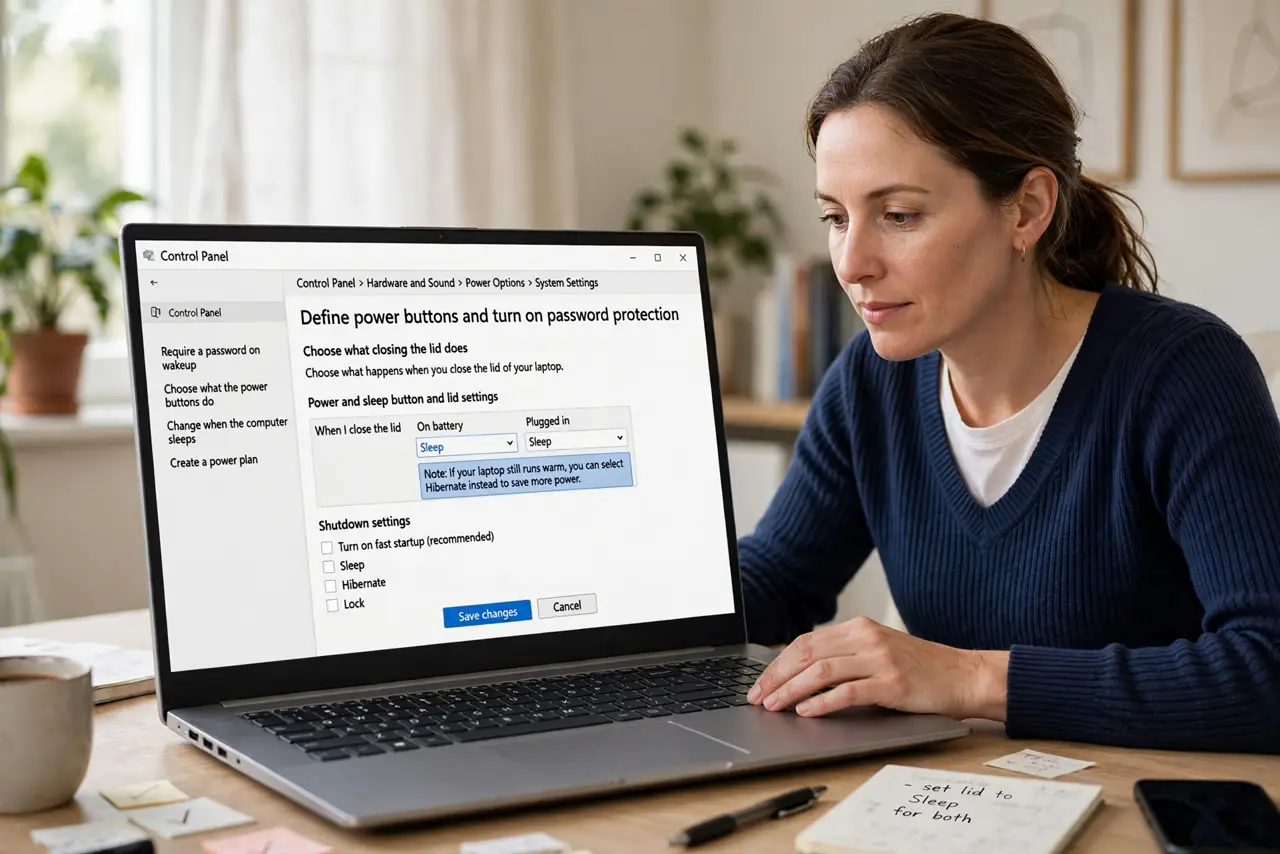
- Set the lid action explicitly. Open Control Panel > Power Options > Choose what closing the lid does. Set both battery and plugged-in actions to Sleep — or Hibernate if the laptop still runs warm.
- Disable wake timers. In the advanced power plan settings, expand Sleep > Allow wake timers and set it to Disable. Wake timers are the main reason a sleeping laptop wakes itself at 3 a.m.
- Find what woke the PC. Open a terminal and run powercfg /lastwake. The result names the device or task that woke the laptop, turning a mystery into a specific culprit.
- Remove the culprit's wake permission. In Device Manager, open the waking device's Power Management tab and uncheck 'Allow this device to wake the computer' — network adapters are frequent offenders.
- Prefer Hibernate for bags. Hibernate writes memory to disk and powers fully off, so no heat and no drain. It resumes slower than Sleep, but a bag is no place for a half-awake PC.
- Test with a timed bag check. Close the lid, wait ten minutes, then feel the laptop and check the battery. A cool laptop with the same charge means the fix worked.
What NOT to do
- Do not put a warm laptop in a bag and hope. Trapped heat can warp the battery and, in rare cases, damage the screen.
- Do not disable Sleep entirely as a workaround. Forcing shutdown every time wastes your session and does not fix the wake timers.
- Do not block the vents with a sleeve while it sleeps. If the laptop wakes, blocked vents turn warm into dangerously hot.
- Do not ignore repeated hot-bag incidents. Frequent overheating shortens battery life permanently, so fix the cause rather than tolerating it.
Frequently asked questions
Why does my laptop wake up by itself?
Wake timers from Windows Update, scheduled tasks, or devices allowed to wake the PC. Disable wake timers first.
Is it safe to leave a laptop sleeping in a bag?
Only if it truly stays asleep. If it runs warm, switch the lid action to Hibernate before bagging it.
Sleep or Hibernate — which is better?
Sleep resumes instantly but sips power; Hibernate uses none but resumes slower. For travel and bags, Hibernate wins.