Use a Laptop as a Second Screen
You have a spare laptop gathering dust and a desktop that could use more screen space. Windows can turn that laptop into a wireless second monitor — no cables, no extra hardware. It is not as crisp as a real monitor, but for chat windows and reference docs it is perfect.
TL;DR / Quick Fix
Quick fix: on the spare laptop, open Settings and enable the Wireless Display feature, then project to it from your main PC with Win+K. Both must be on the same Wi-Fi. Use it for reference windows — the slight lag rules out gaming.
Follow these steps
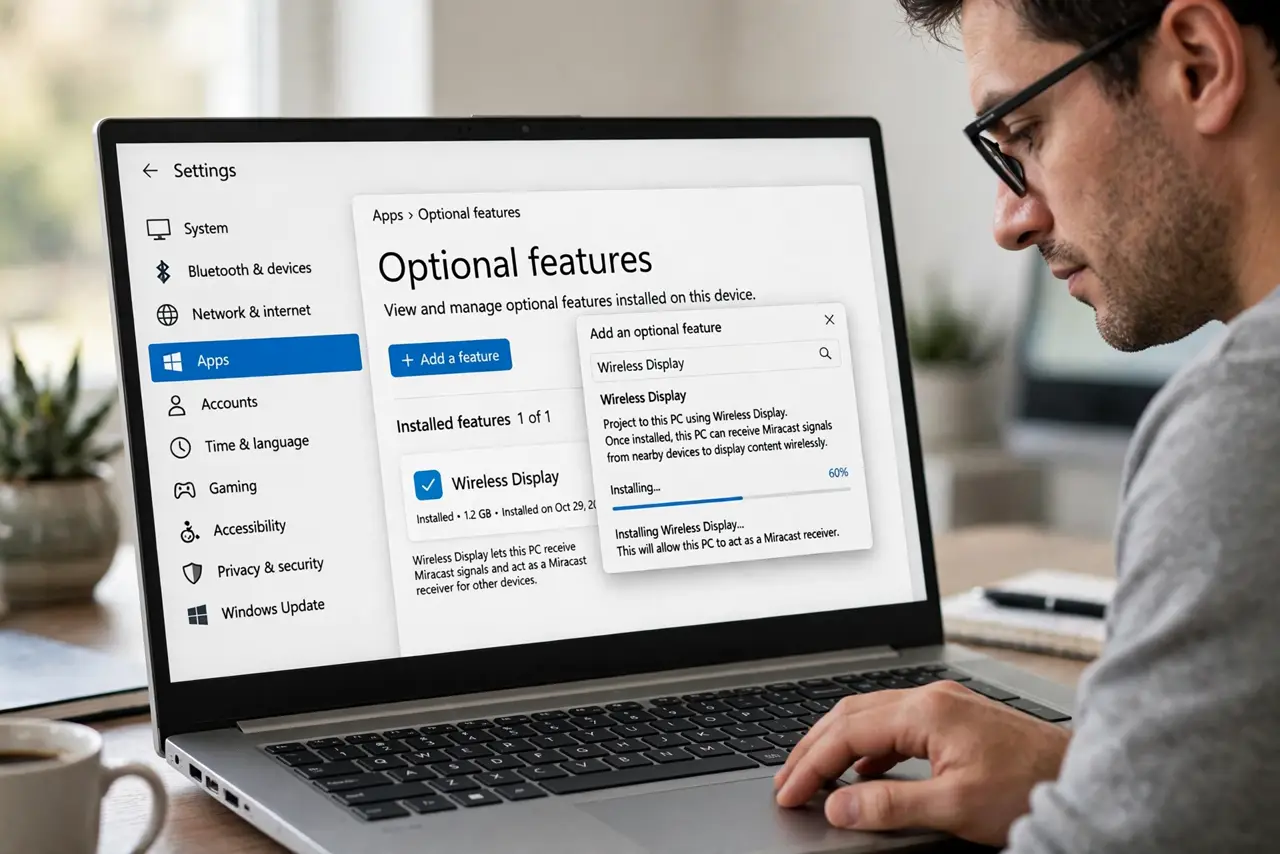
- Enable Wireless Display on the spare laptop. Go to Settings > Apps > Optional features and add Wireless Display. This turns the laptop into a Miracast receiver — the Miracast basics explain the tech.
- Open the Connect app target. On the spare laptop, launch the Wireless Display / Connect app so it is ready to receive. It shows a ready-to-connect screen.
- Connect from your main PC. Press Win+K on the main PC and select the laptop from the list. Accept the connection on the laptop.
- Set it to Extend. In Display settings, choose Extend these displays. Now you can drag windows onto the laptop screen like any second monitor.
- Position it logically. Arrange the displays in settings to match physical placement — dragging windows through the wrong edge is endlessly confusing.
- Mind the limitations. There is slight lag and the laptop must stay awake and plugged in. For video or gaming, a real monitor or cabled casting is better.
What NOT to do
- Do not expect monitor-grade sharpness. Wireless compression softens text — fine for chat, meh for spreadsheets.
- Do not let the laptop sleep. A sleeping receiver drops the connection — set it to stay awake while plugged in.
- Do not use it on different networks. Both PCs must share the same Wi-Fi, or they will never see each other.
- Do not game on it. The latency makes anything interactive miserable — reference windows only.
Frequently asked questions
Does the spare laptop need to be powerful?
No — it is just displaying a video stream. Any Windows 10/11 laptop that supports Wireless Display works.
Can I use the laptop's keyboard too?
With the right settings, yes — Windows lets the receiving PC share input back. Check the projection options.
Wired alternative?
An HDMI cable to a real monitor is always sharper and lag-free. Wireless is for convenience, not quality.